View Categories

Clone Sessions

5 min read

How to Clone Session – Private Session Six Weeks #

Watch the Video: #


Follow the Screenshots: #

#

1 – Login and Access the “Clone Sessions” screen #

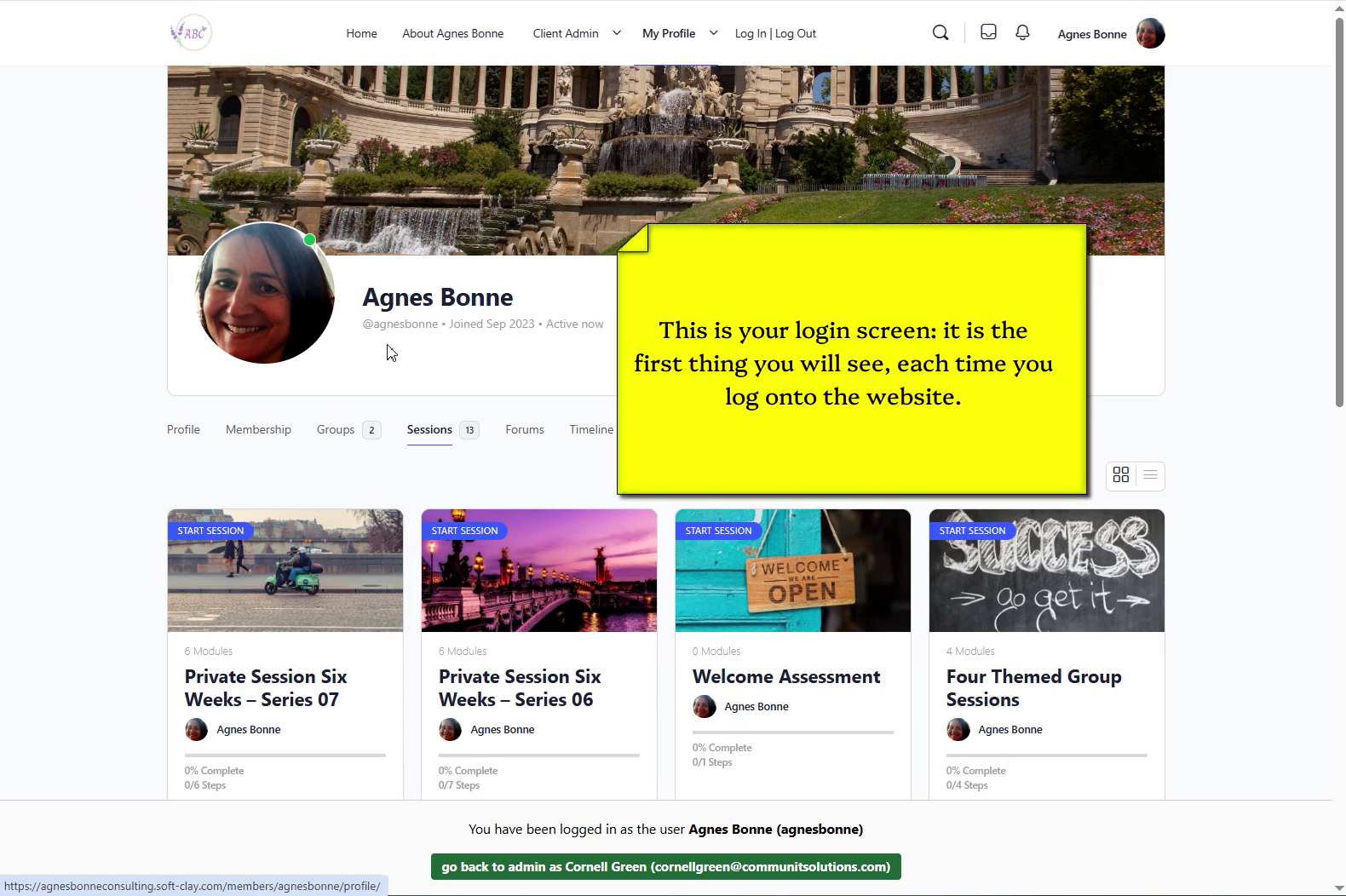
  • Intro screen – what you see when you first login
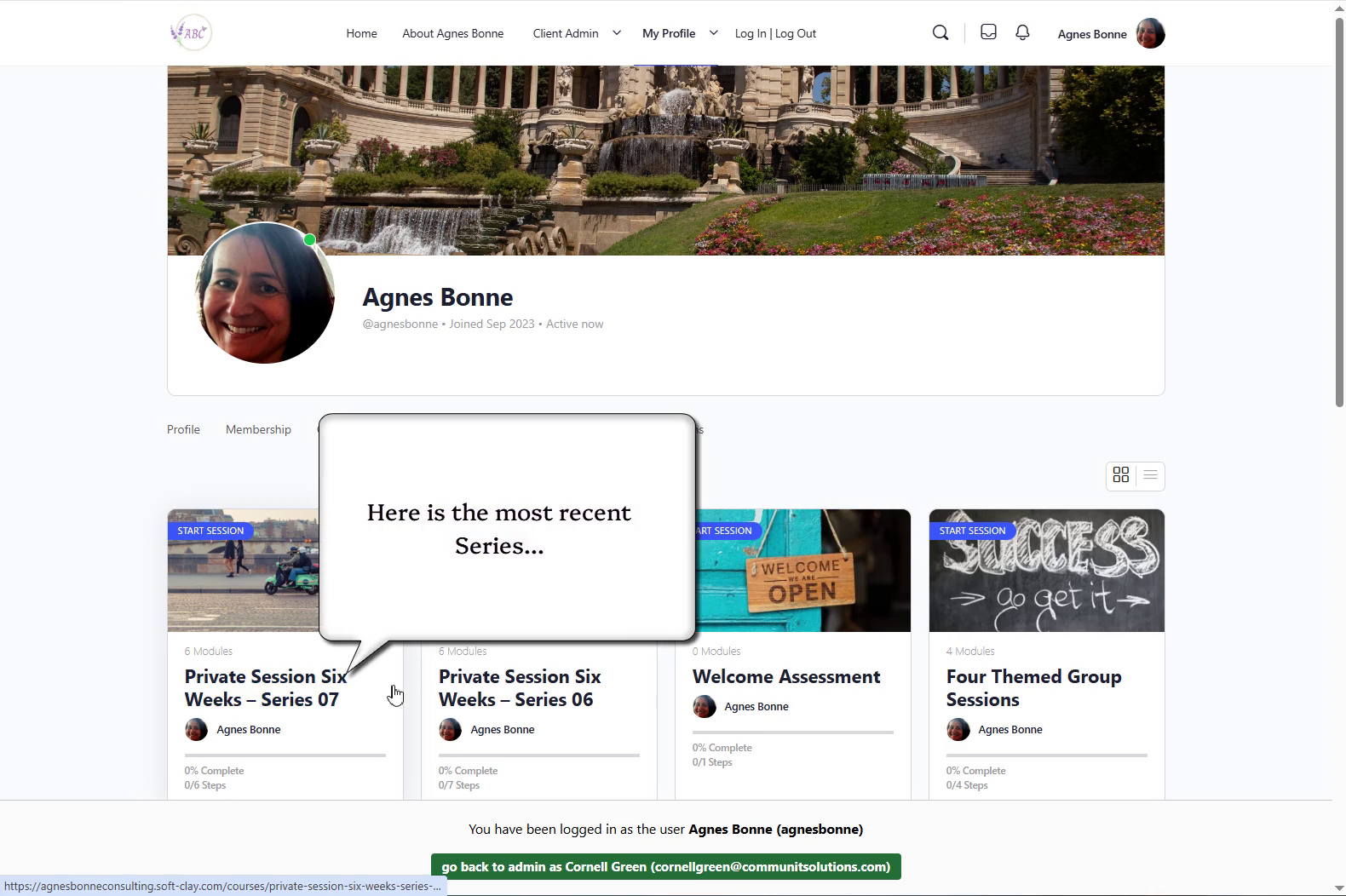
  • This is the default view of the Series
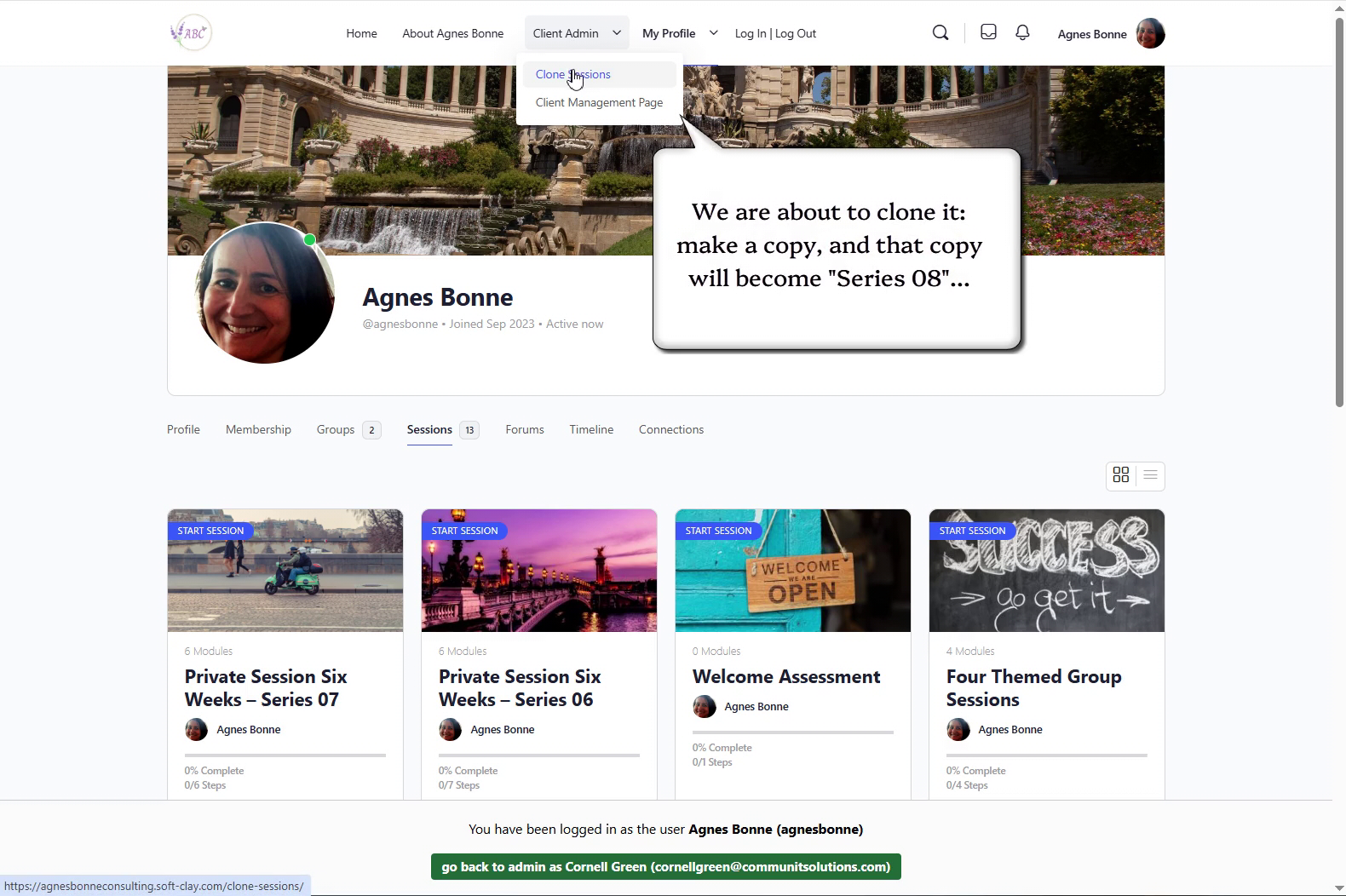
  • Select “Client Admin -> Clone Sessions”

2 – Clone the most recent series #

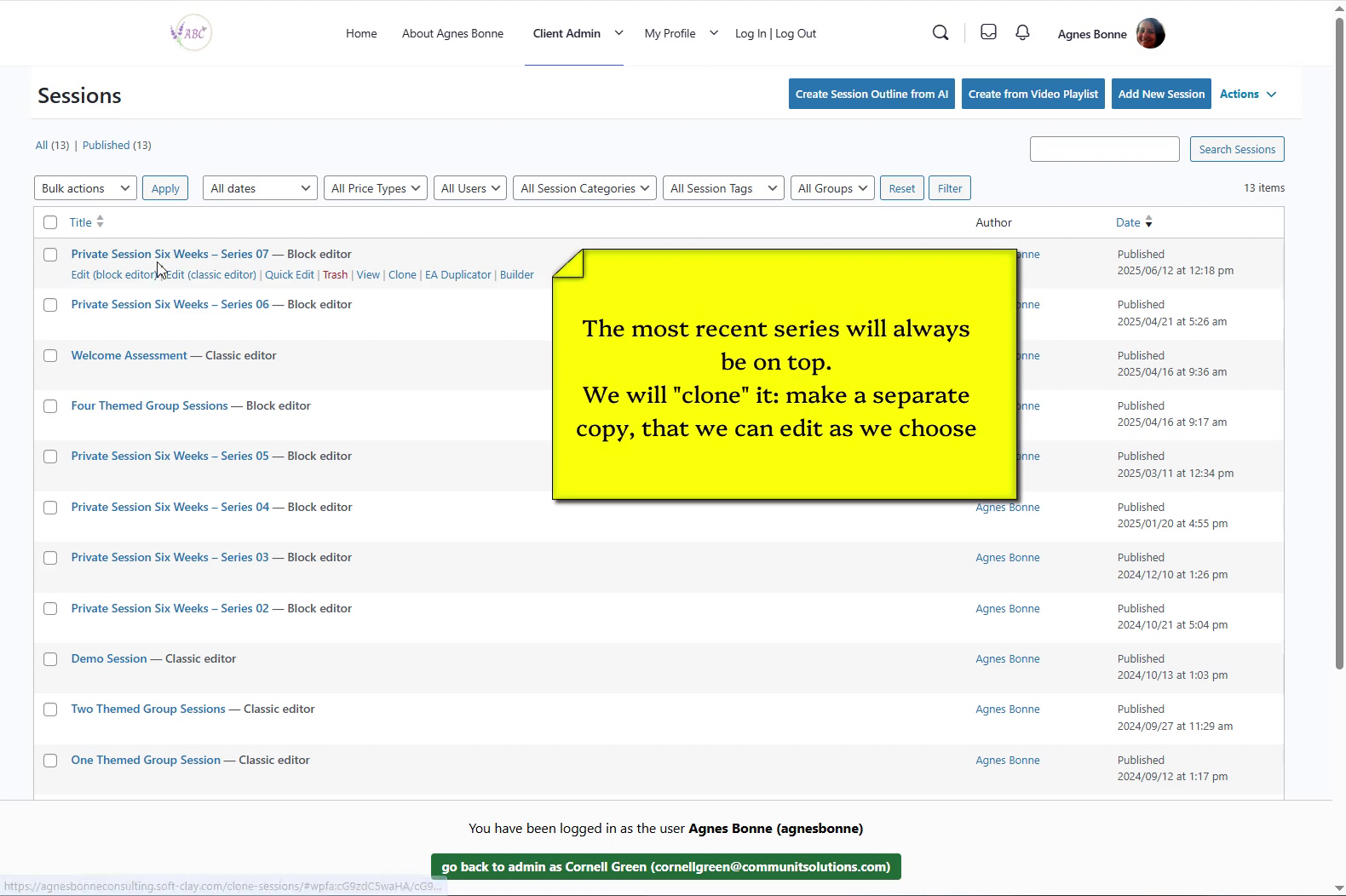
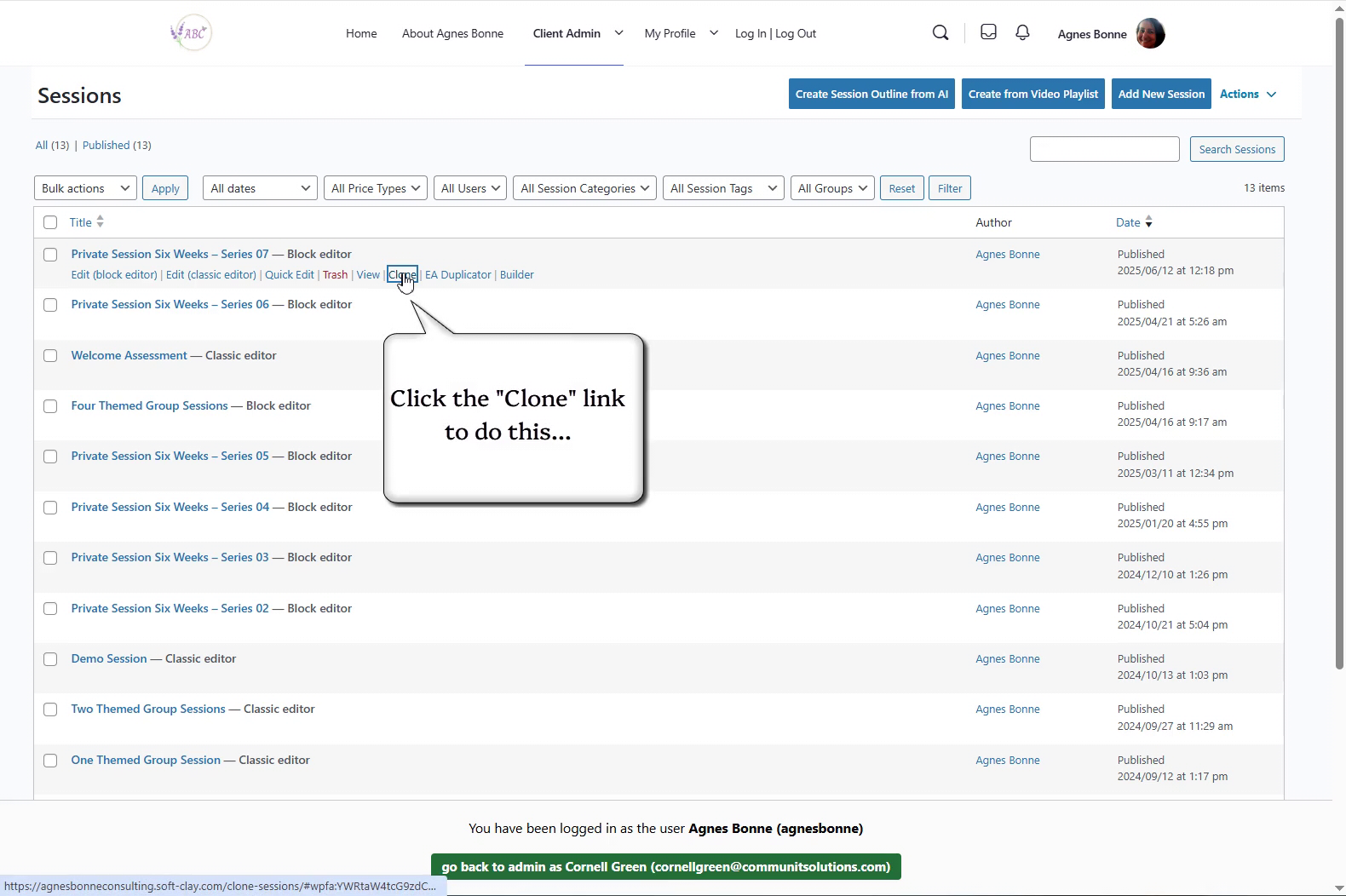
  • Click the “Clone” link under the most recent Series
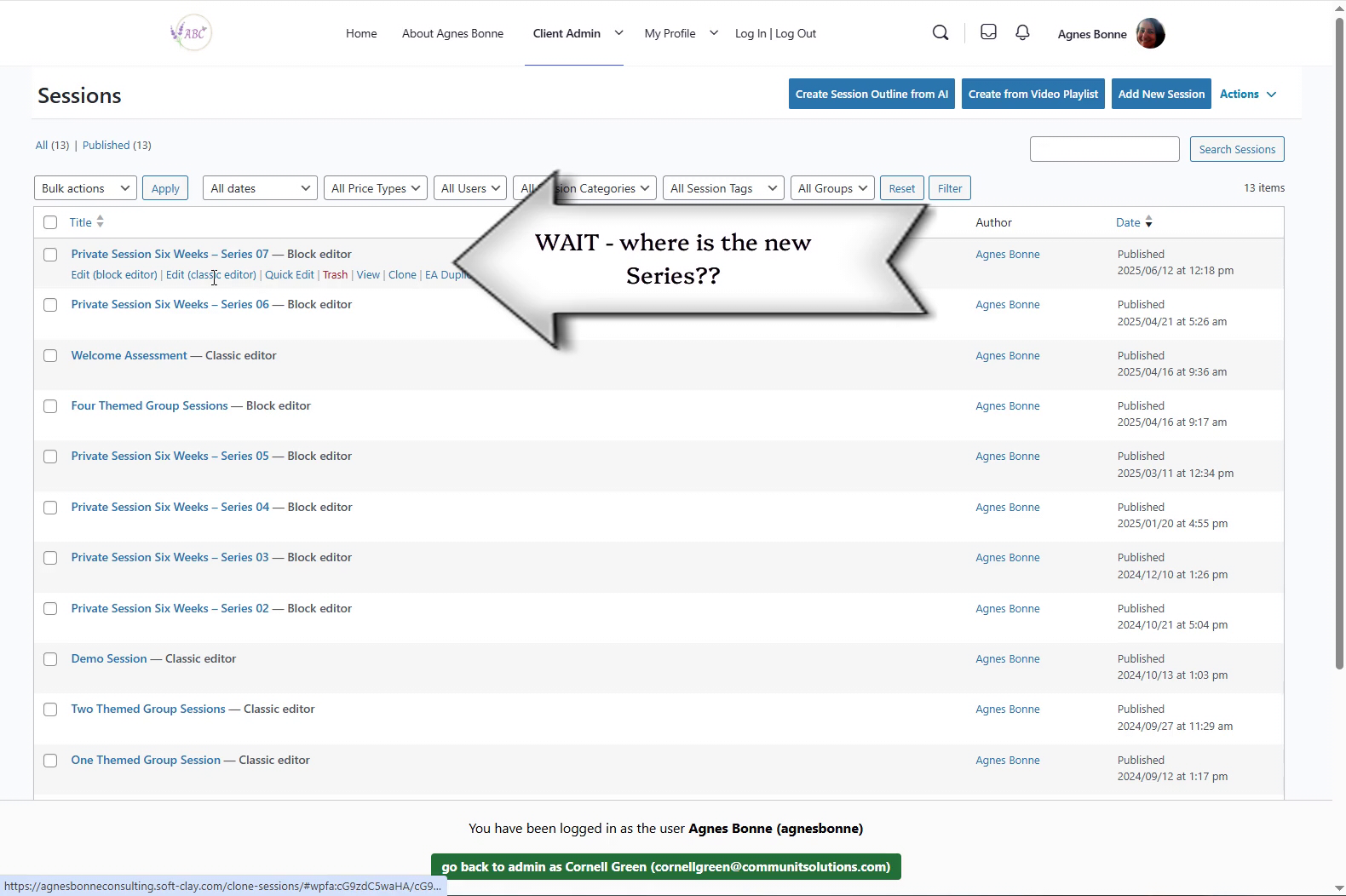
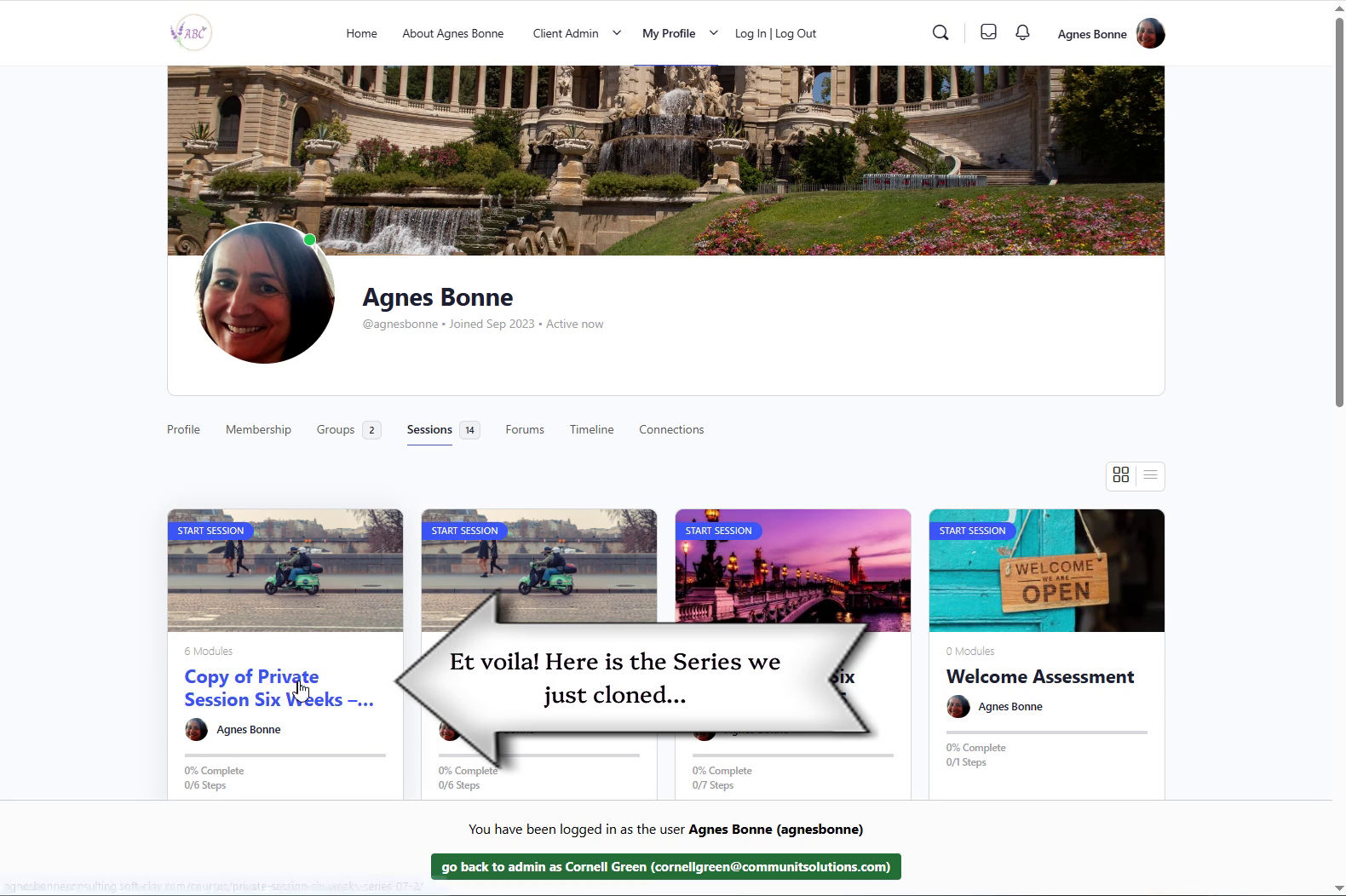
  • The cloned Series will not be immediately visible…
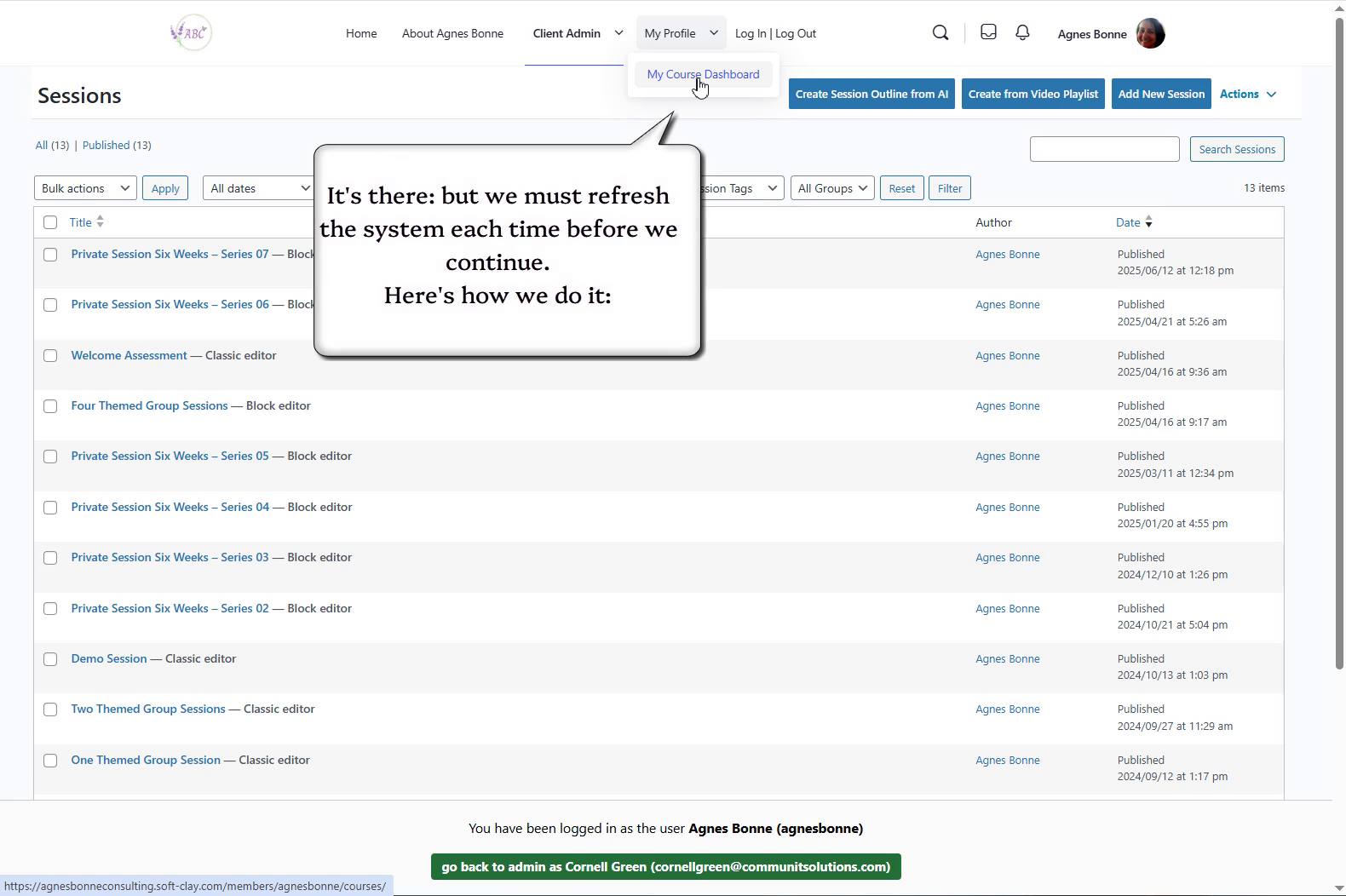
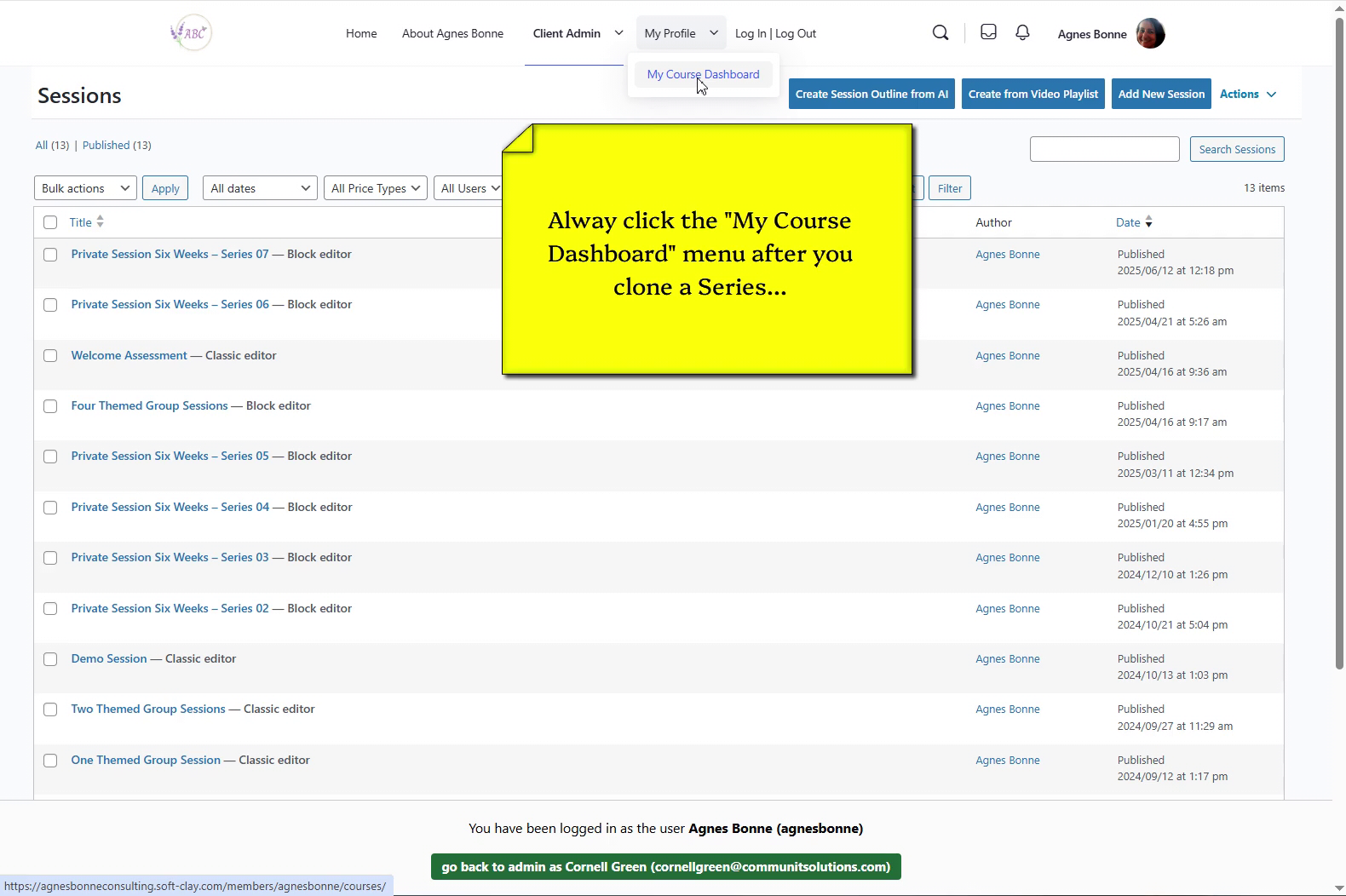
  • REMEMBER: you will always have to refresh the menu to view the new cloned Series
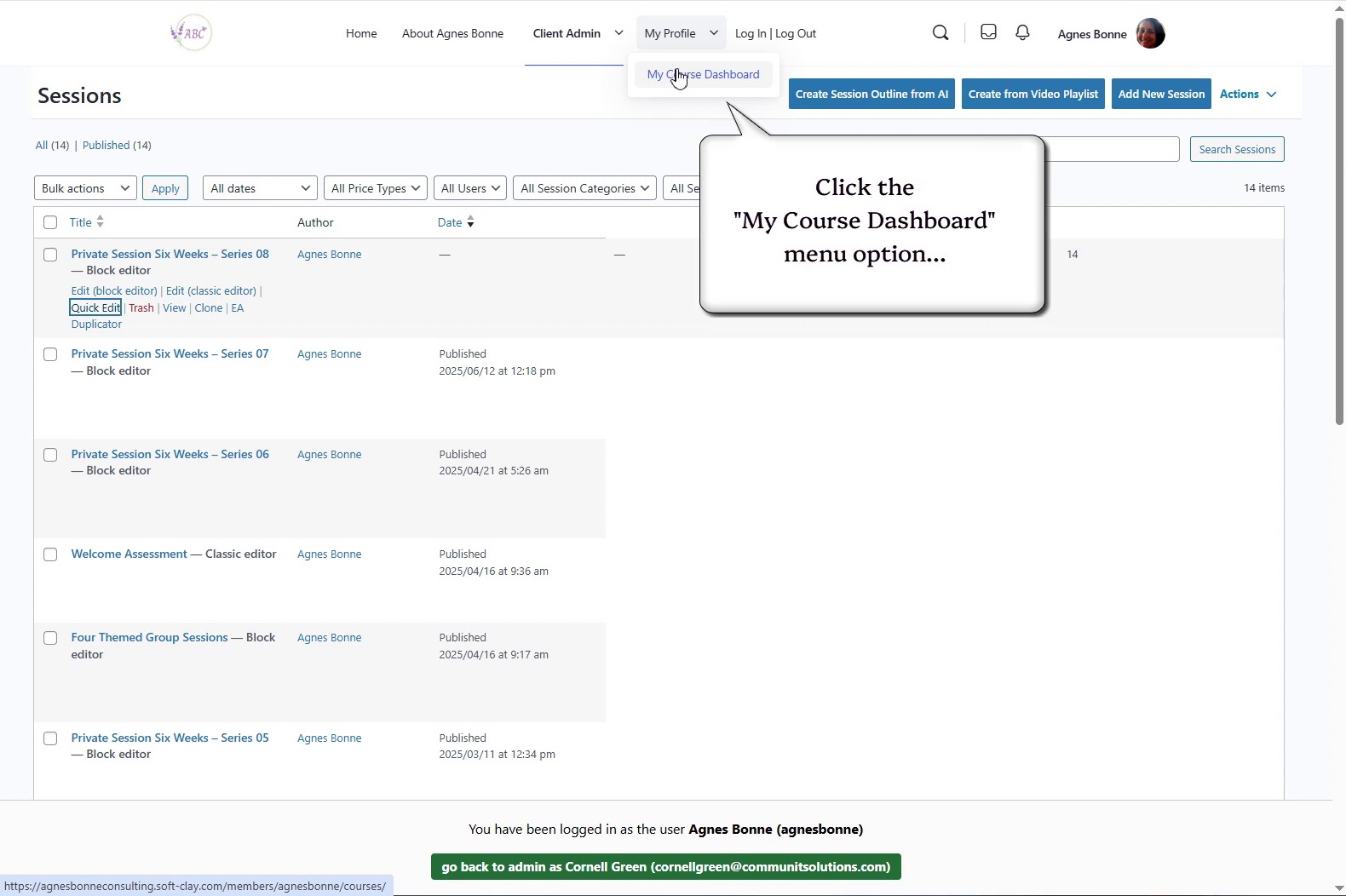
  • Click “My Course Dashboard” to open a new screen, which will refresh the “Clone Series” menu
  • …you will see that the new Series has actually been cloned
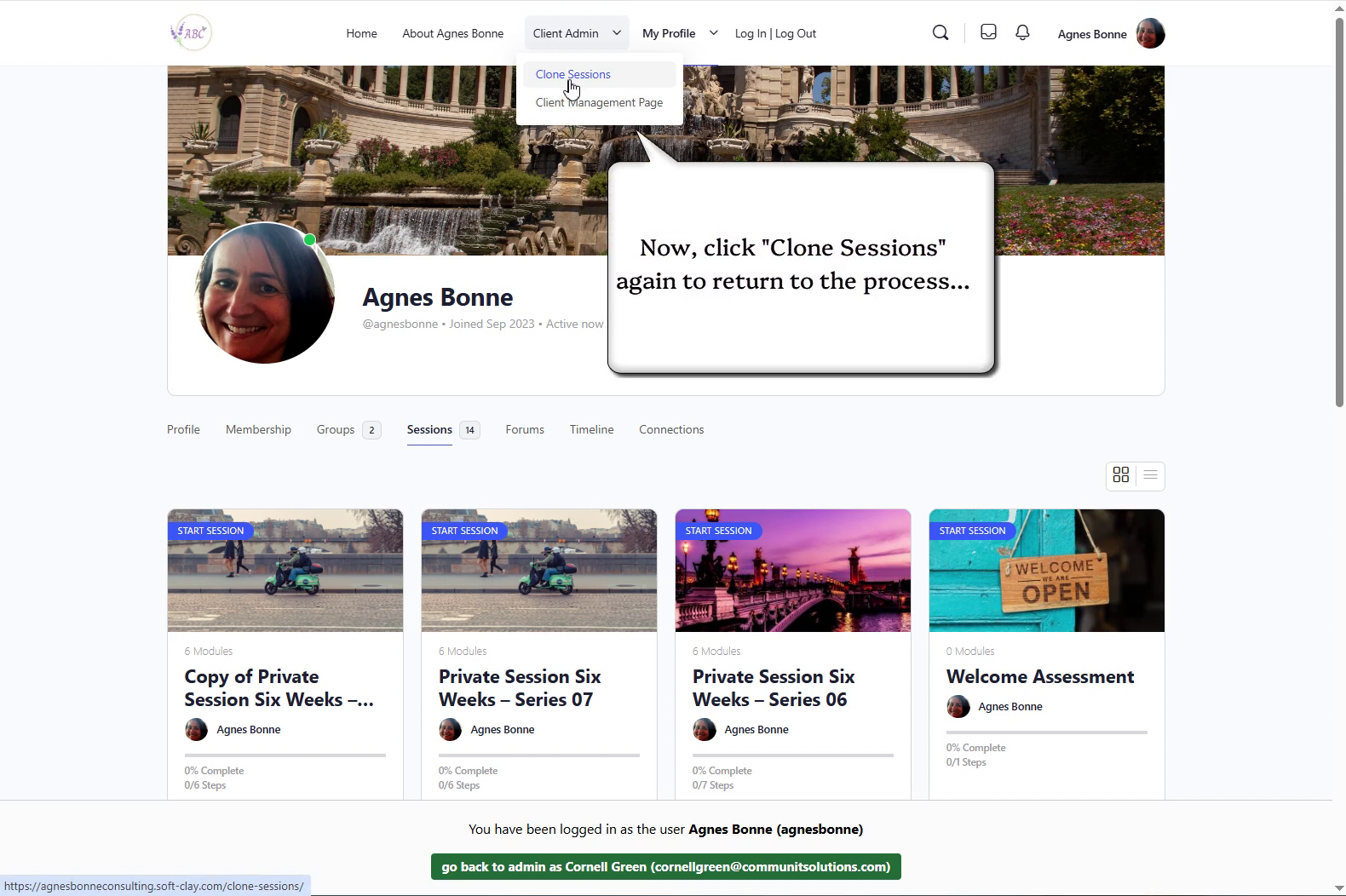
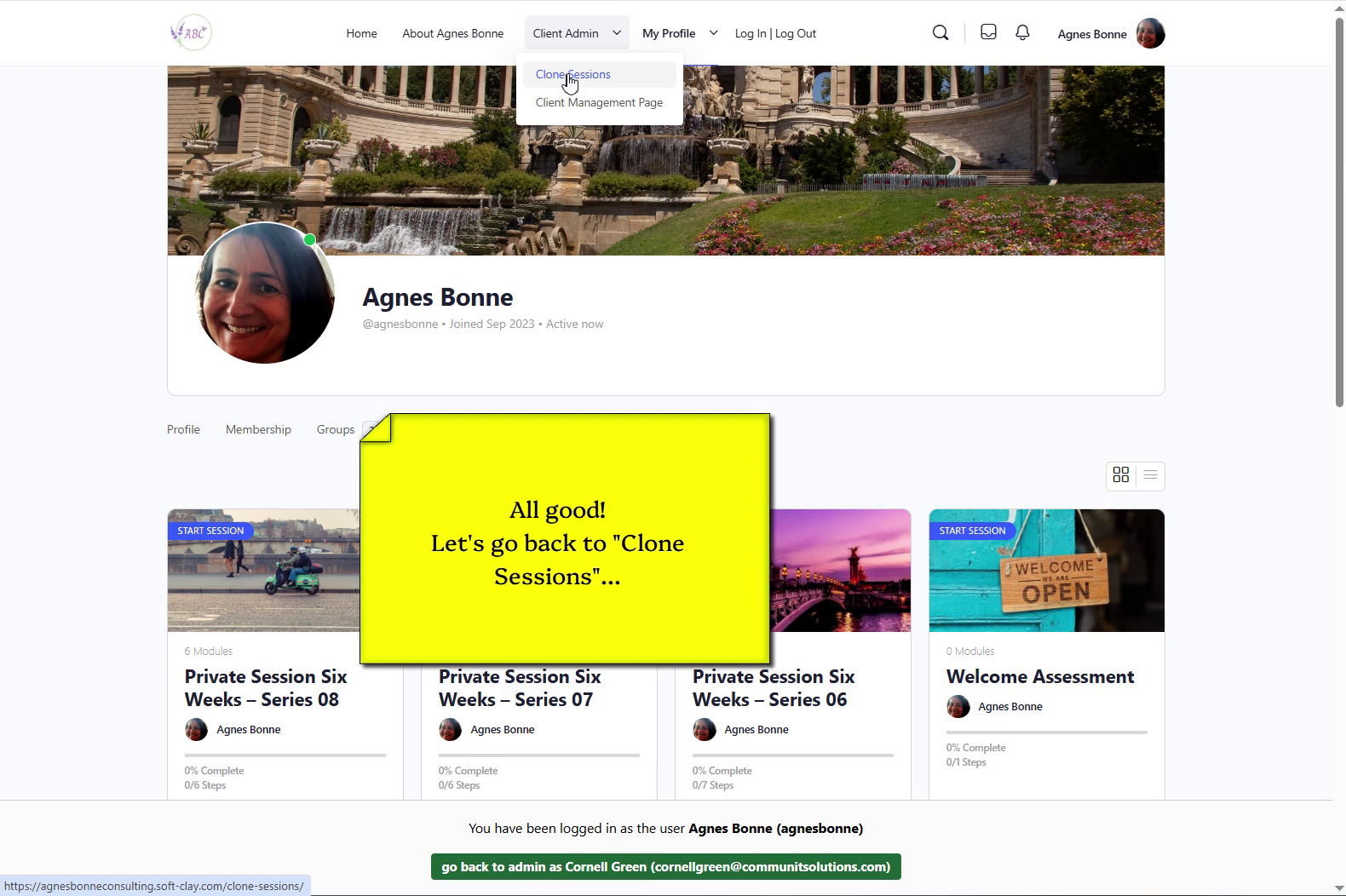
  • Return to “Client Admin -> Clone Series” to continue…

3 – Rename the new series #

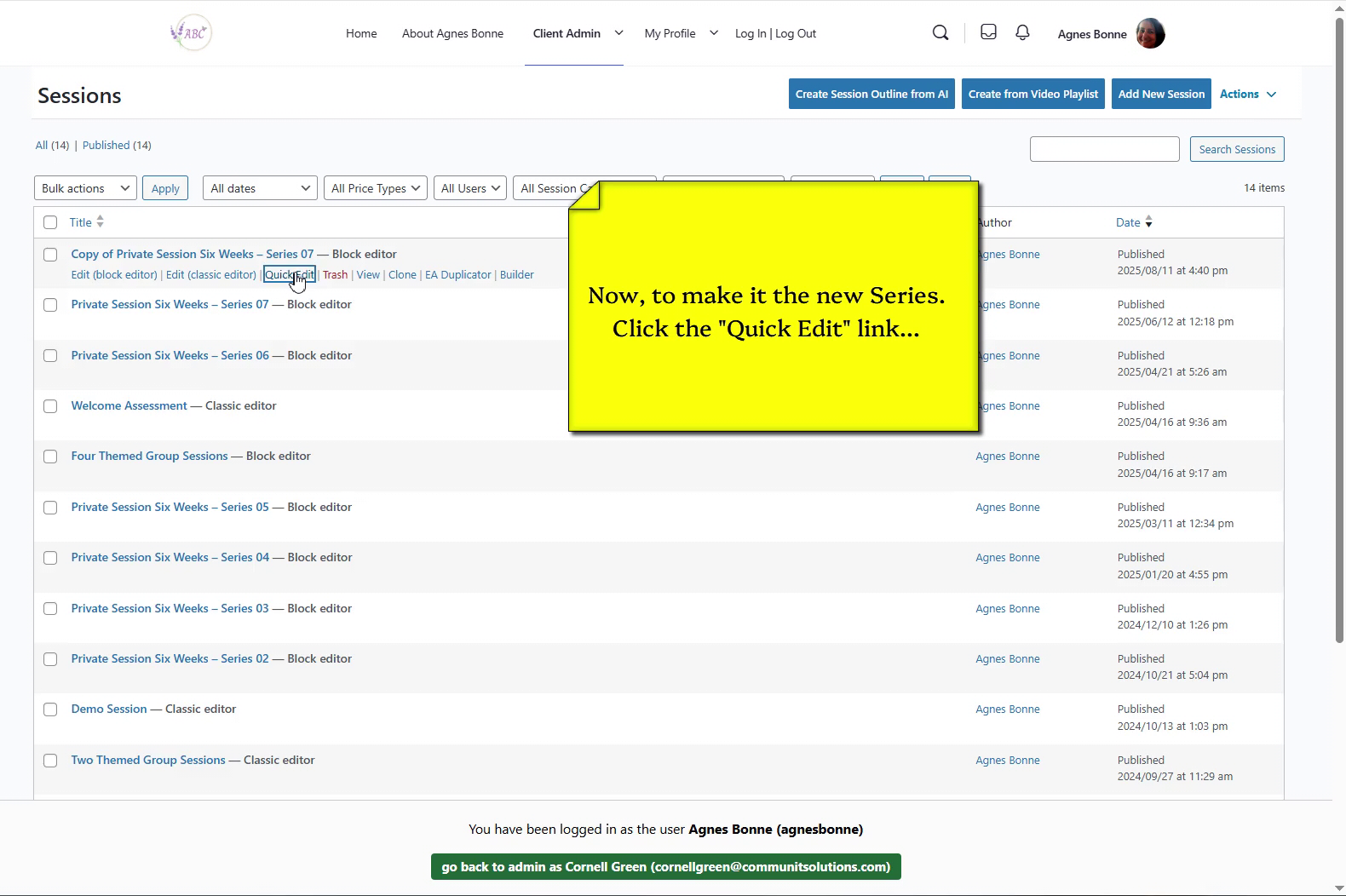
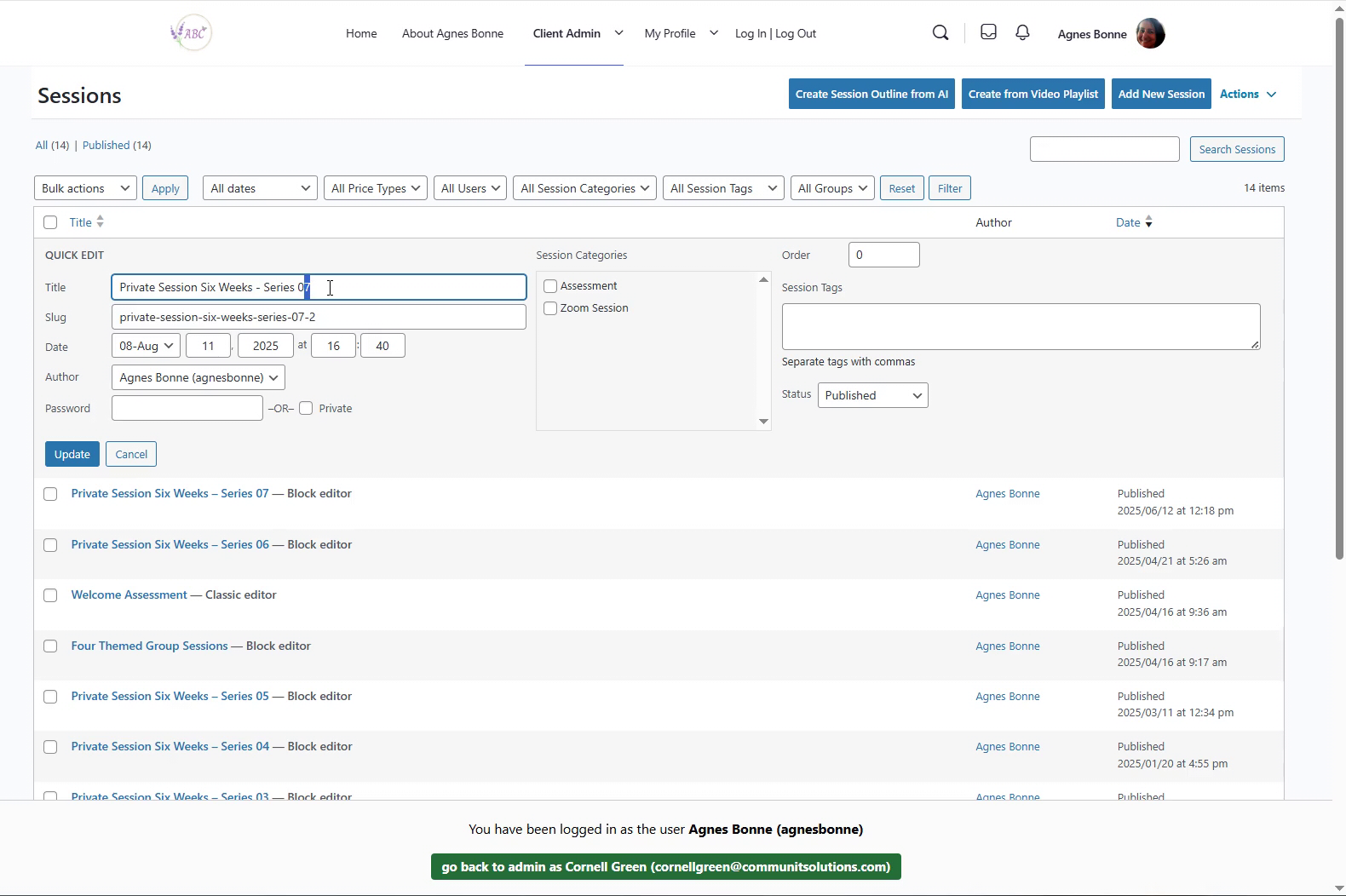
  • Click the “Quick Edit” menu beneath the newly cloned Series to begin the renaming process
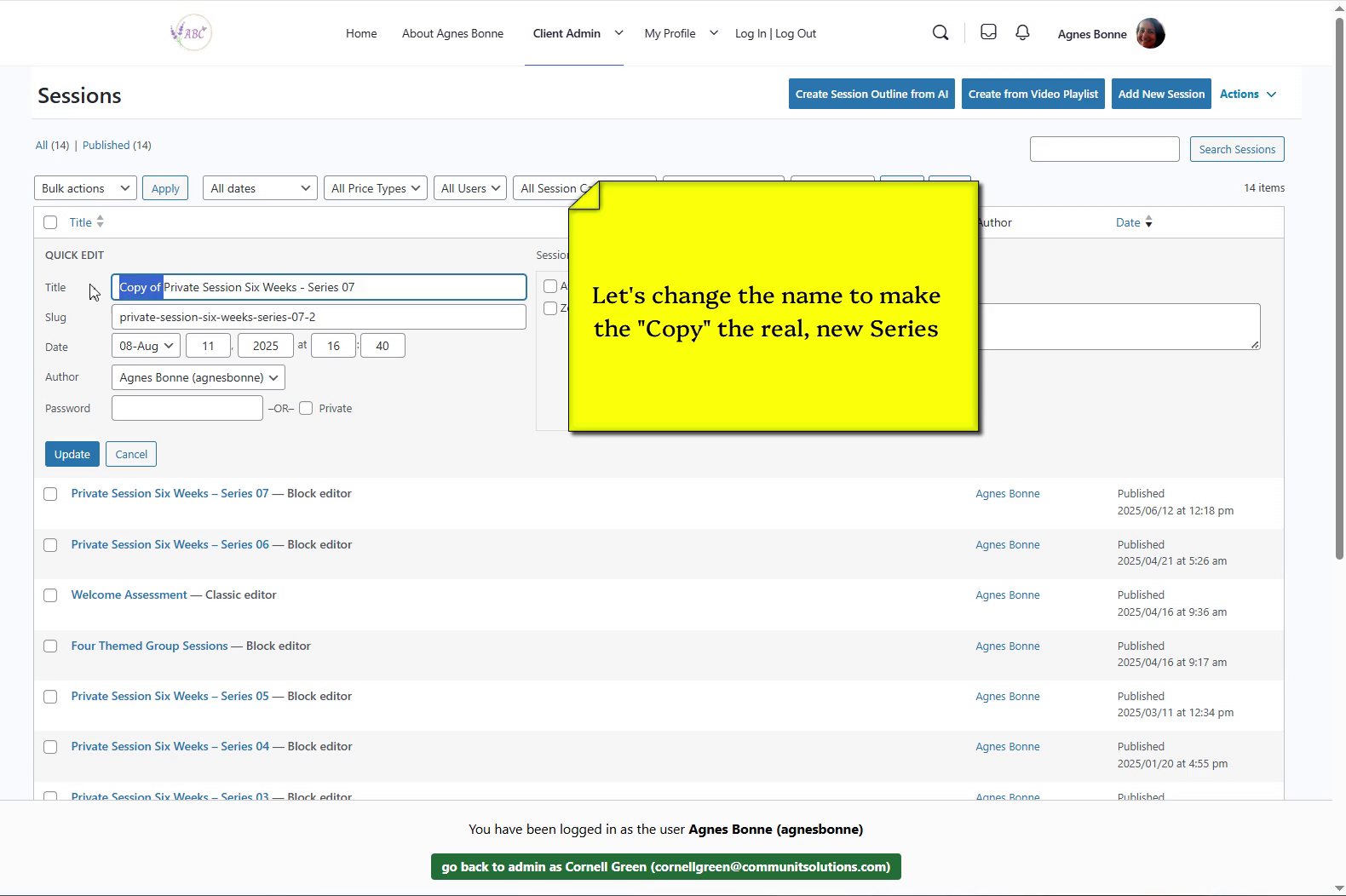
  • Delete the words “Copy of” from the cloned Series’ name
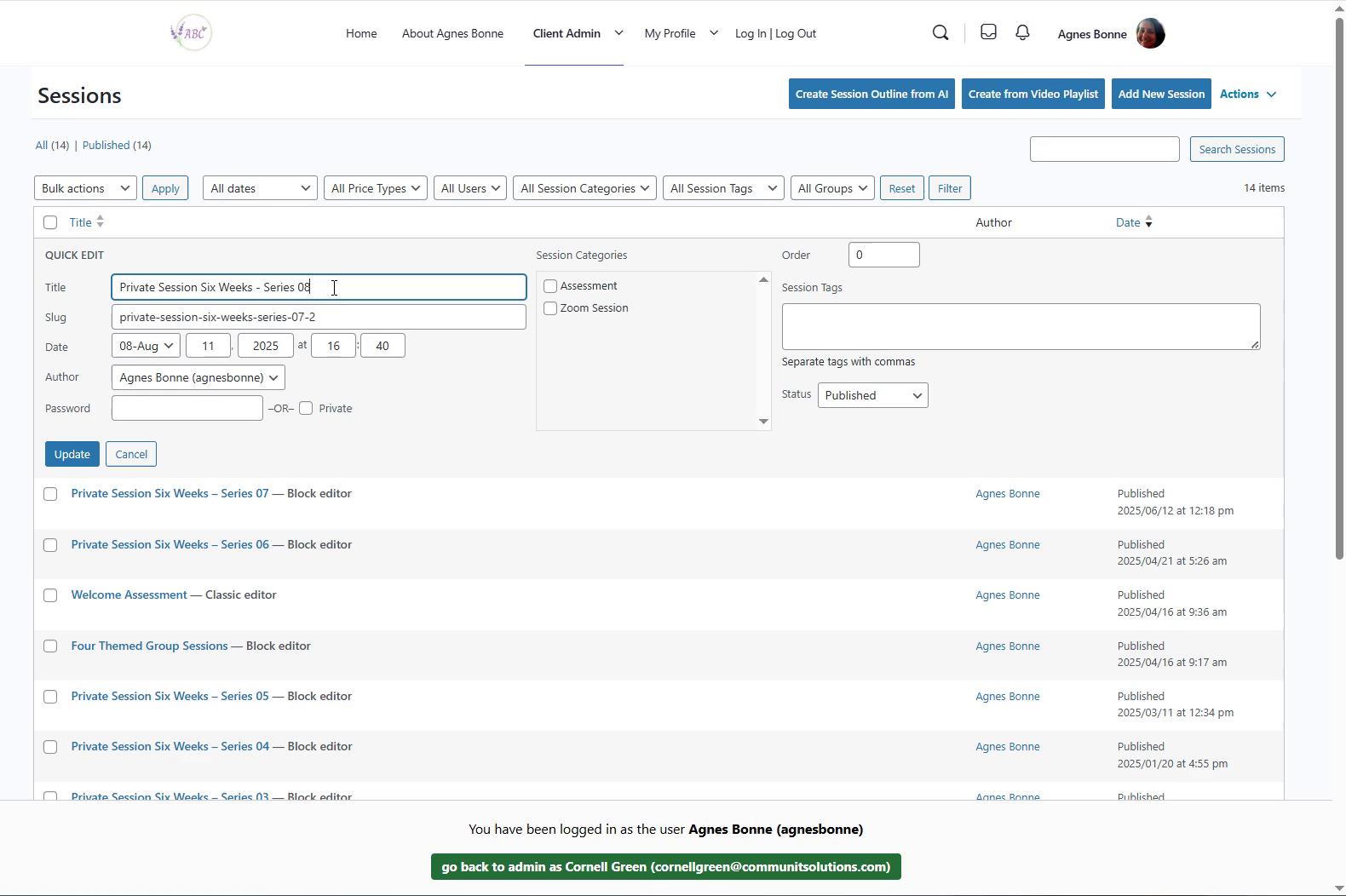
  • …now, change the Series number
  • You have now renamed the new Series
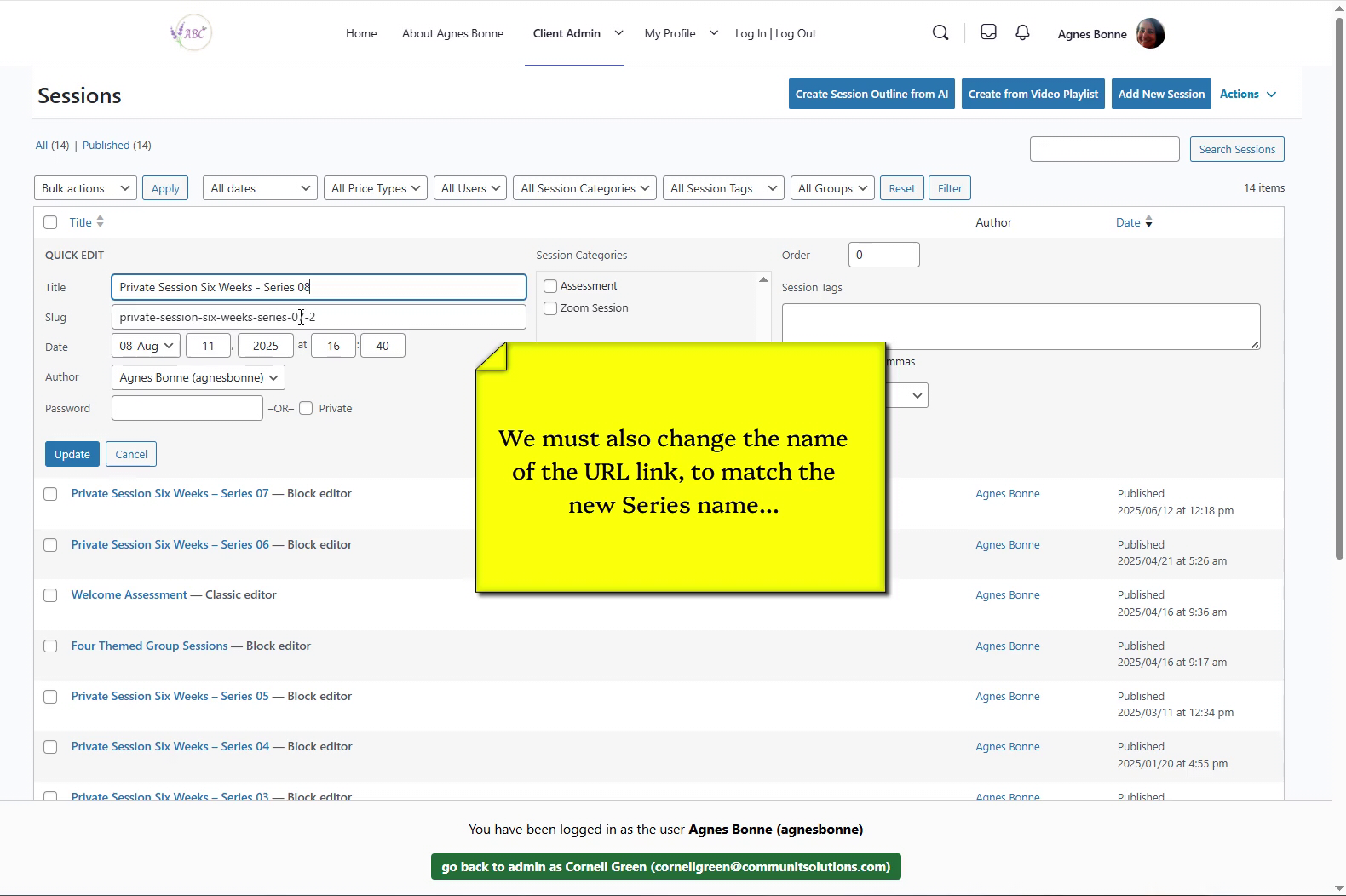
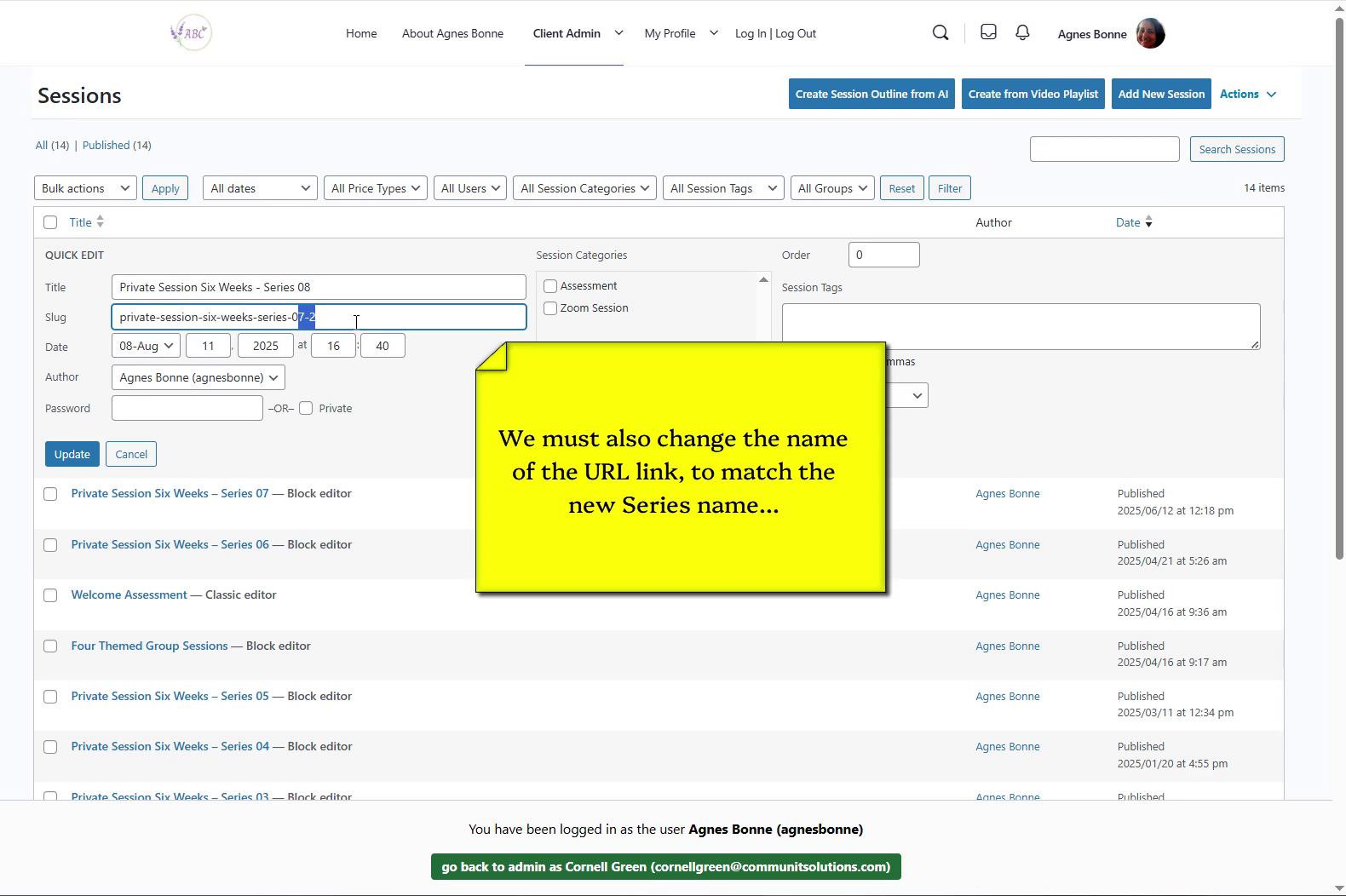
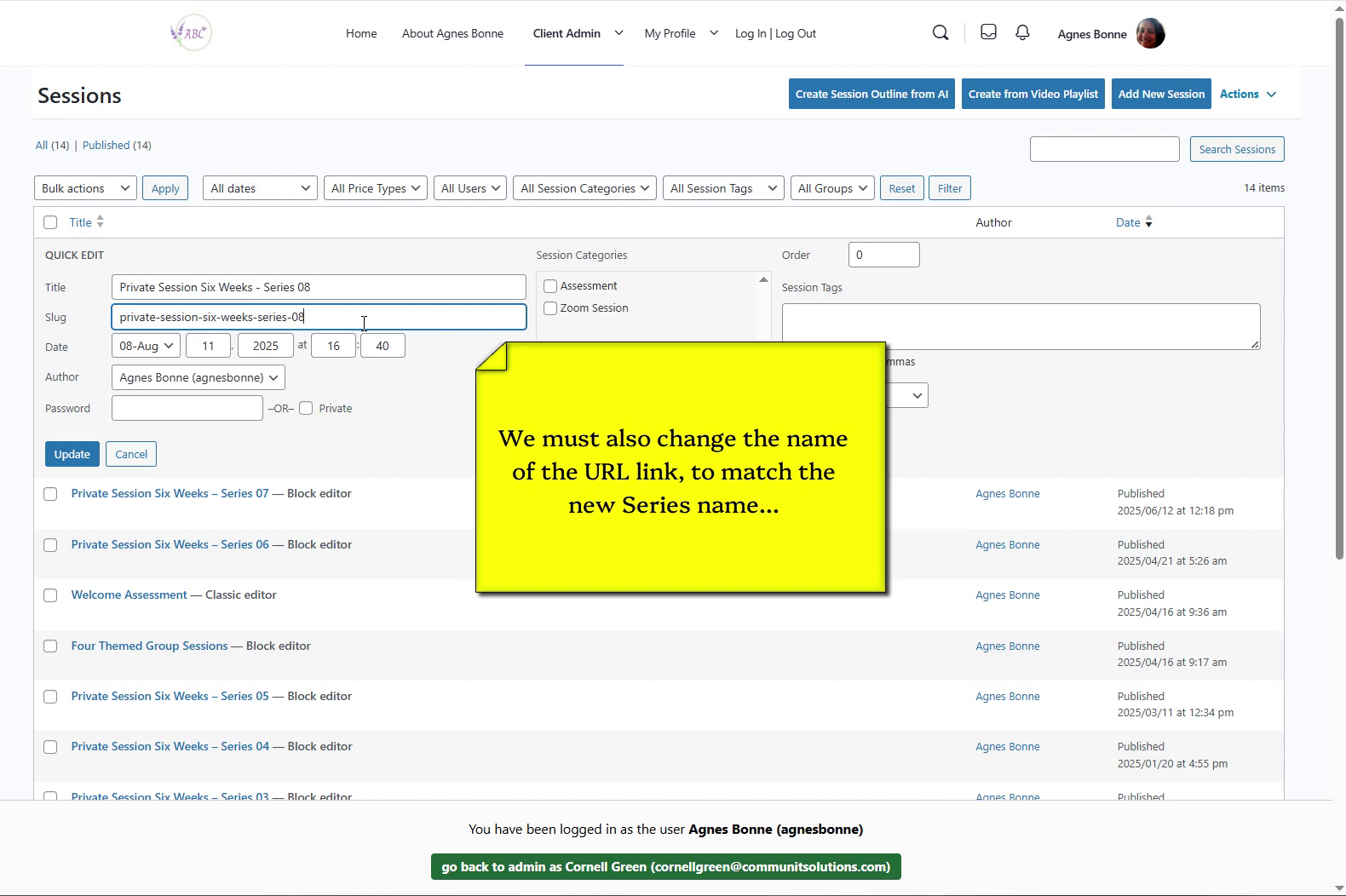
  • The actual link to the new session must be changed to match the Series name
  • Change the number of the Series link to match the new Series name
  • You have now changed the Series link to match the Series name
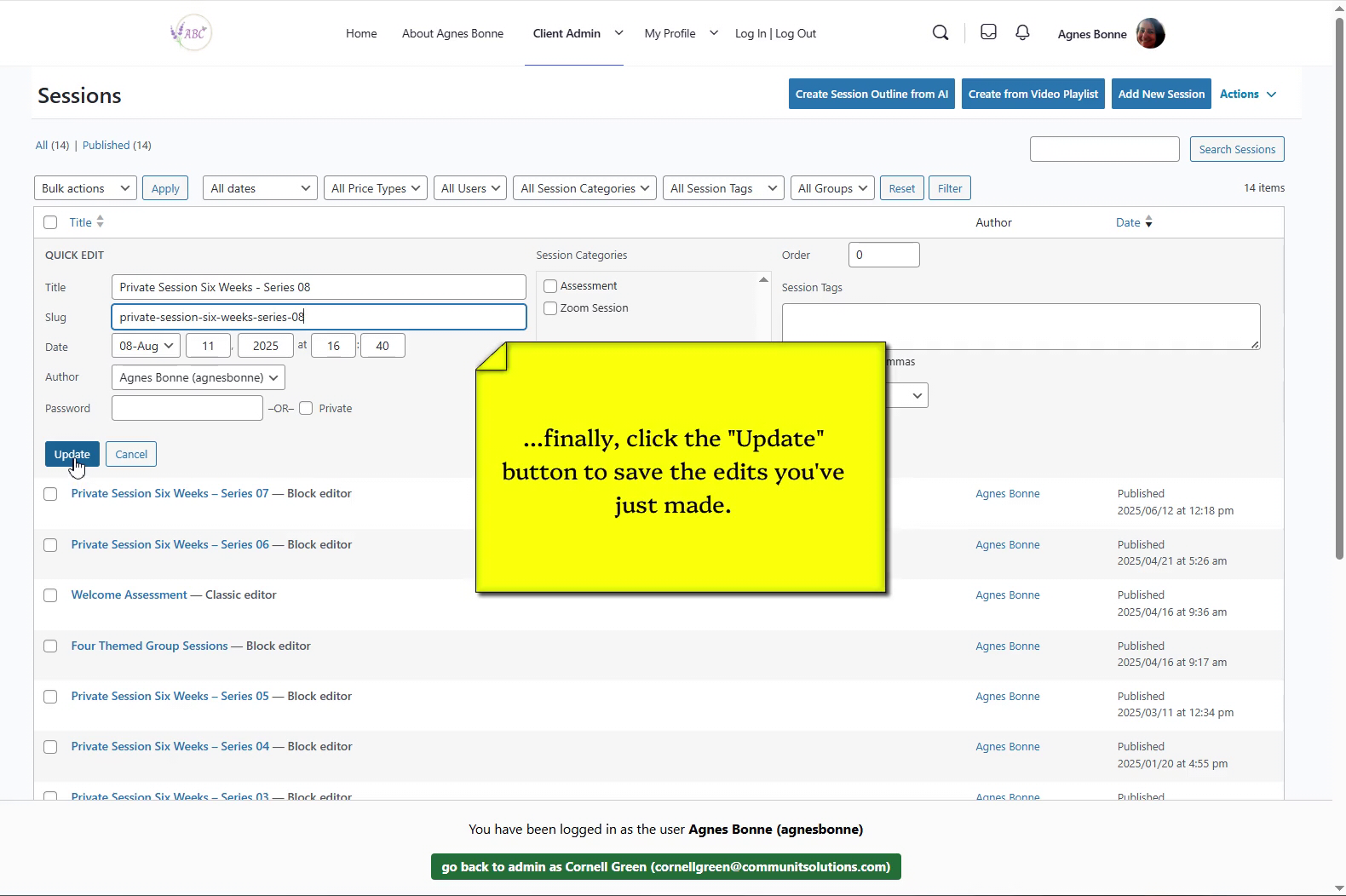
  • Of course, you must click the “Update” button to save the renaming work you have just done.
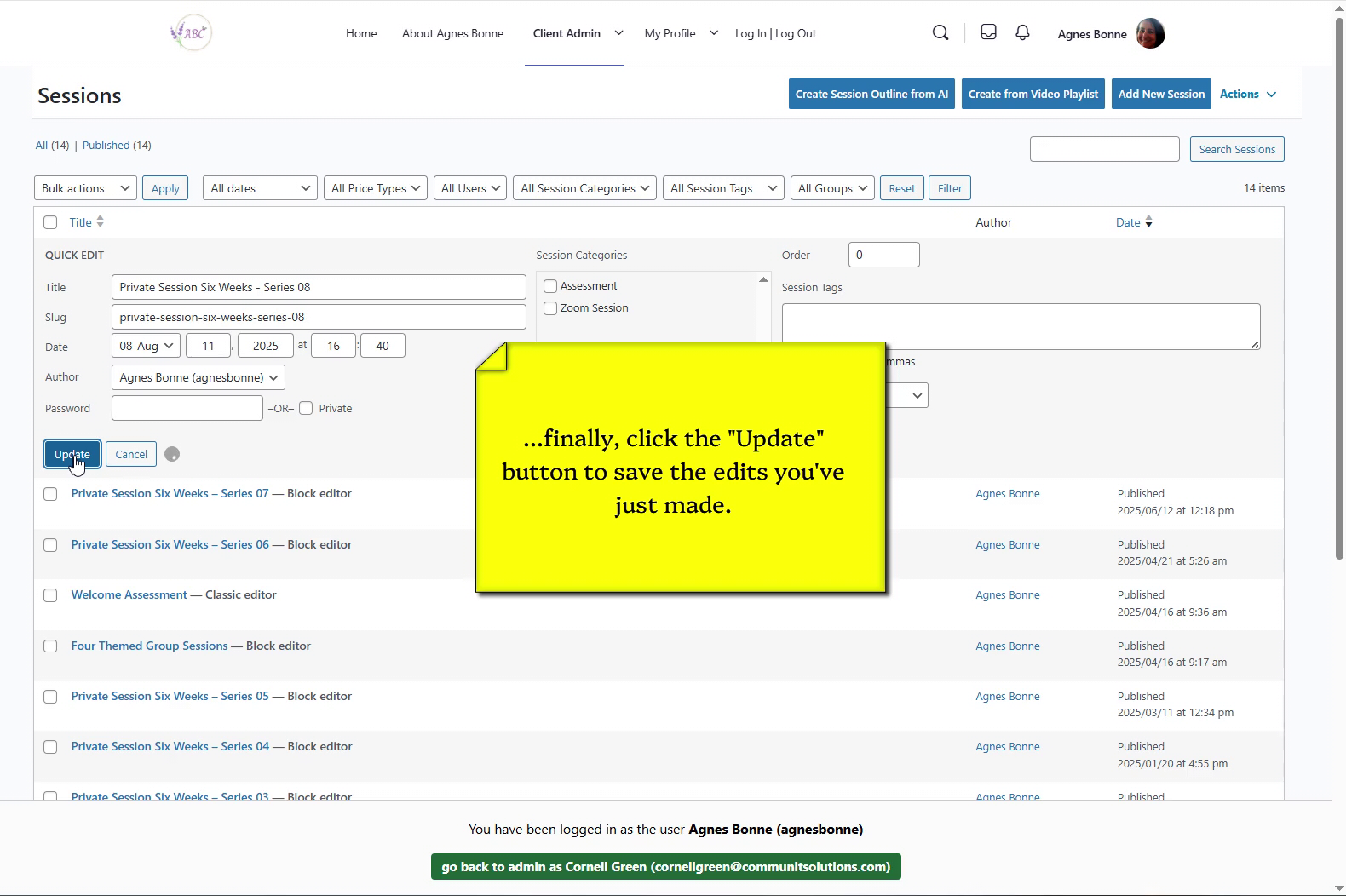
  • The renaming edit is saved…
  • …but there’s one more step left
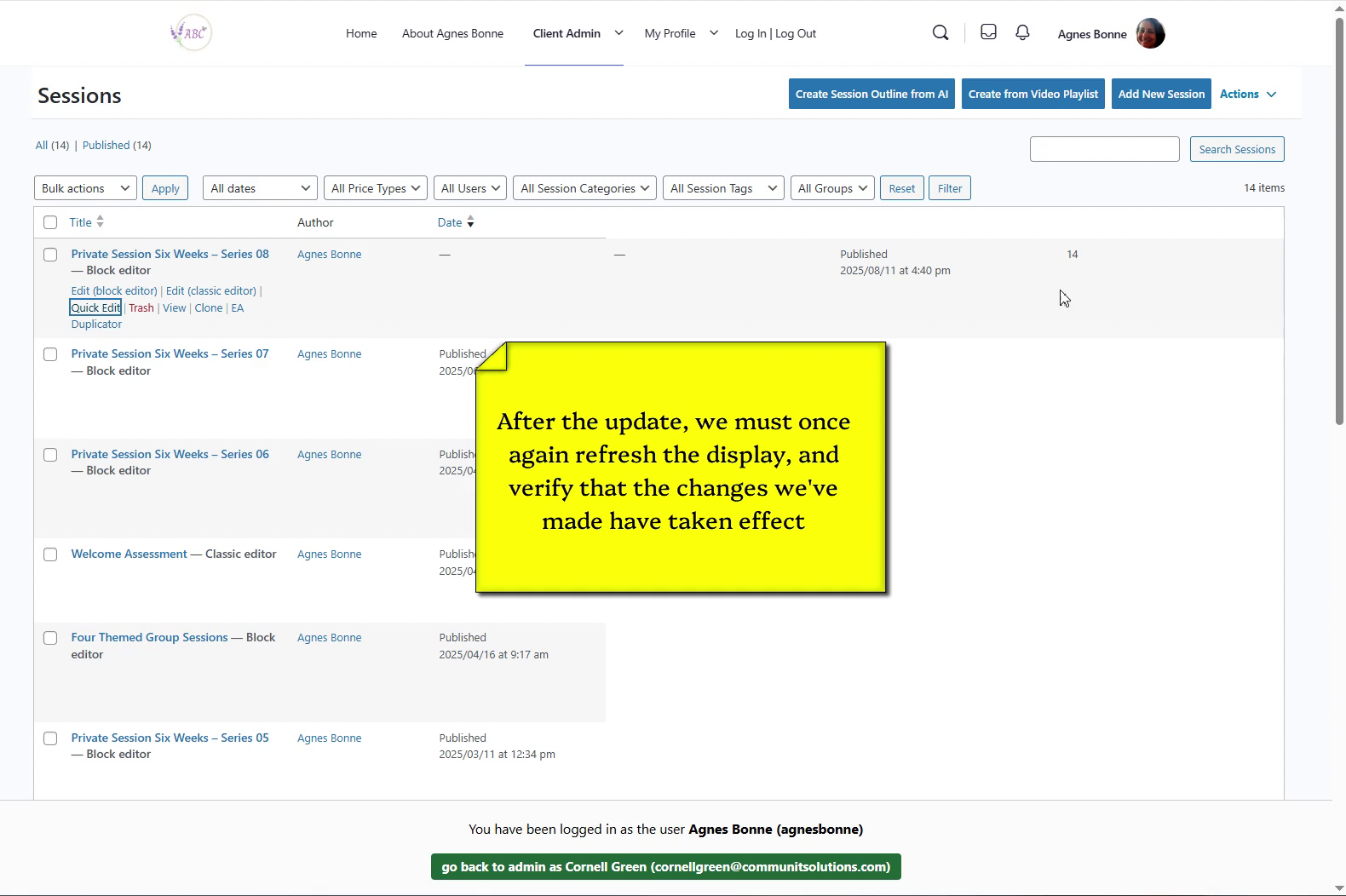
  • Now, refresh the screen, and confirm the changes you’ve just made
Et voila – here is the new, renamed Series

4 – Rename all sessions in the new series #

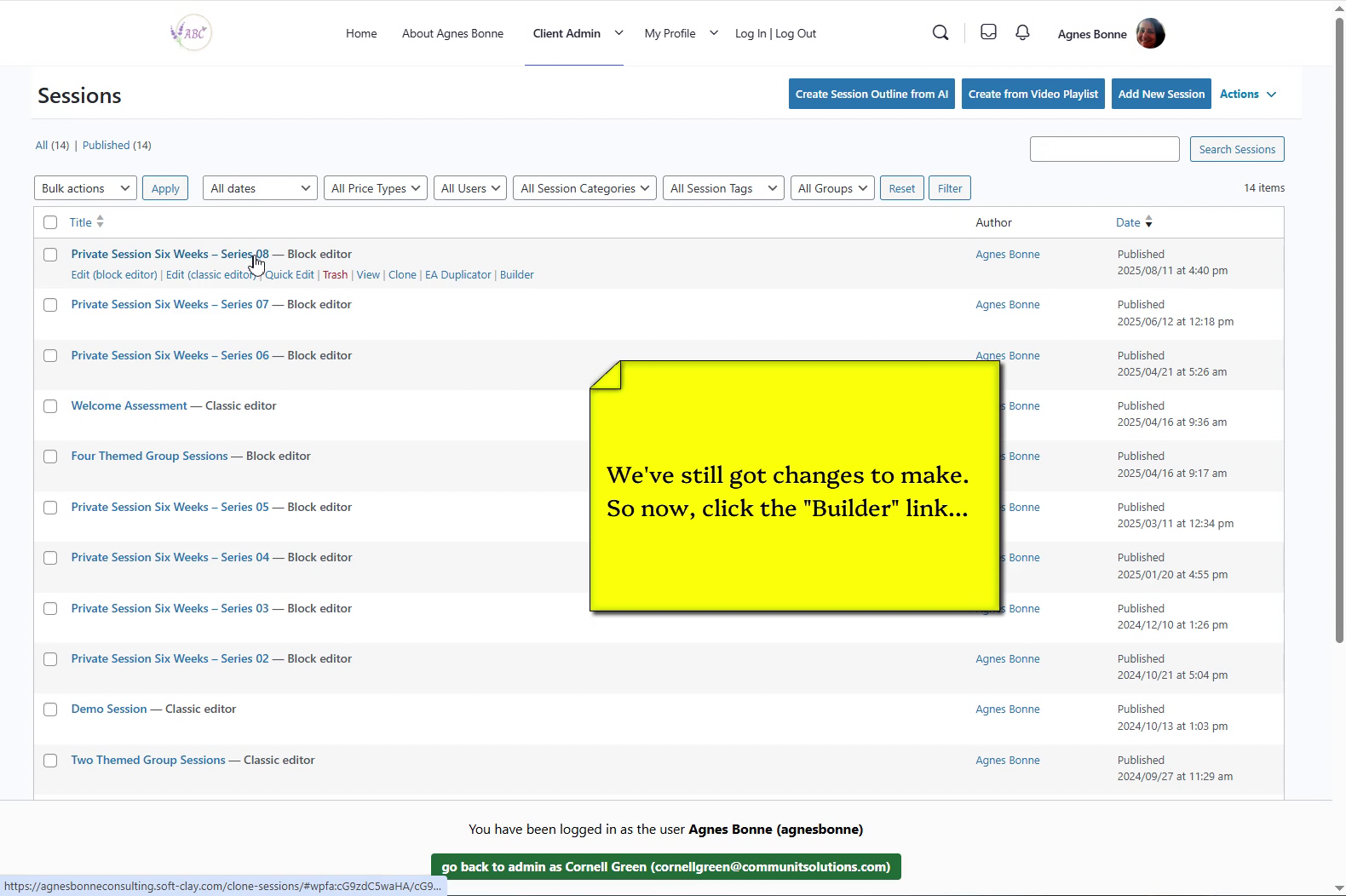
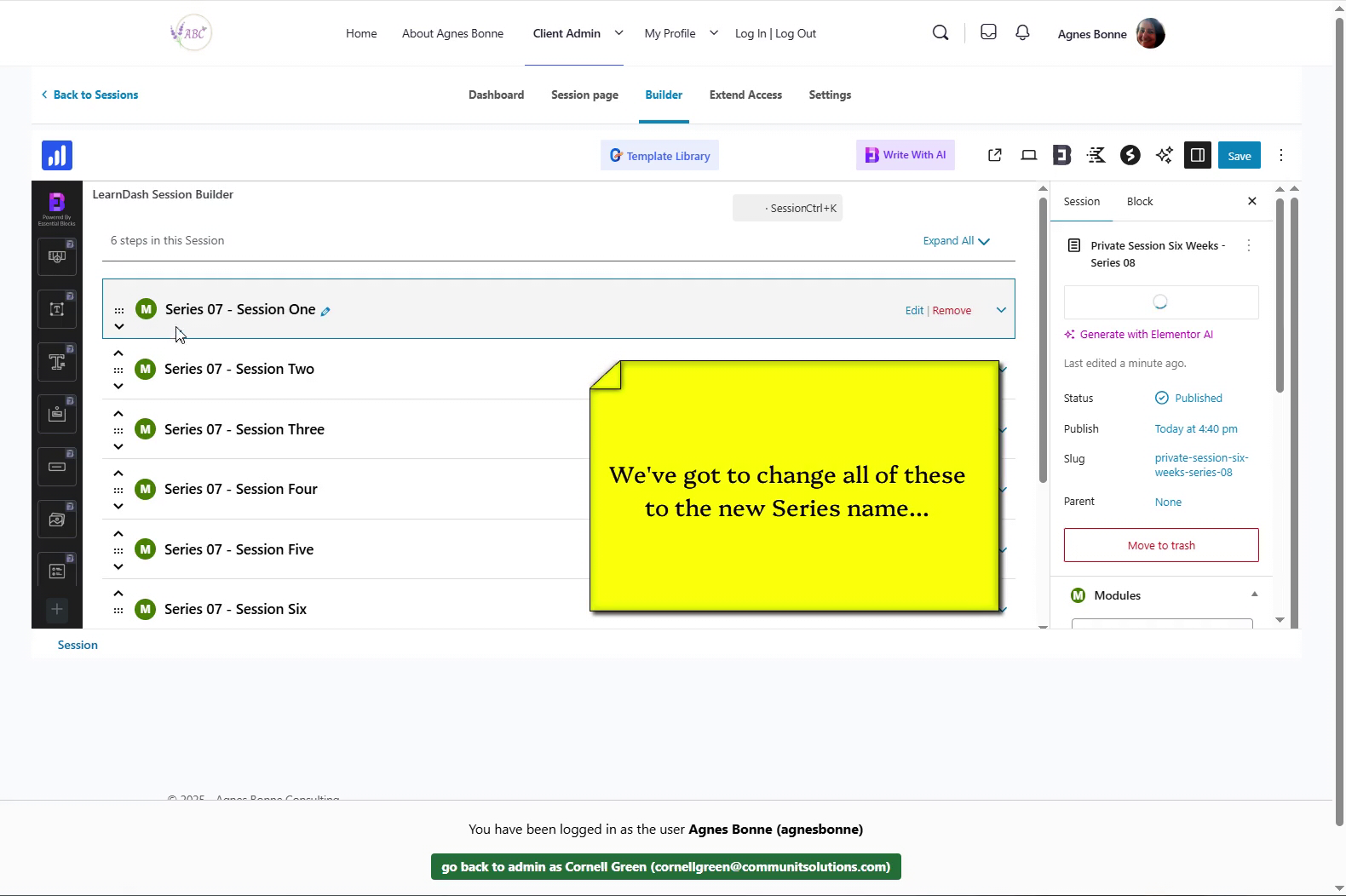
  • The Series has been cloned and renamed – now, you have to rename the Sessions of the Series
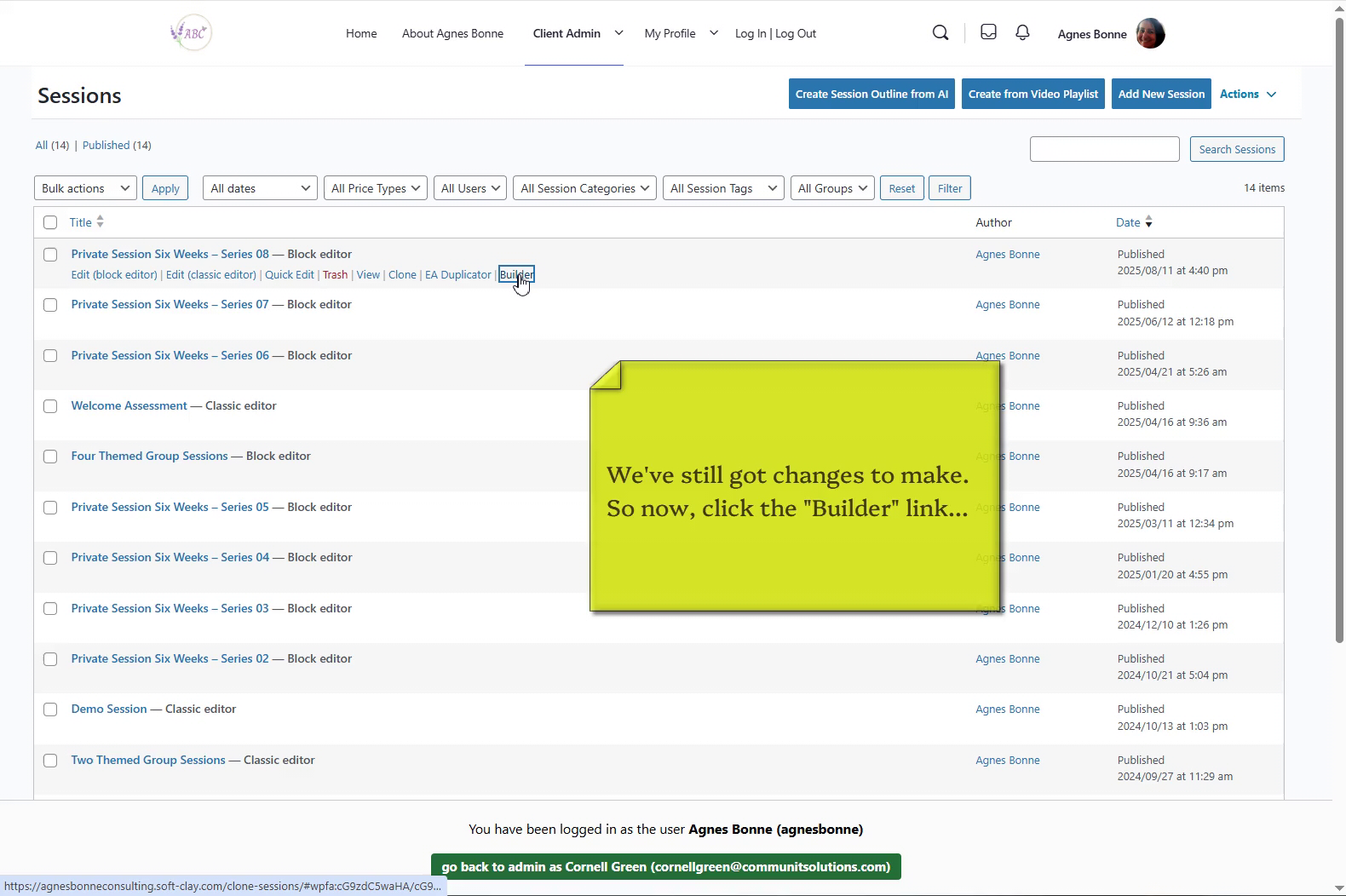
  • Click the “Builder” link beneath the Series name
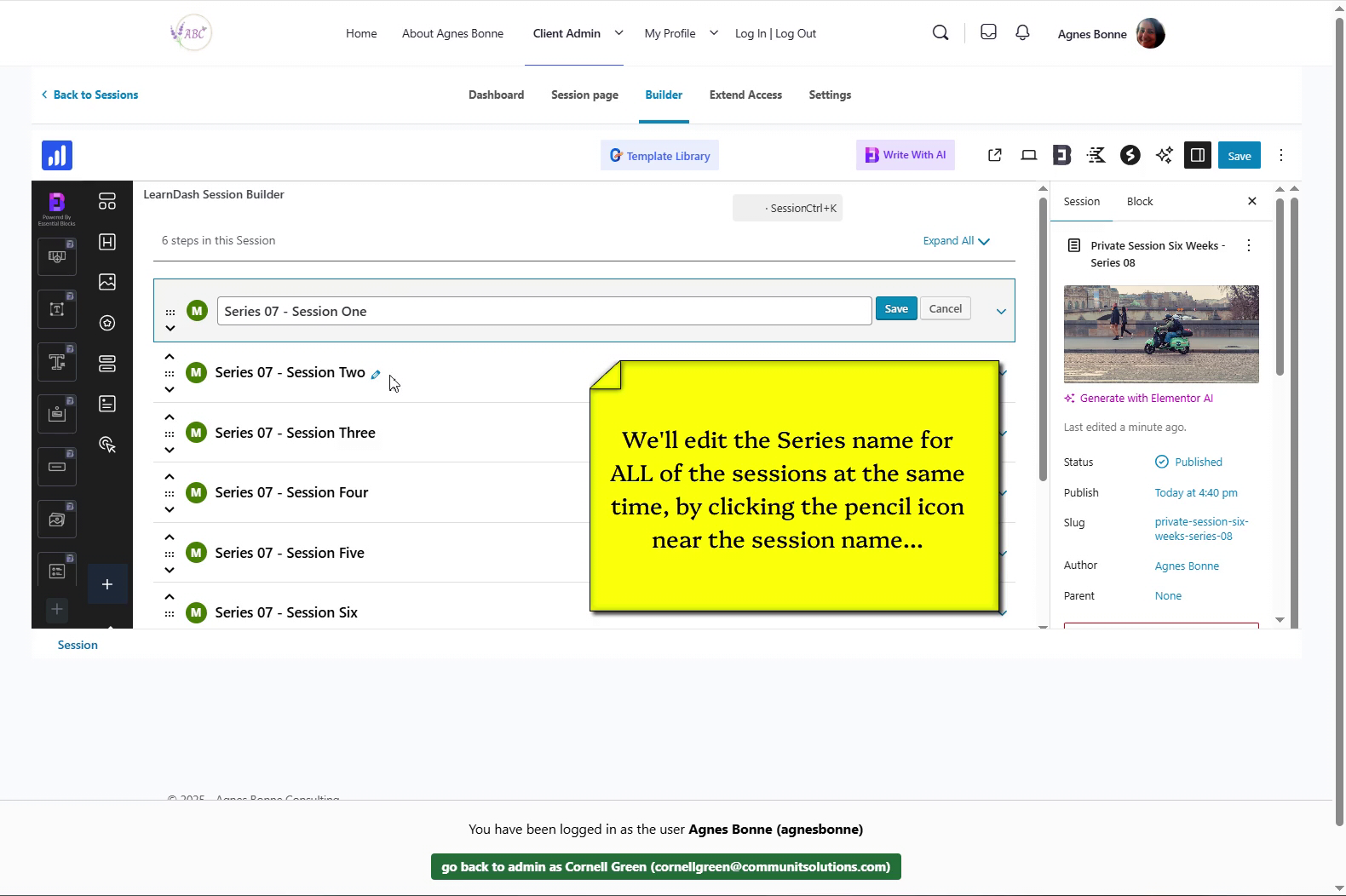
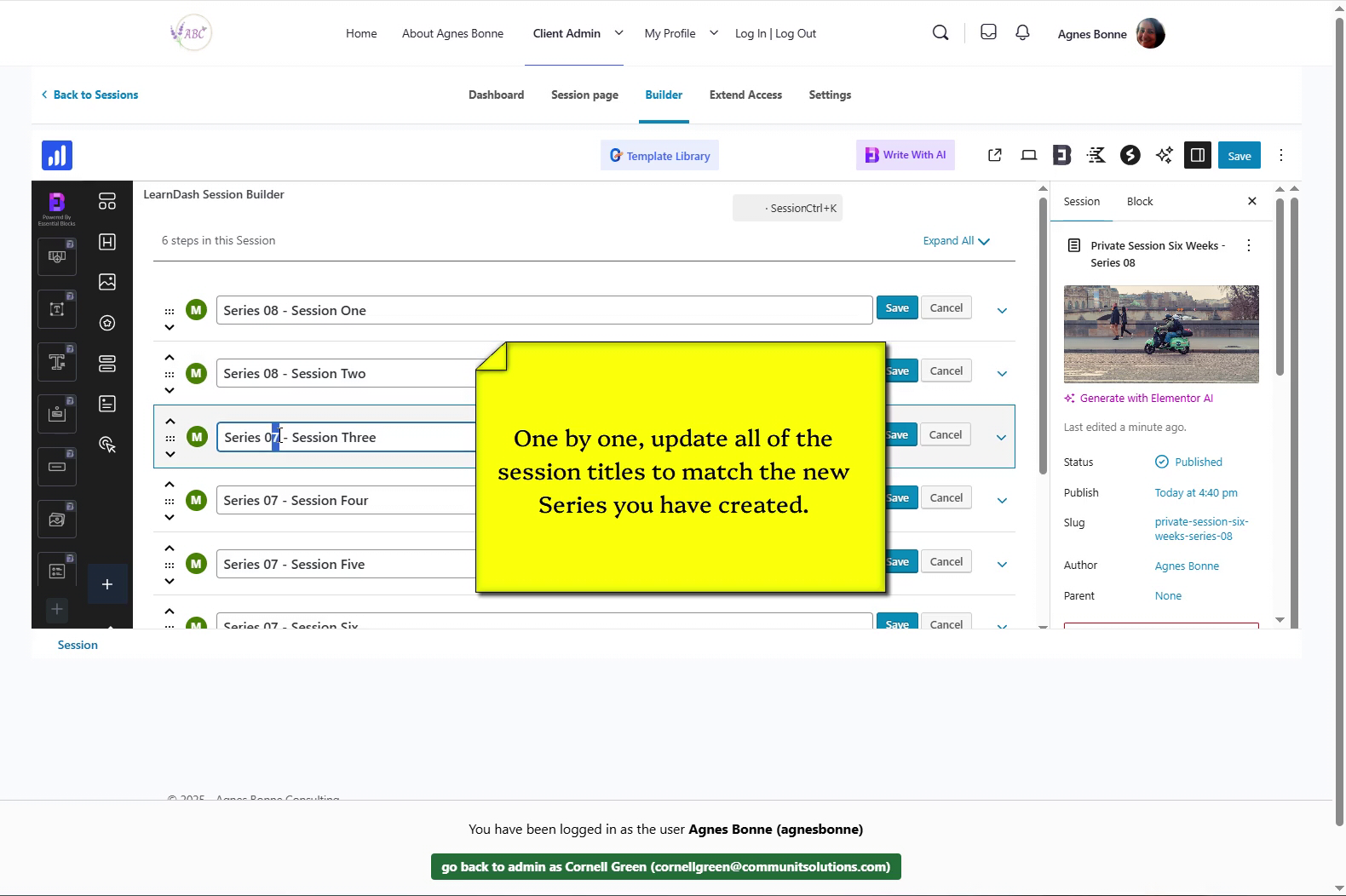
  • REMEMBER: the Sessions will have the name of the old Series’ name – thus, you will have to rename each Session’s name. Click the “Edit” link next to “Remove
  • The Session name edit window appears – now, you can change the *Series* name from the old Series to the new Series you are cloning
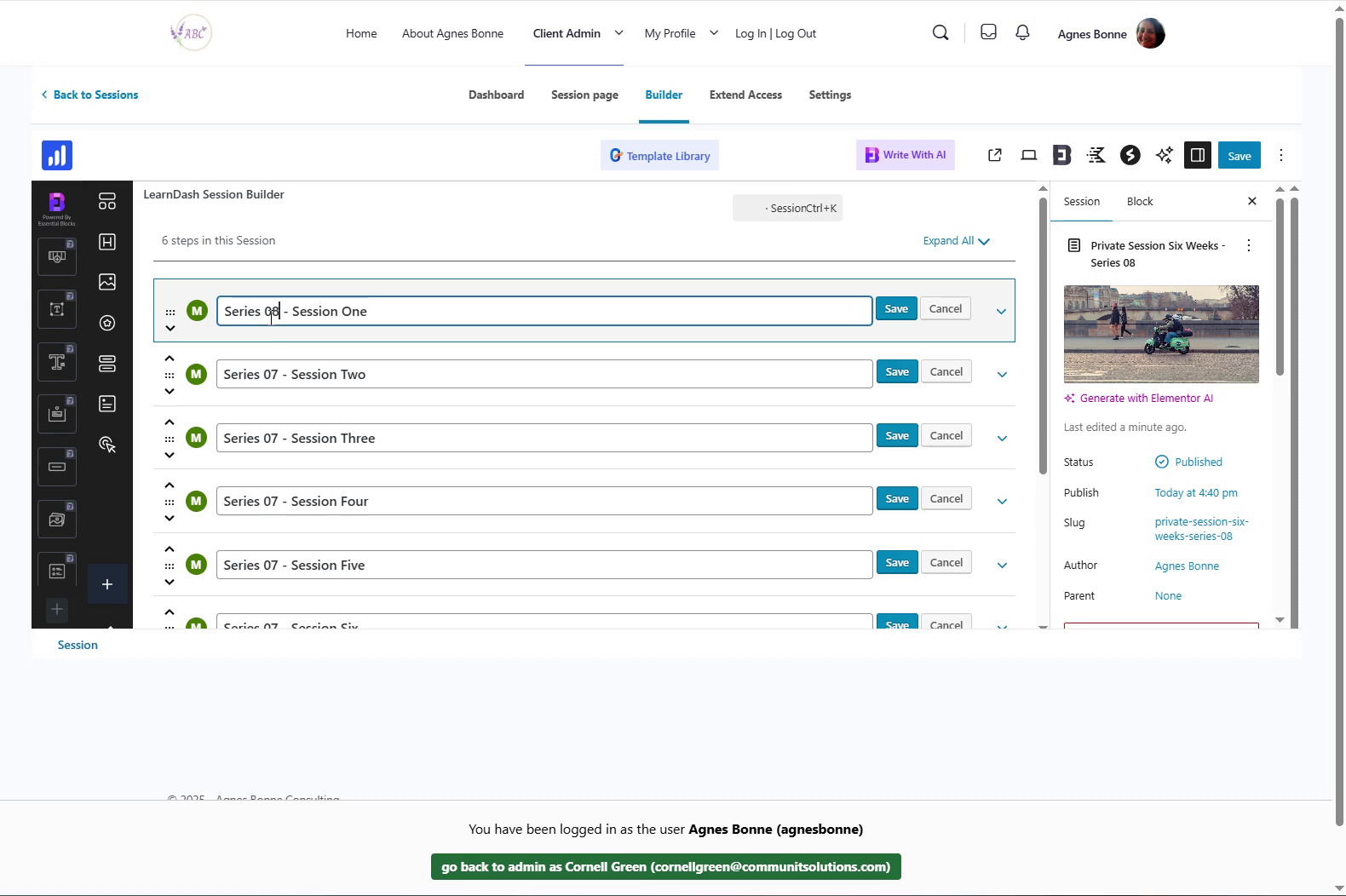
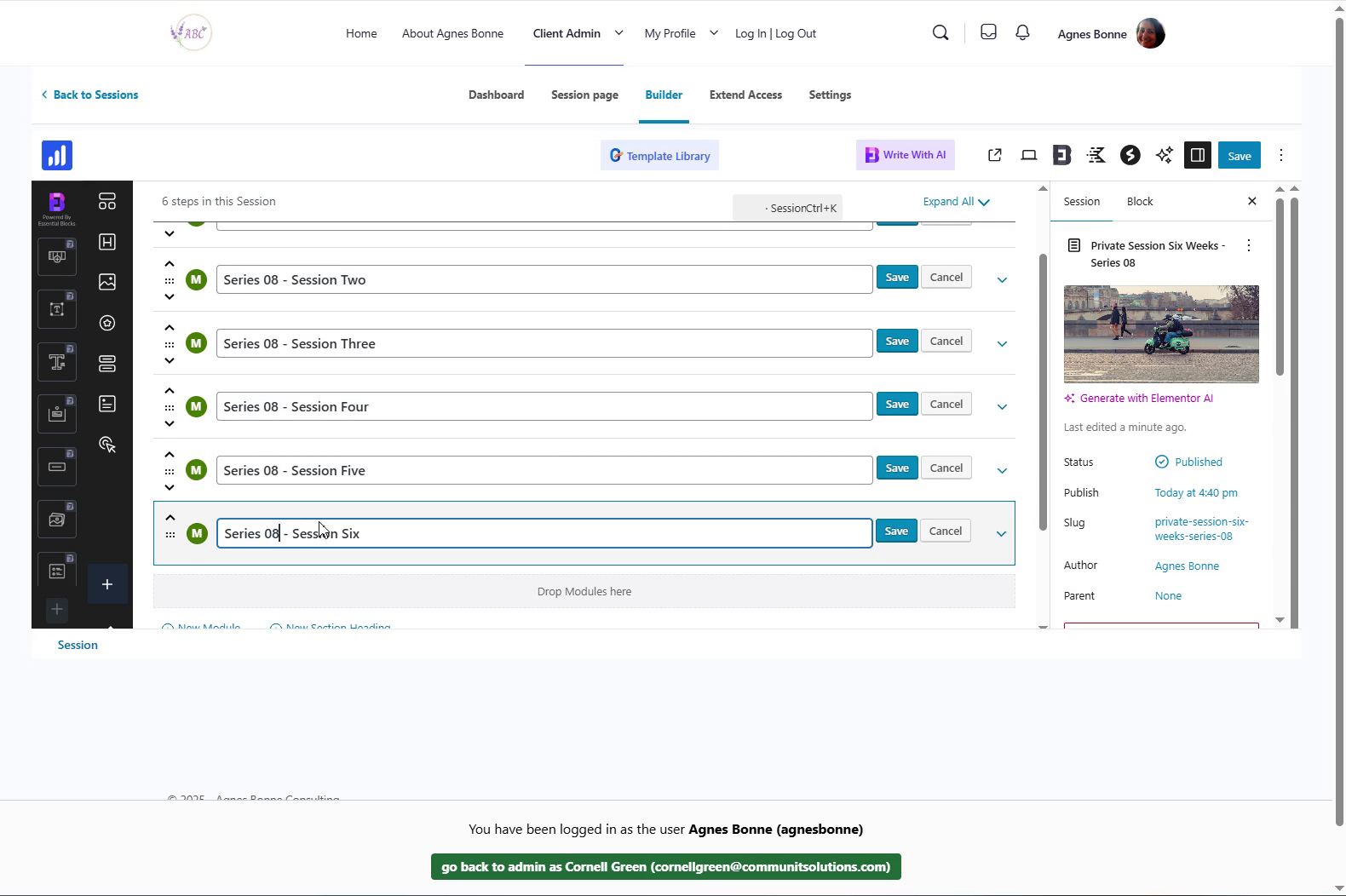
  • Change the Series number for each Session
  • …this is the only change you will have to make here.
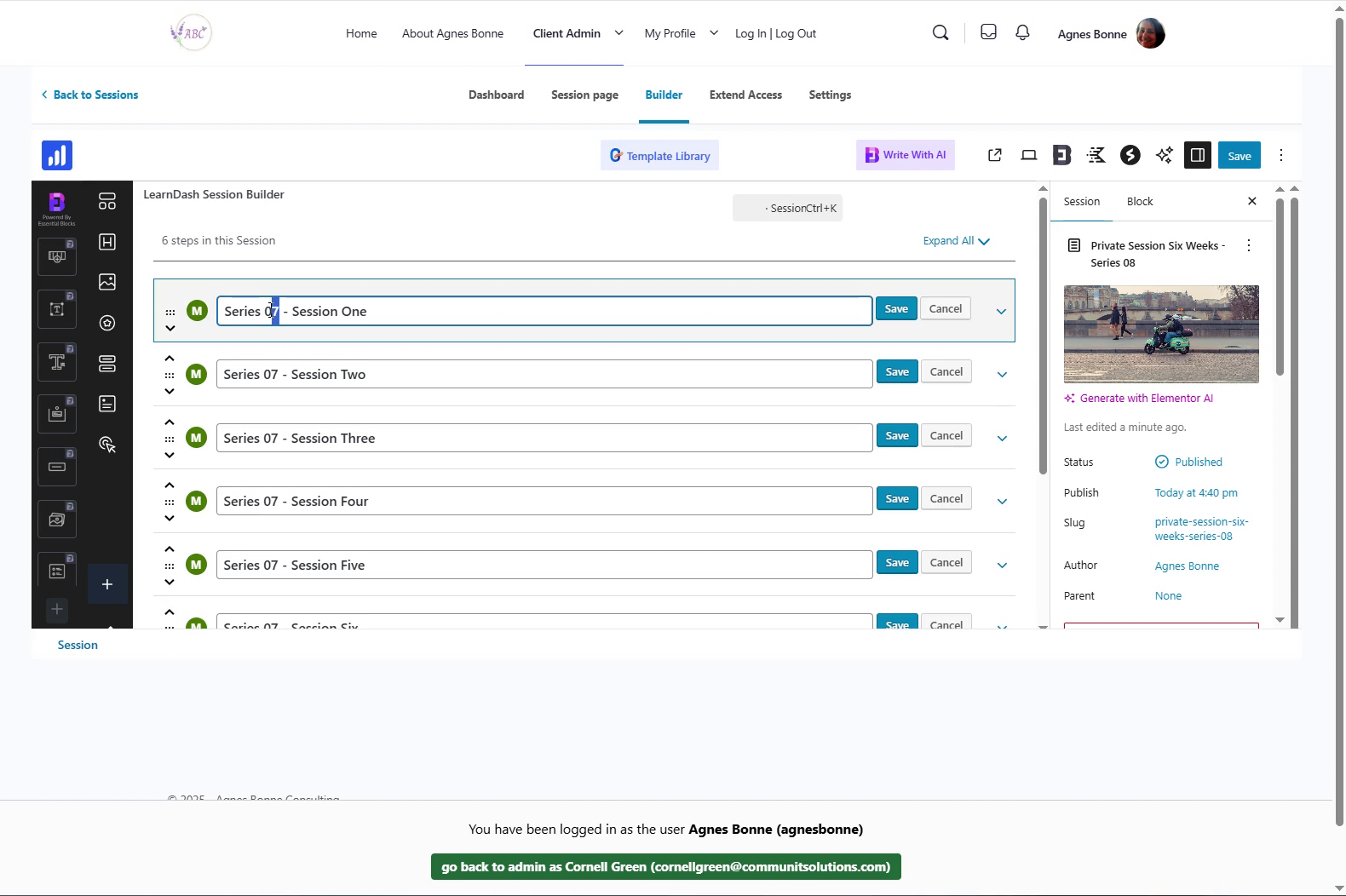
  • It’s easier to open the “Edit” window for ALL of the Sessions at the same time…
  • …this way, you can make sure you have updated ALL of them before saving the updated Series
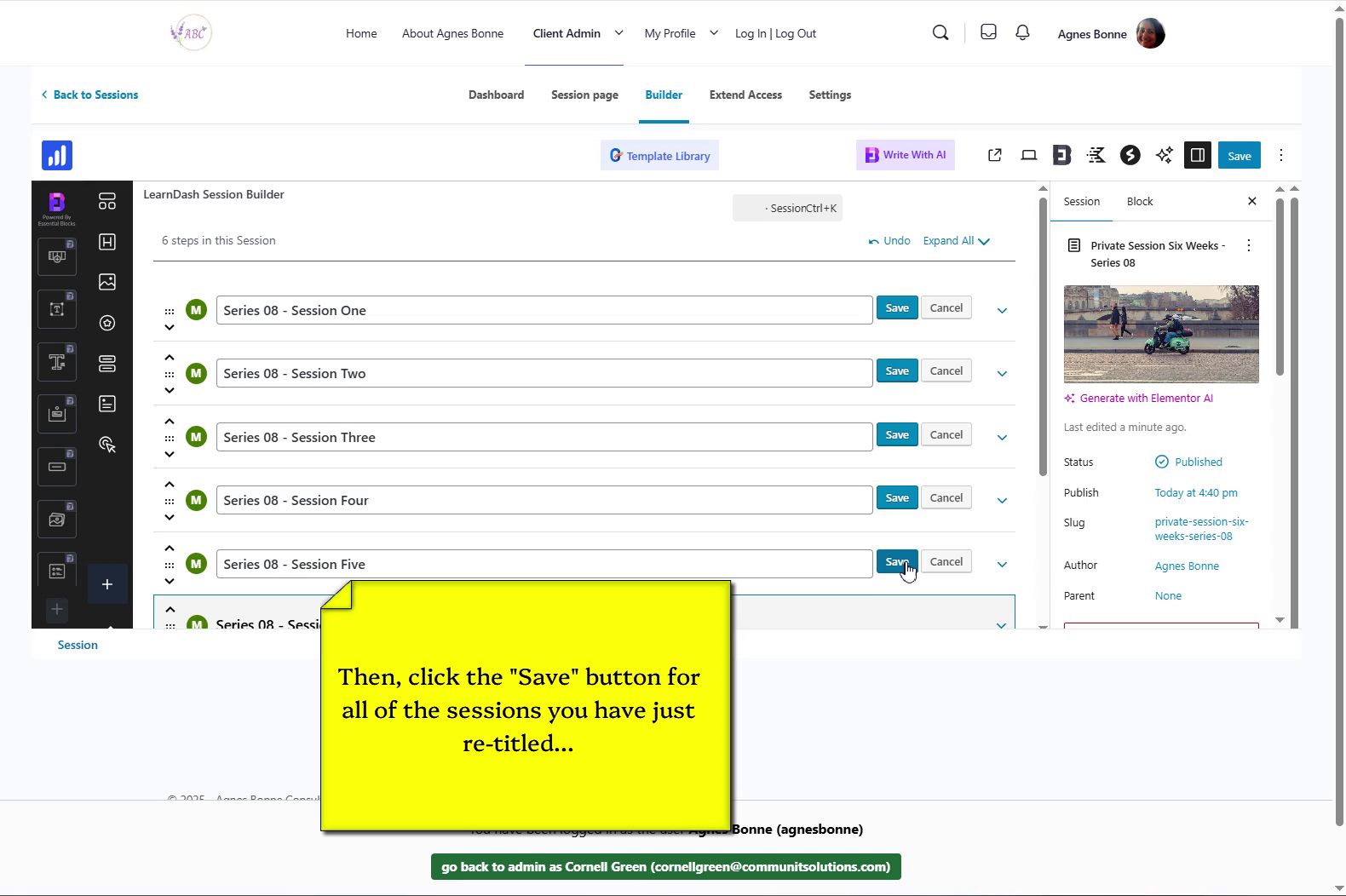
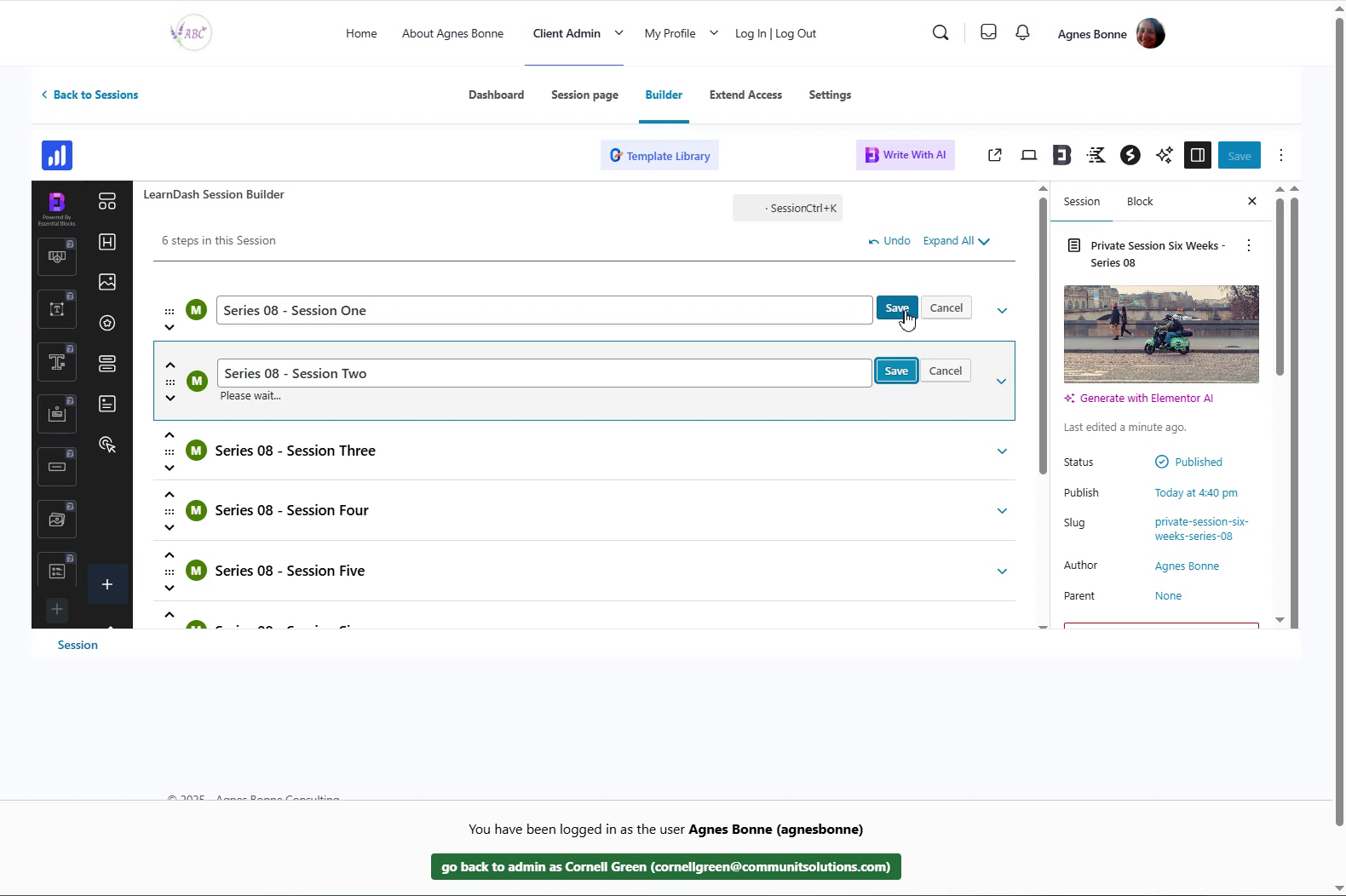
  • Click the “Save” button for each Session name after you have updated the Series number
  • …make sure you save every updated Session name
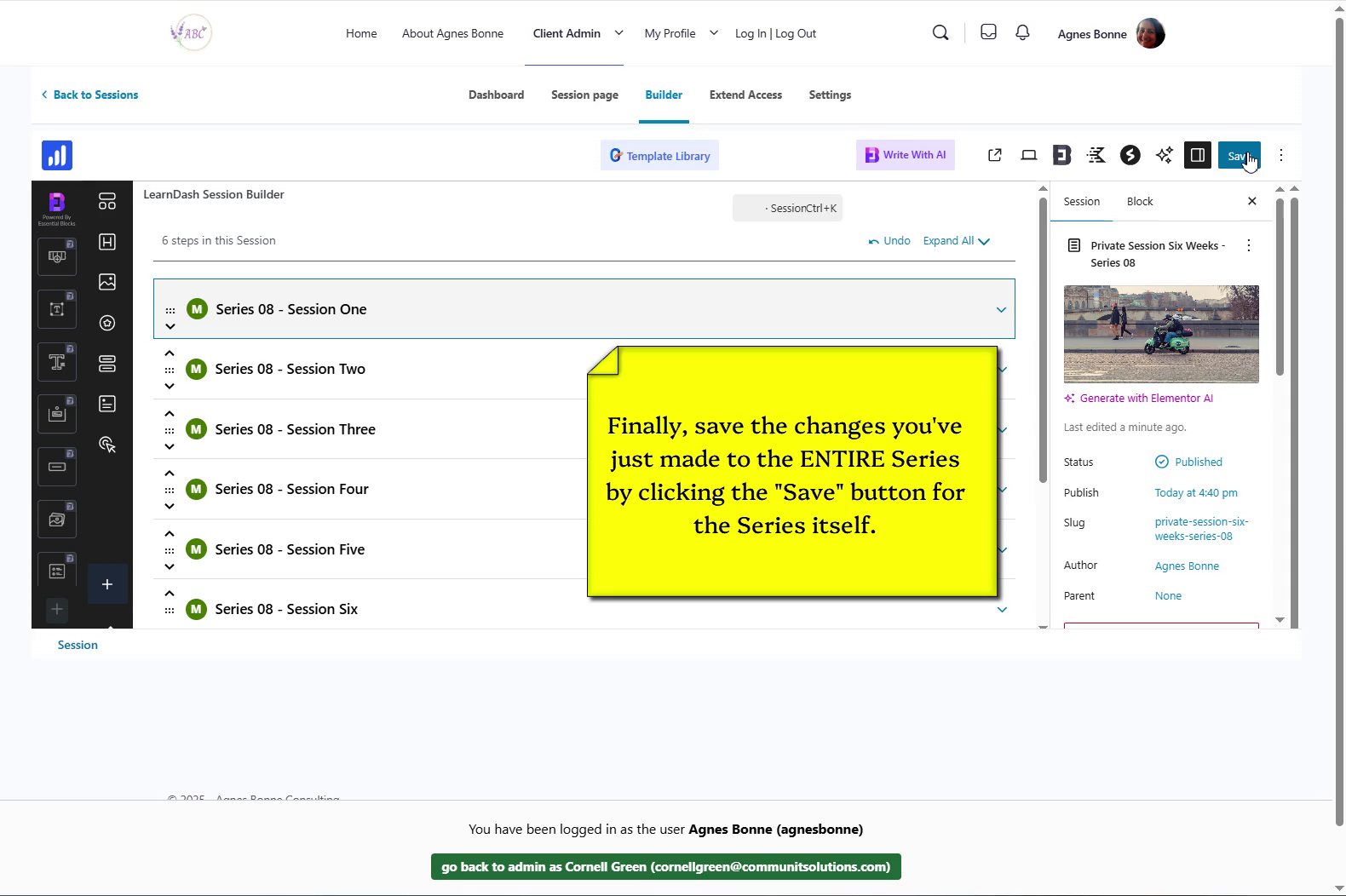
  • Finally, as always, click the “Save” button at the top of the screen to save all the work you have just completed
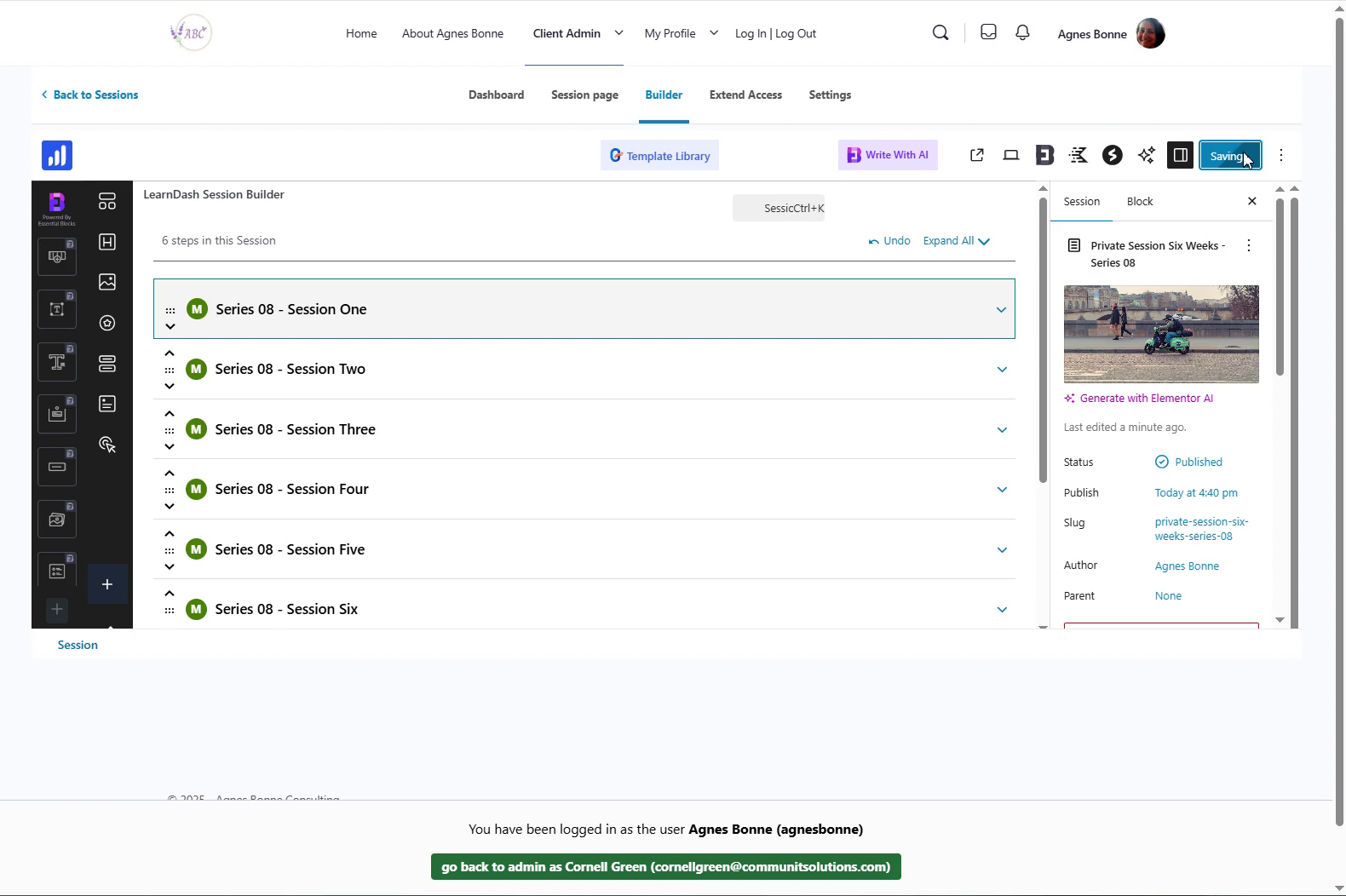
  • Saving… saving…
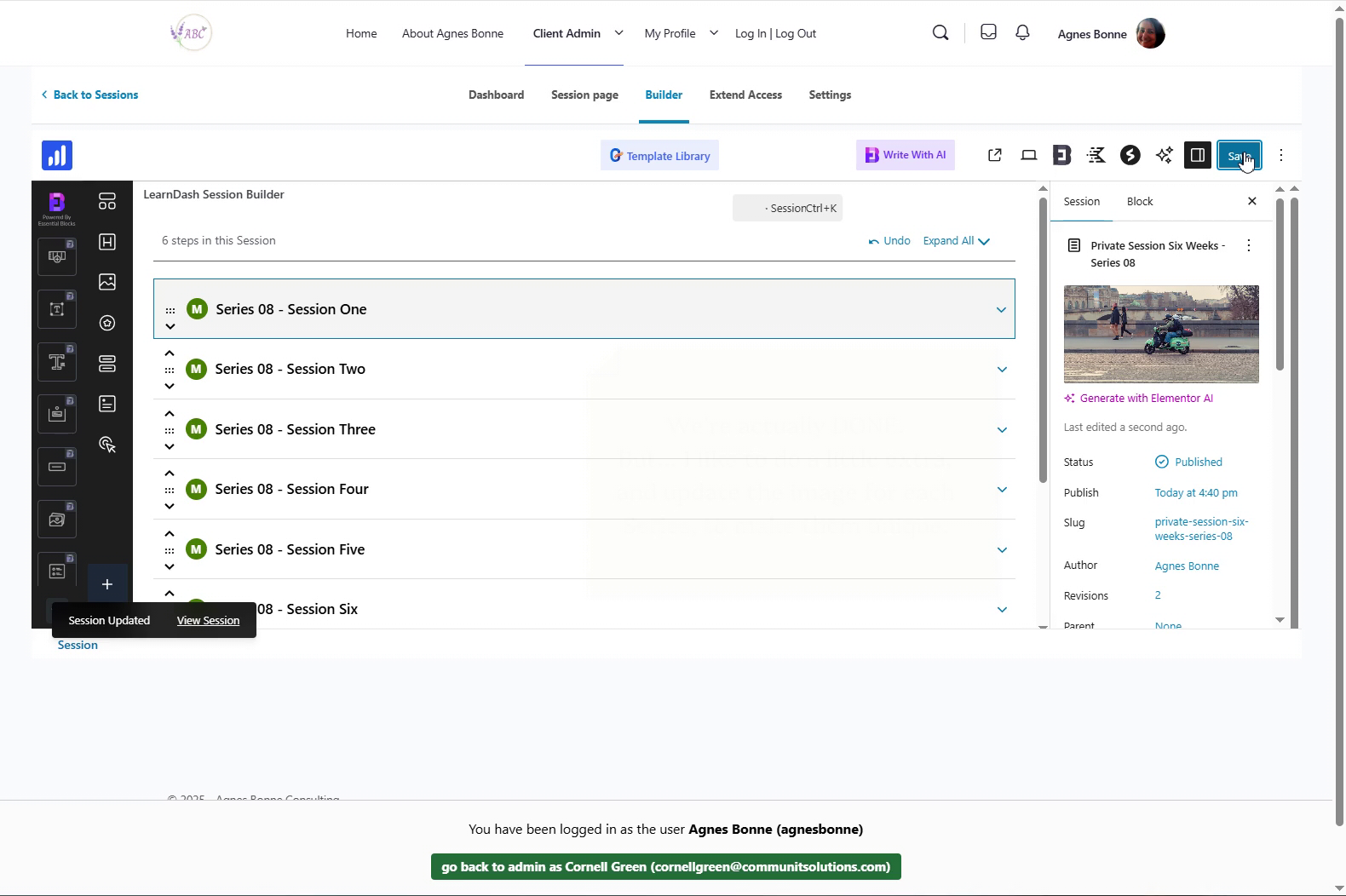
  • SAVED!
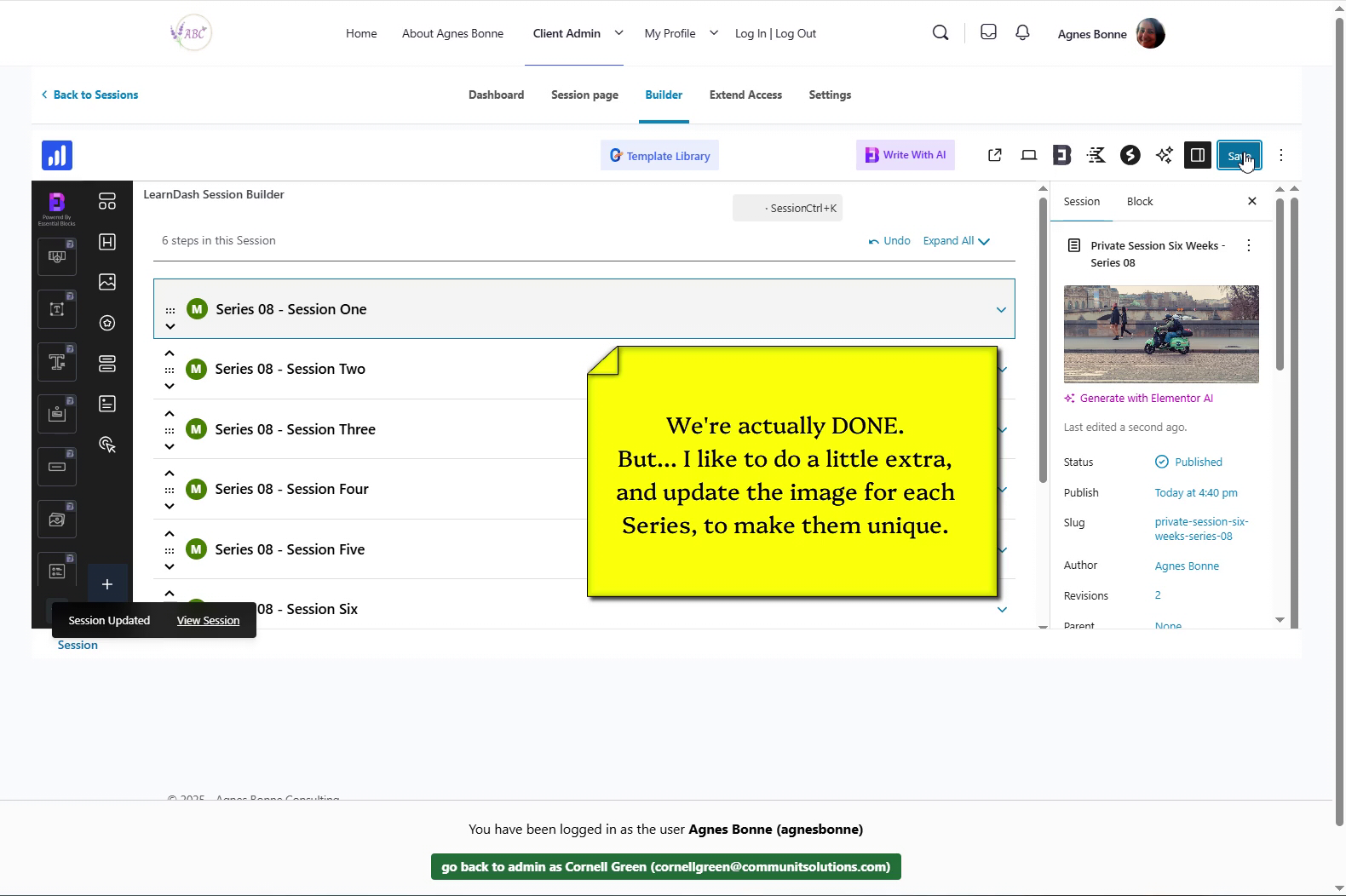
Now, one minor and one ESSENTIAL task, and you’ll be done

5 – Change the featured image for each session #

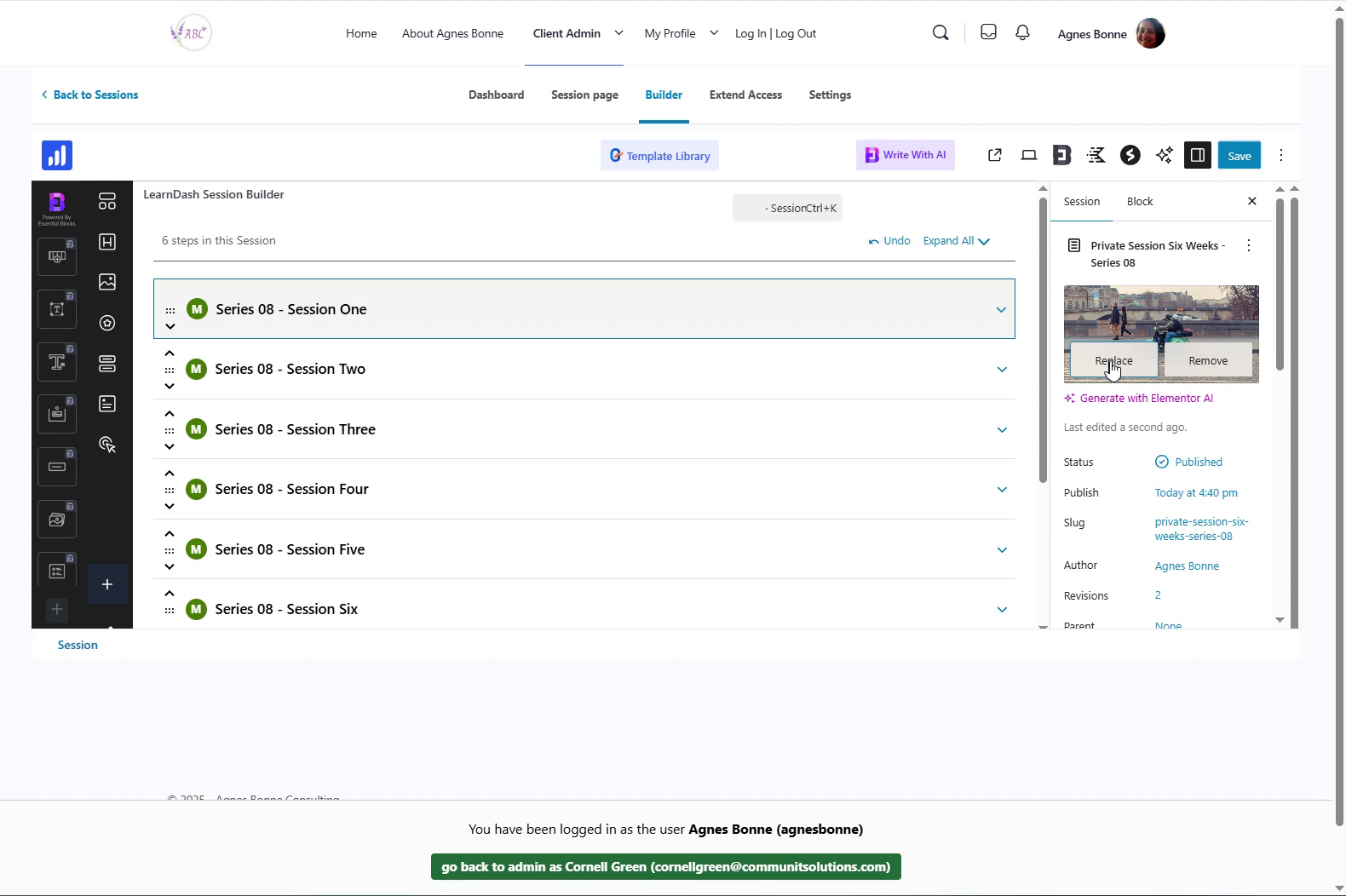
  • It’s a good idea to change the featured image which displays on the main Series page – it adds style and makes it easy to tell the Series from each other

    Move your mouse over the featured image and click the “Replace” button
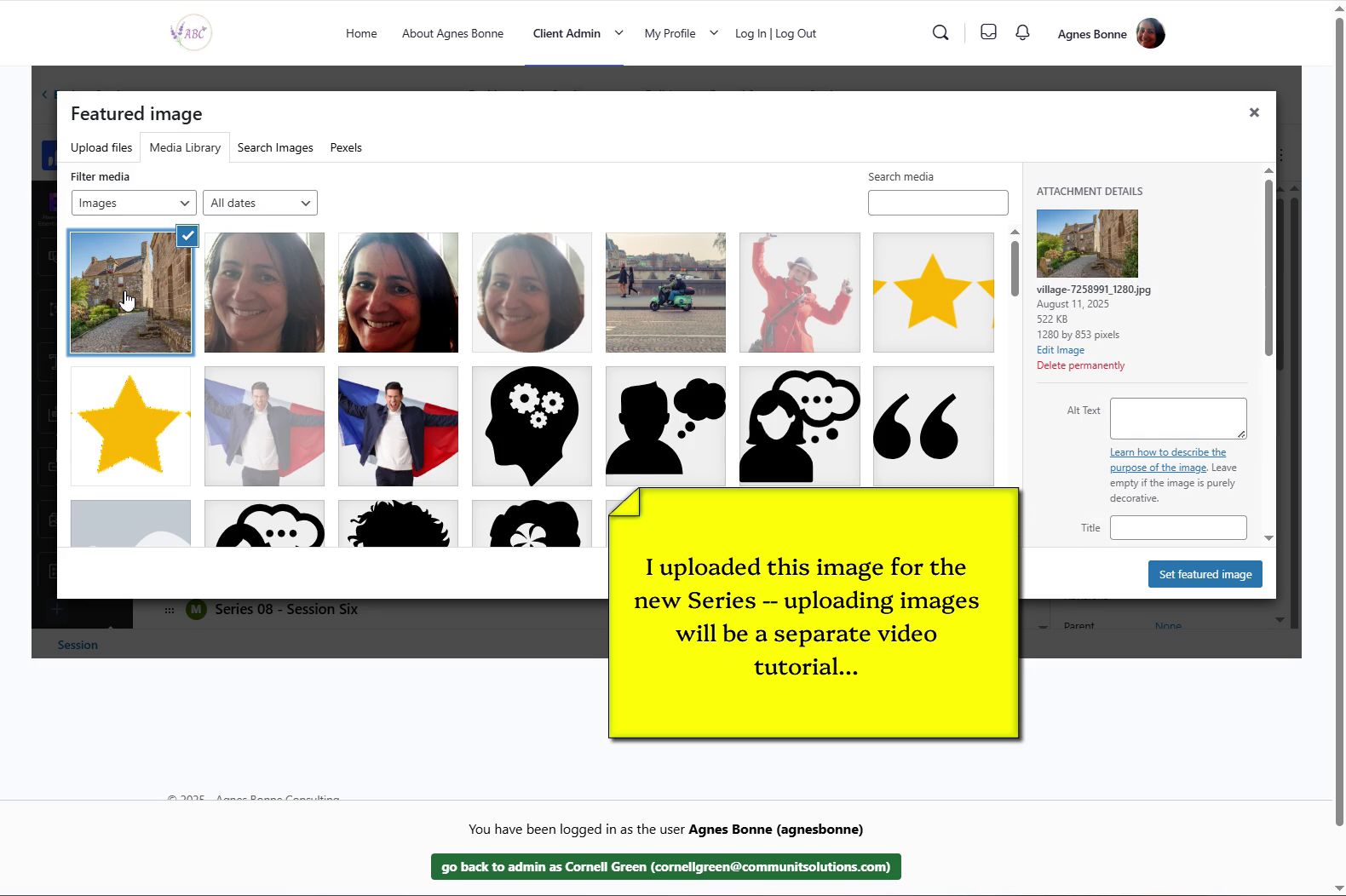
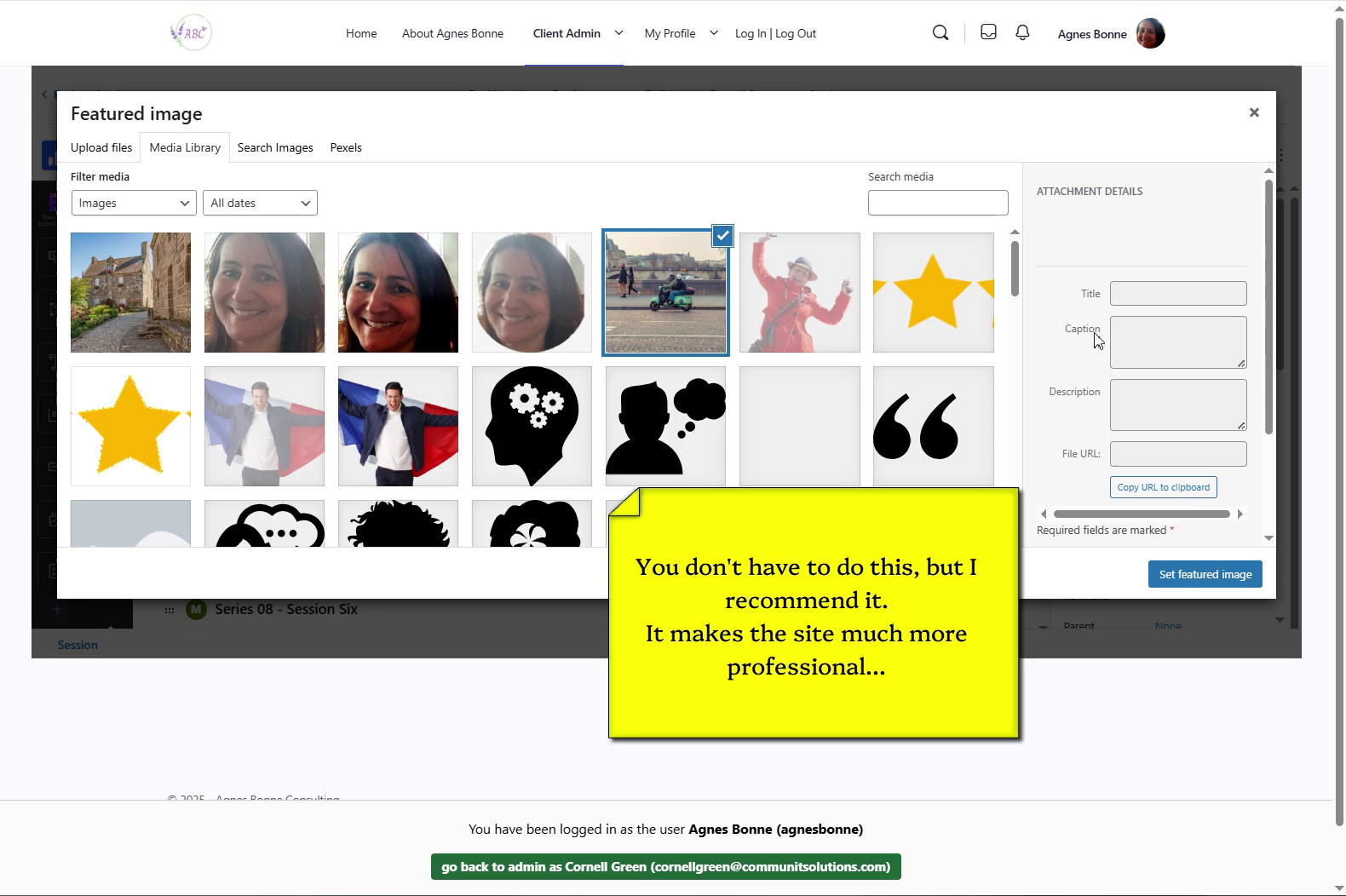
  • The Media Library window appears
  • Select the new Featured Image. You can click the “Upload File” tab and choose an image from your hard drive
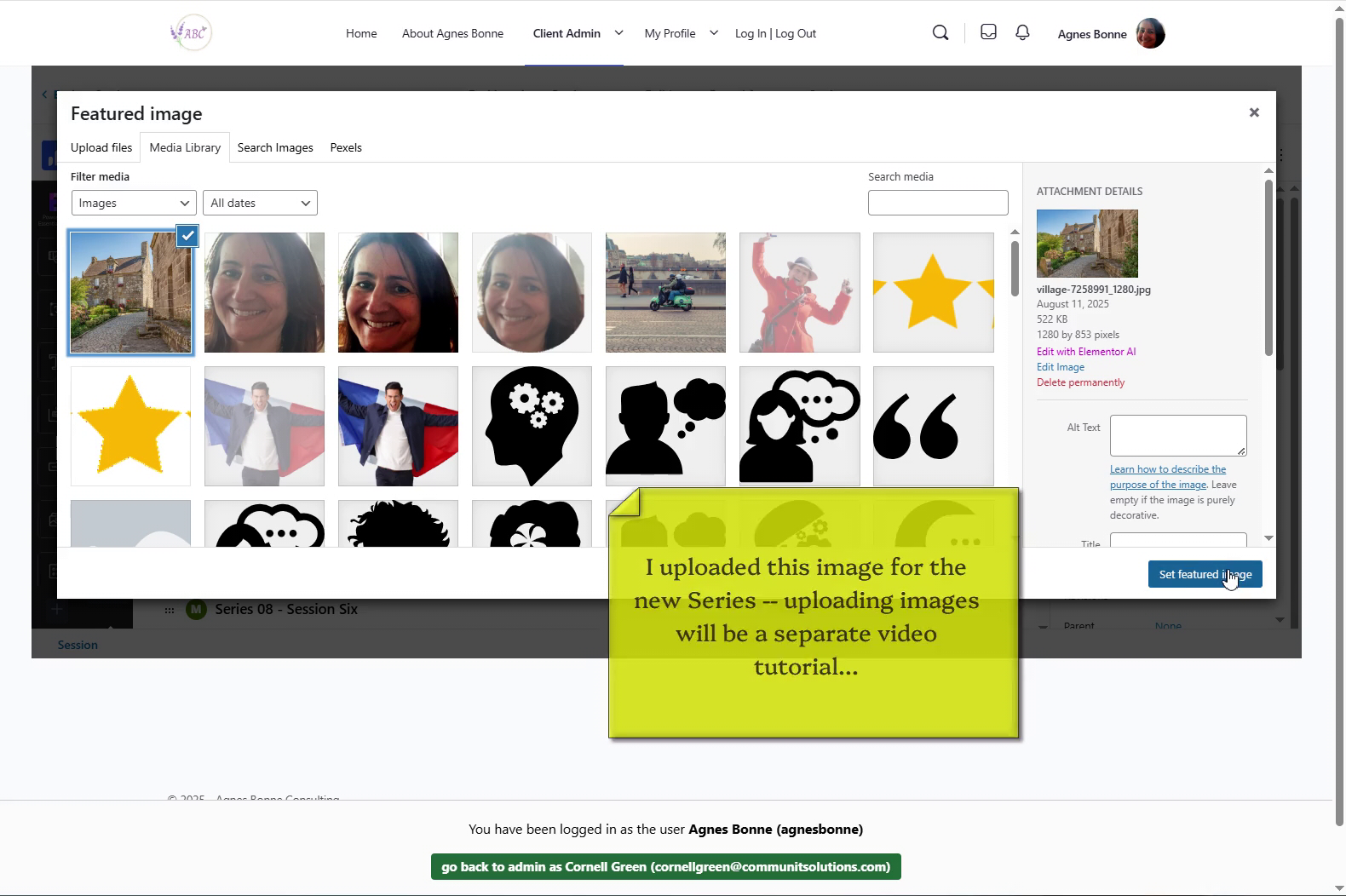
  • Next, click the “Set Featured Image” button
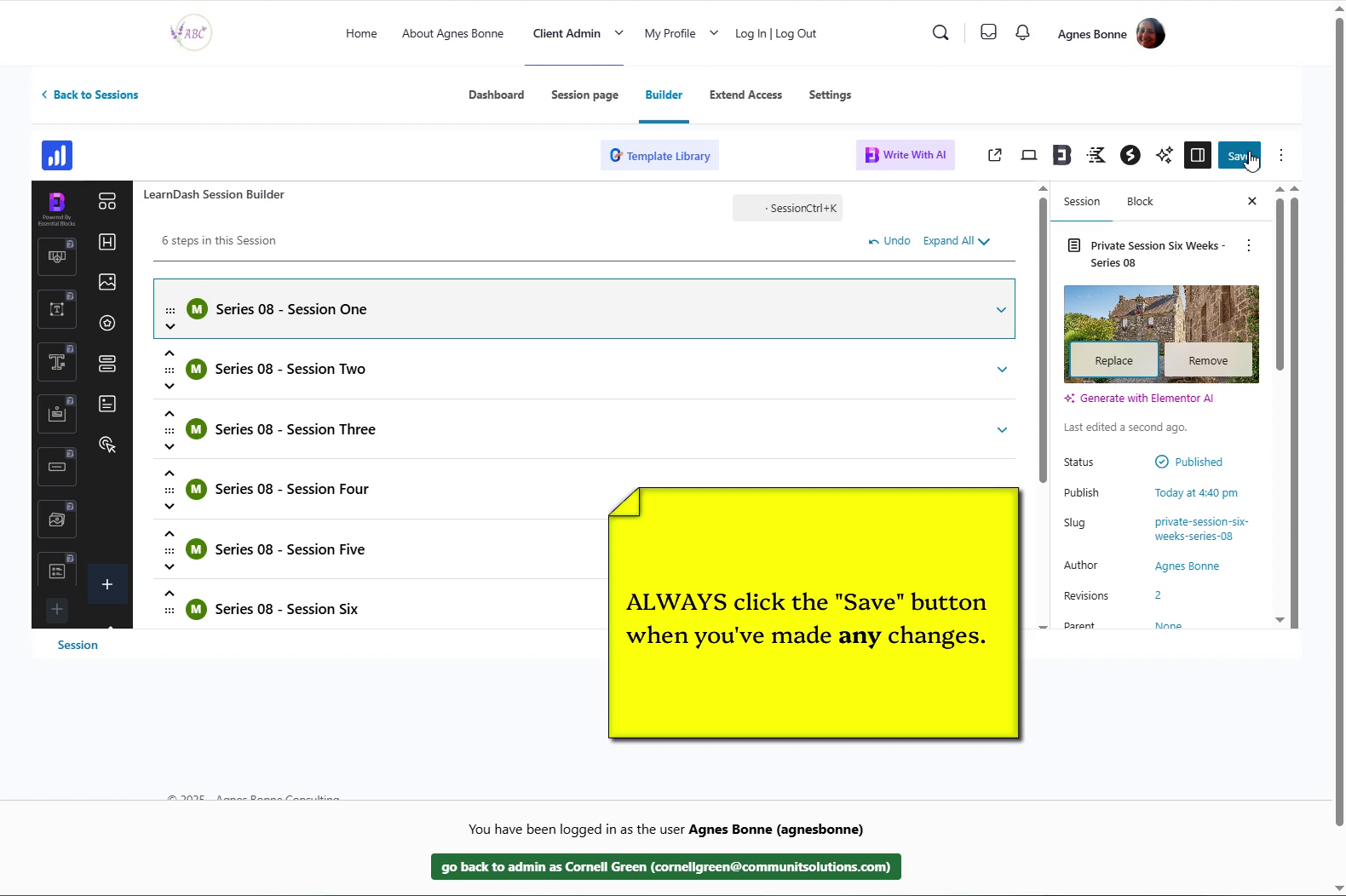
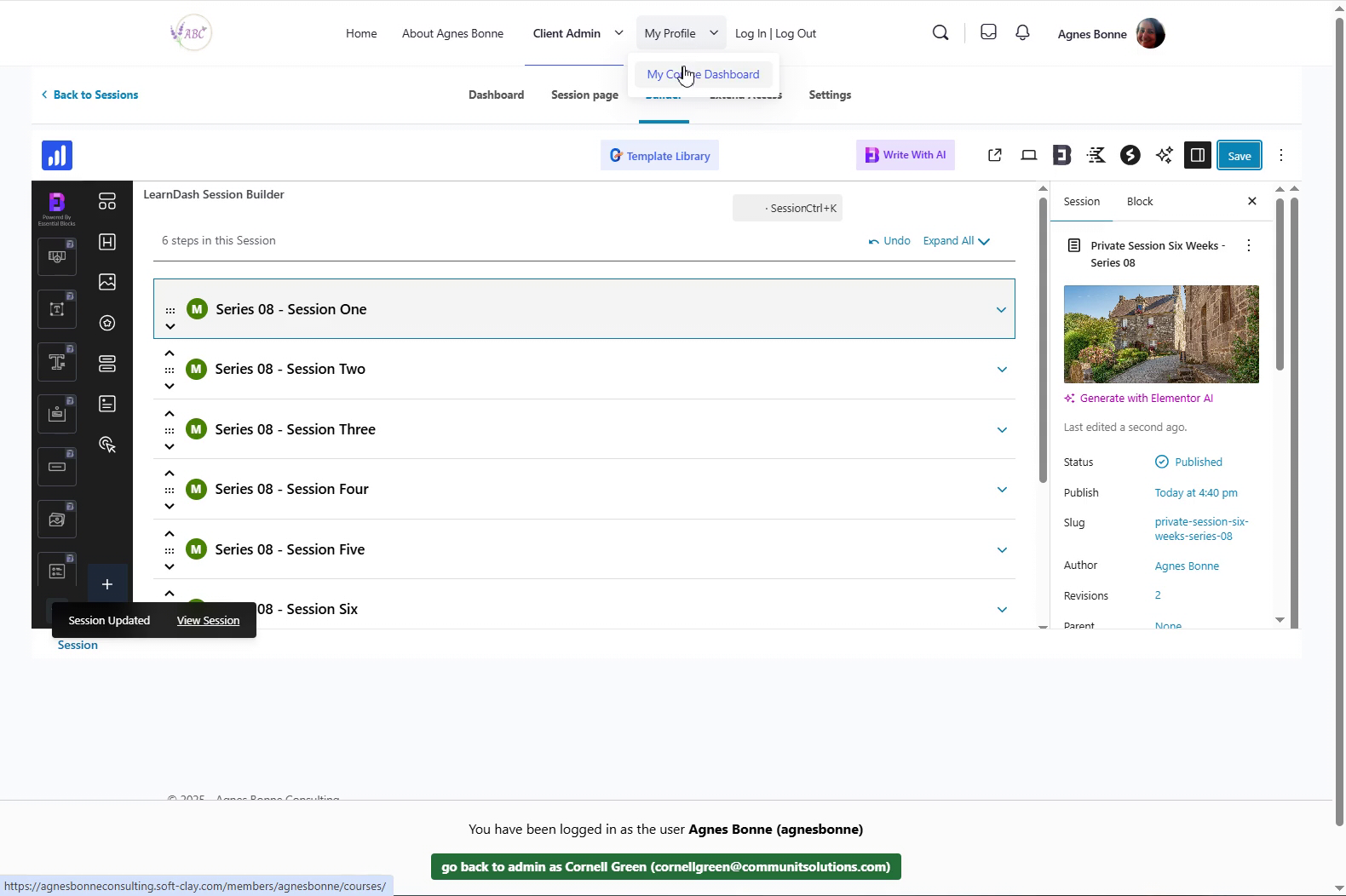
  • The Featured Image has been replaced. Click the “Save” button to apply the change
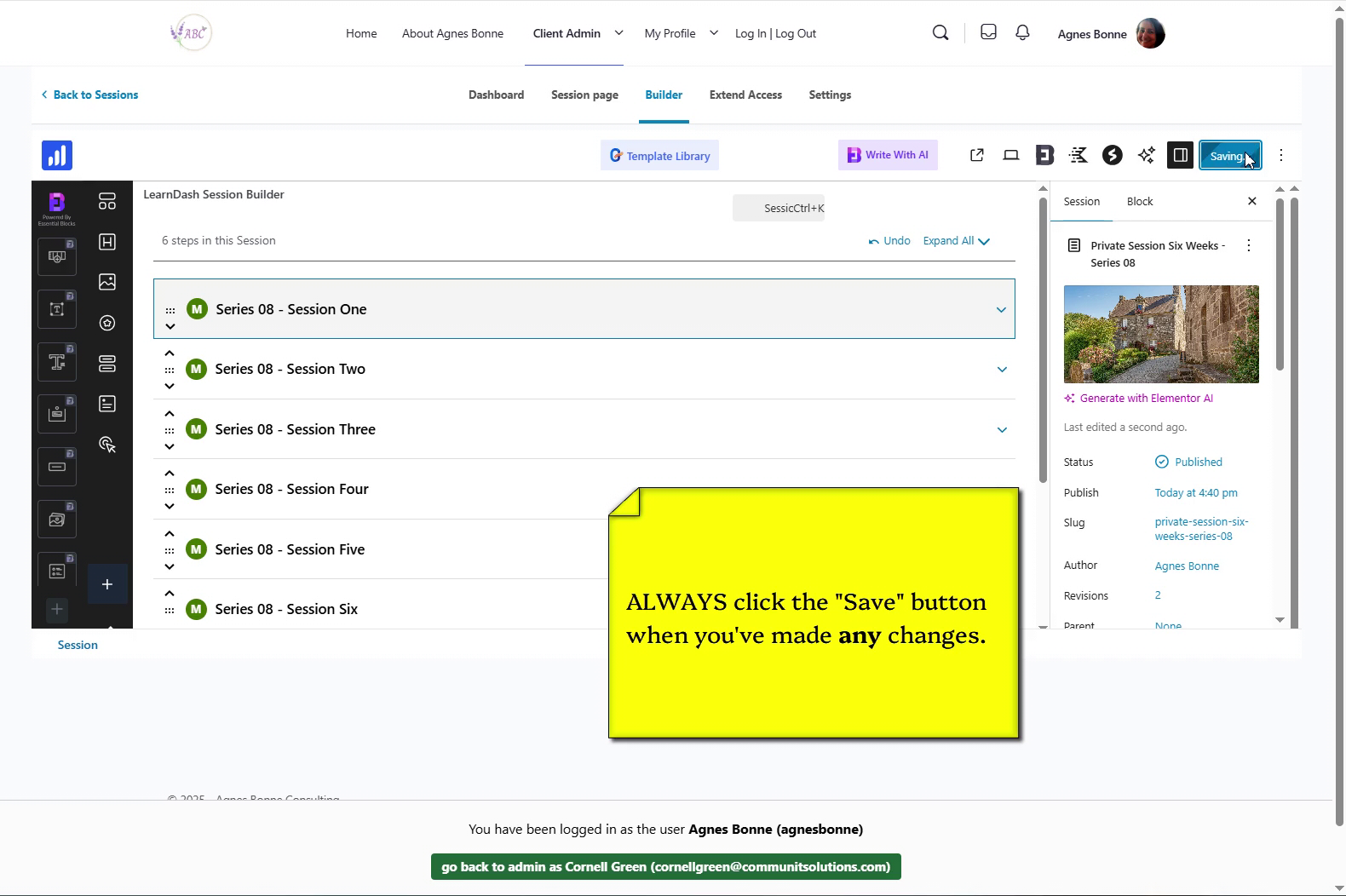
  • Saving… saving… SAVED

    Now, confirm that the change you just made
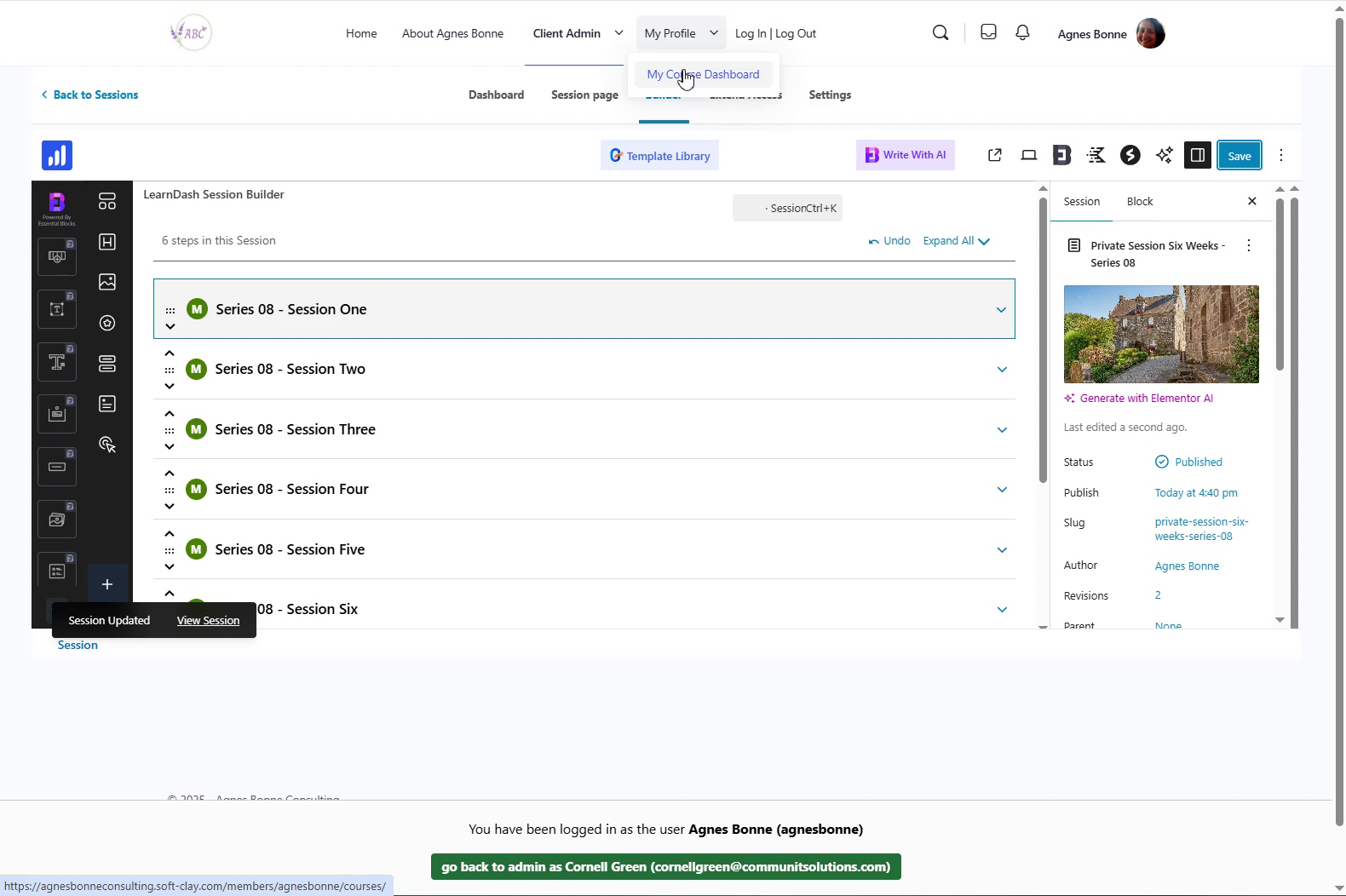
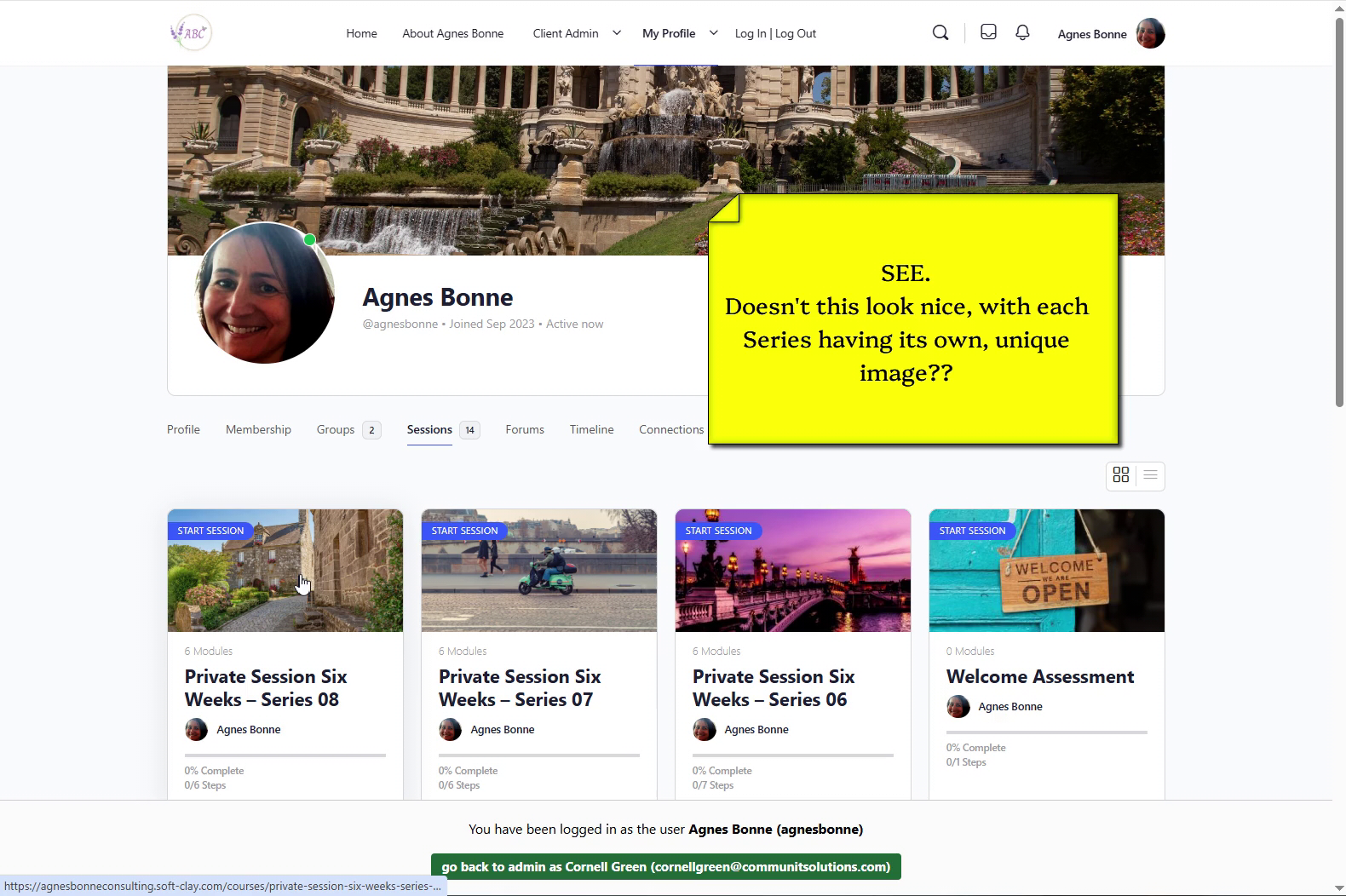
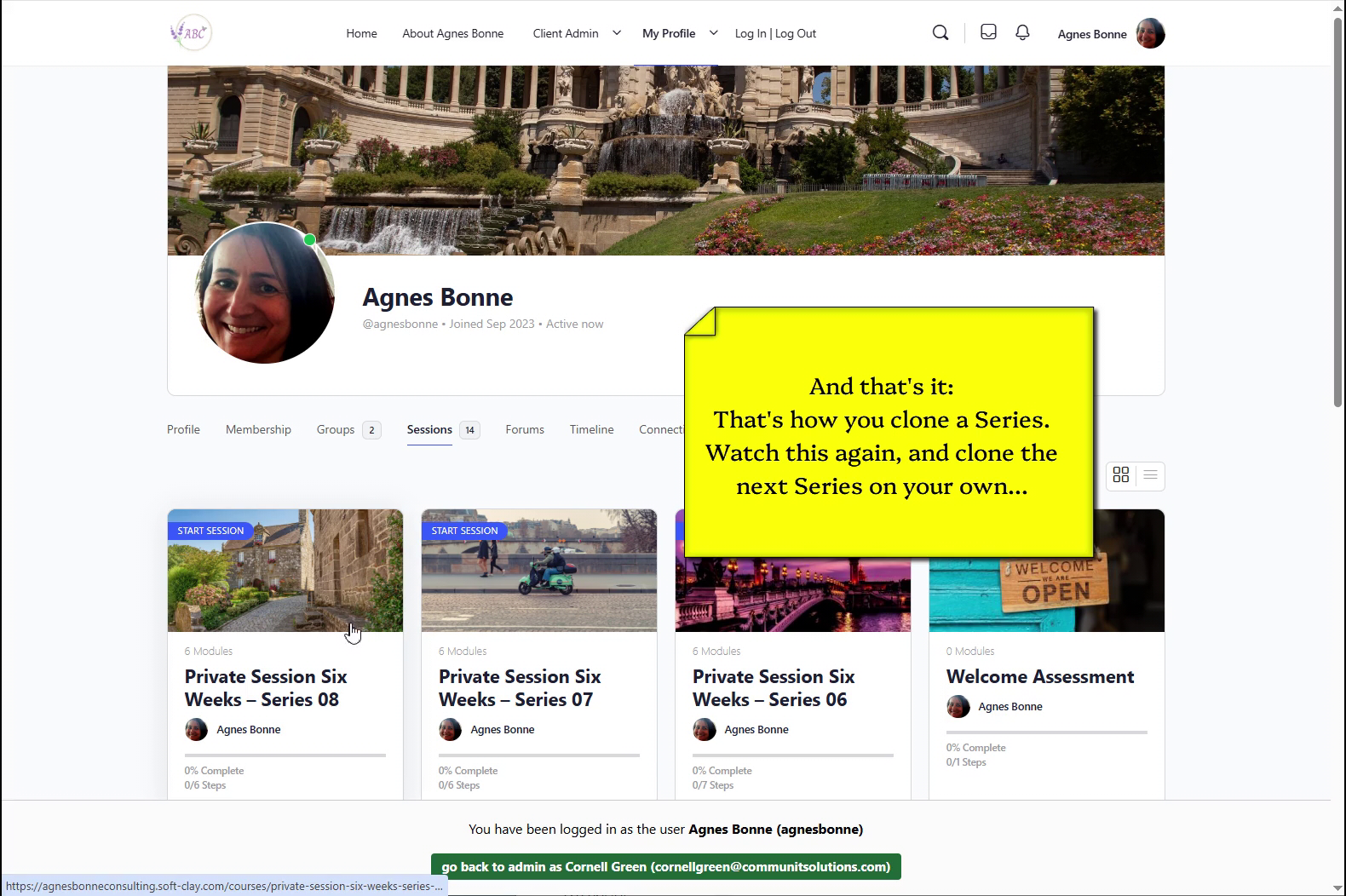
  • Click “My Profile -> My Course Dashboard” to view the Series’ list
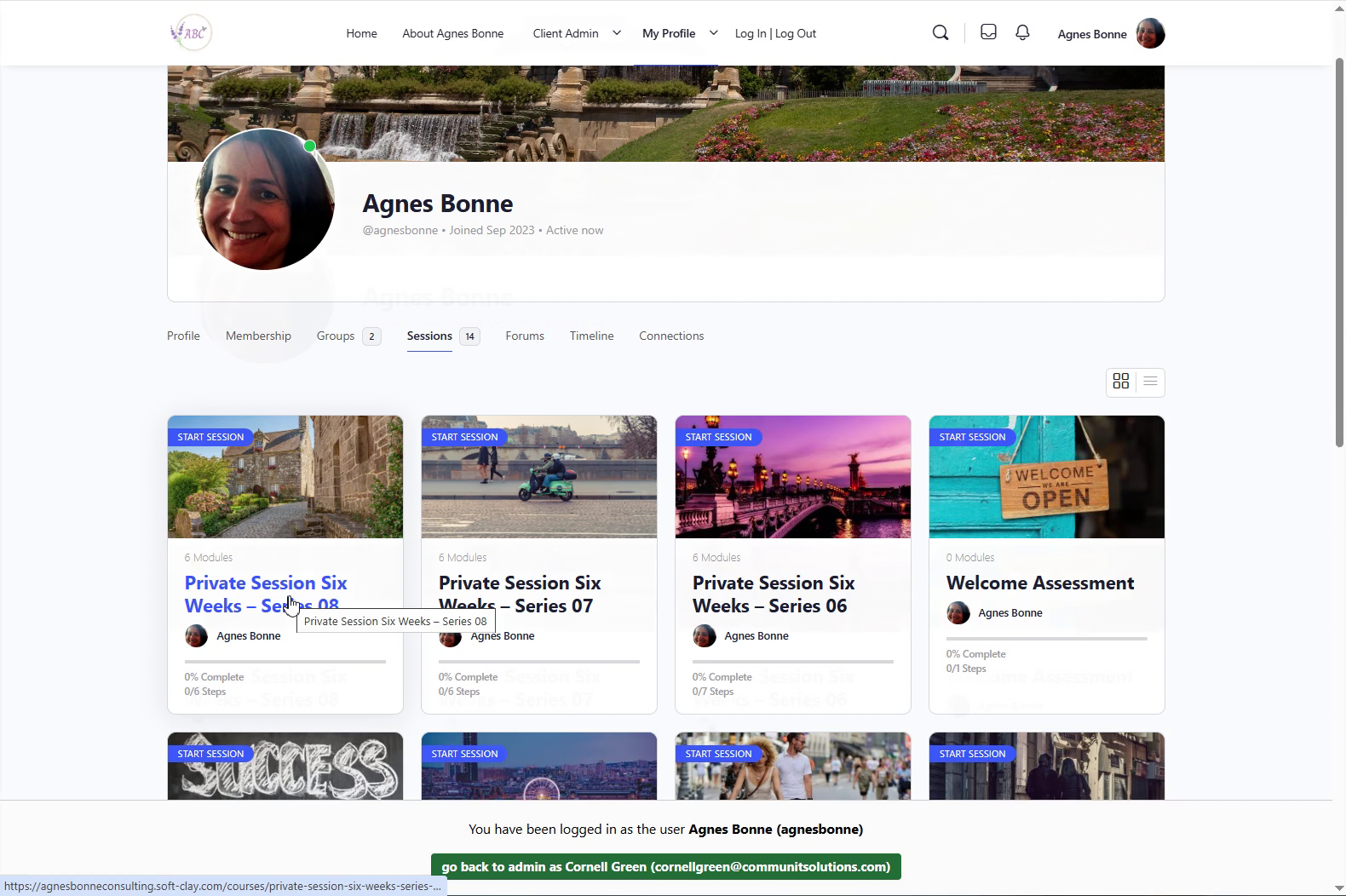
  • And there you have it – the cloned Series now has its own featured image
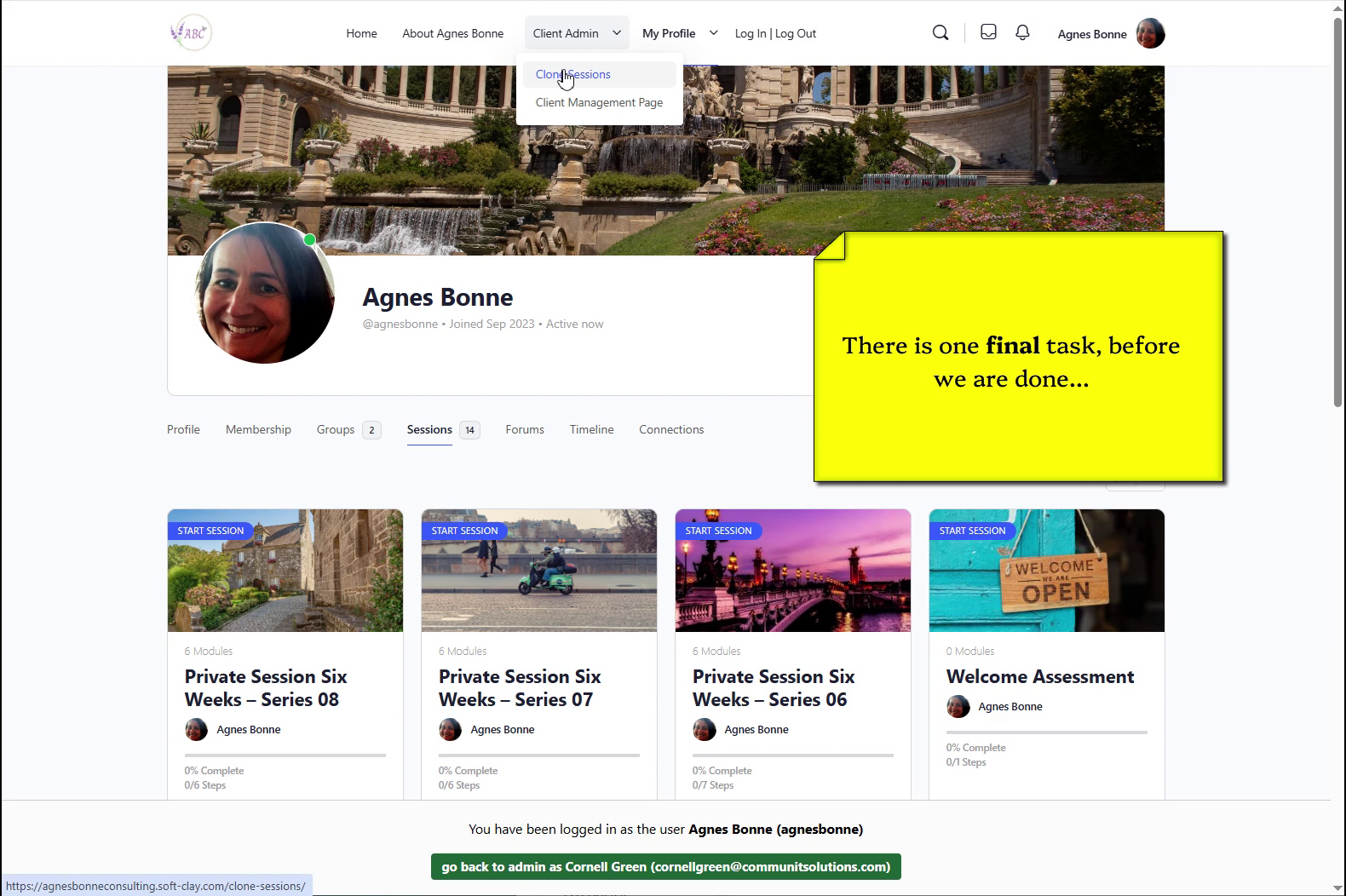
And finally, one more very important thing before you’re through

6 – Add the student(s) to the new session #

  • You have cloned and renamed your new Series – now, you must give you student(s) access to it
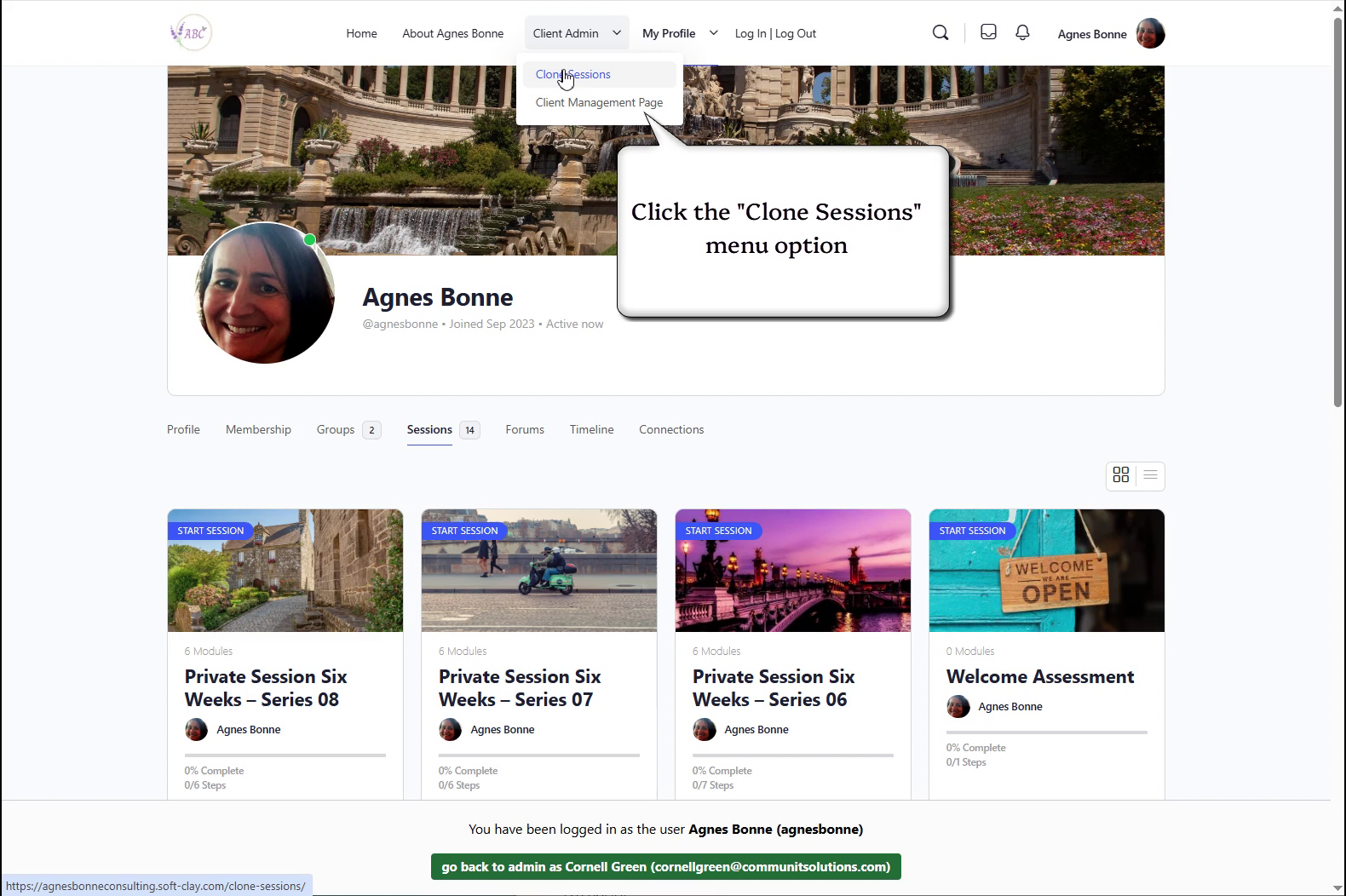
  • Click “Client Admin -> Clone Sessions”
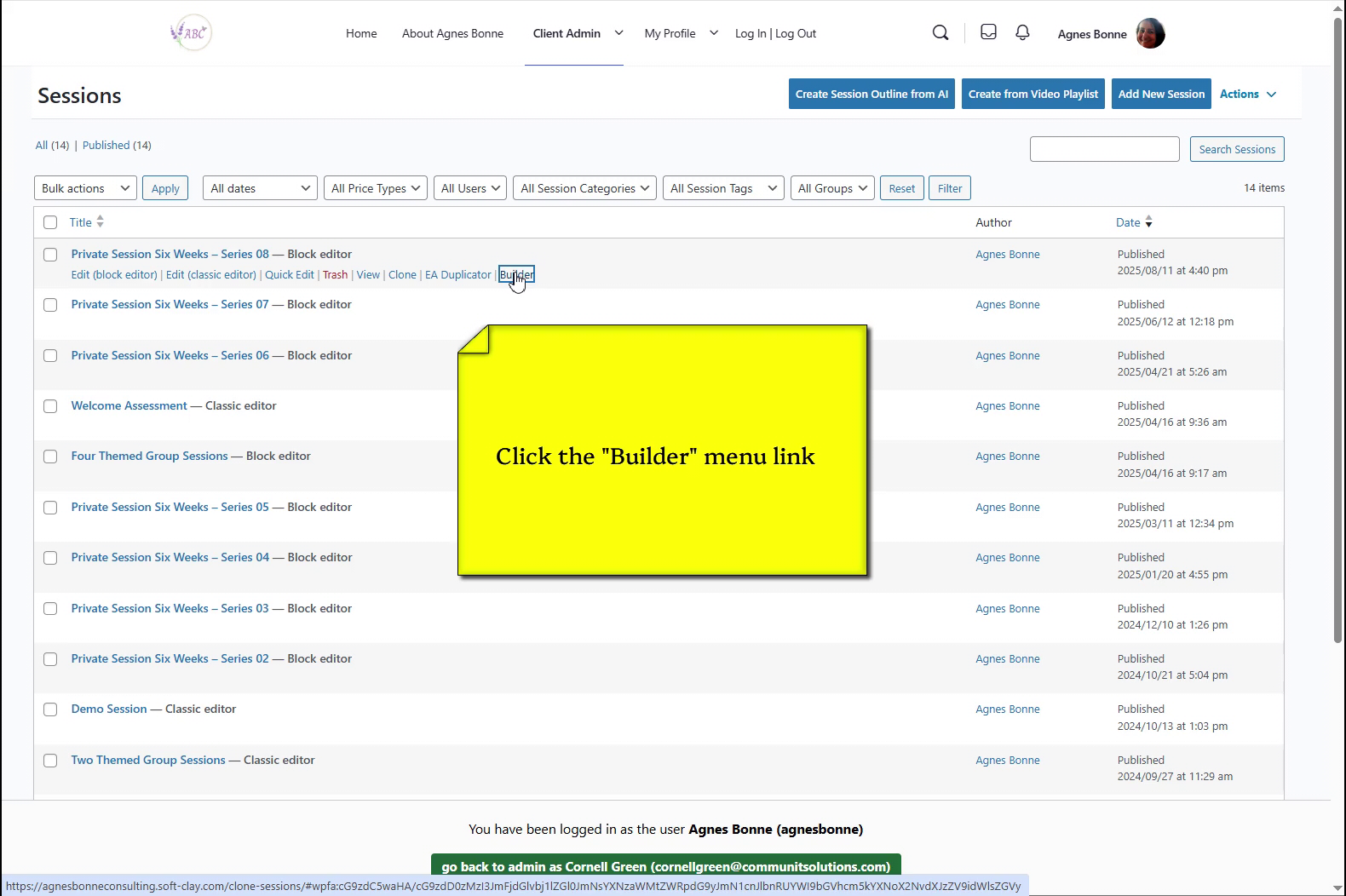
  • …and then, click the “Builder” menu link beneath the new Series name
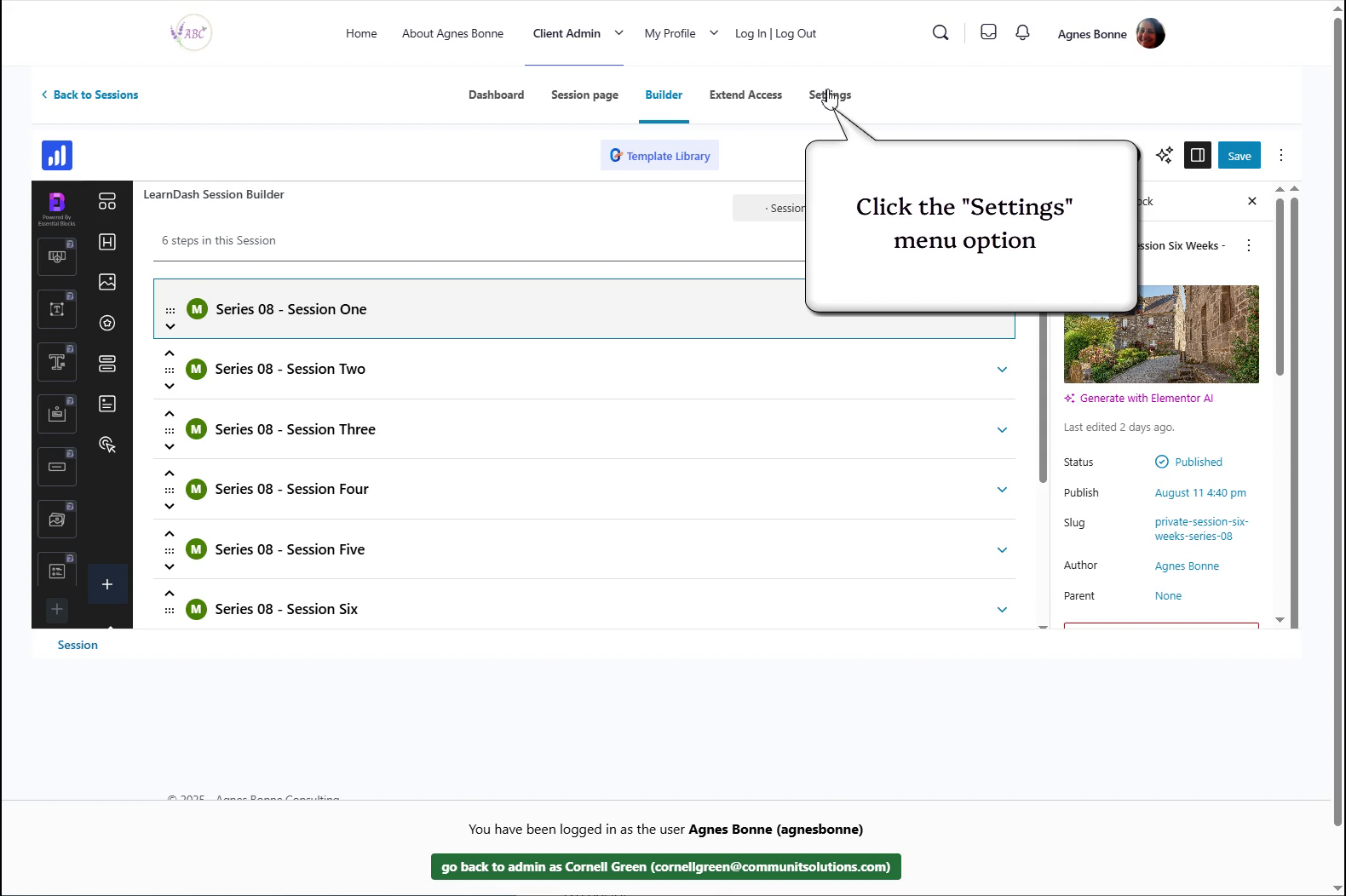
  • From here, click the “Settings” menu option at the top of the page
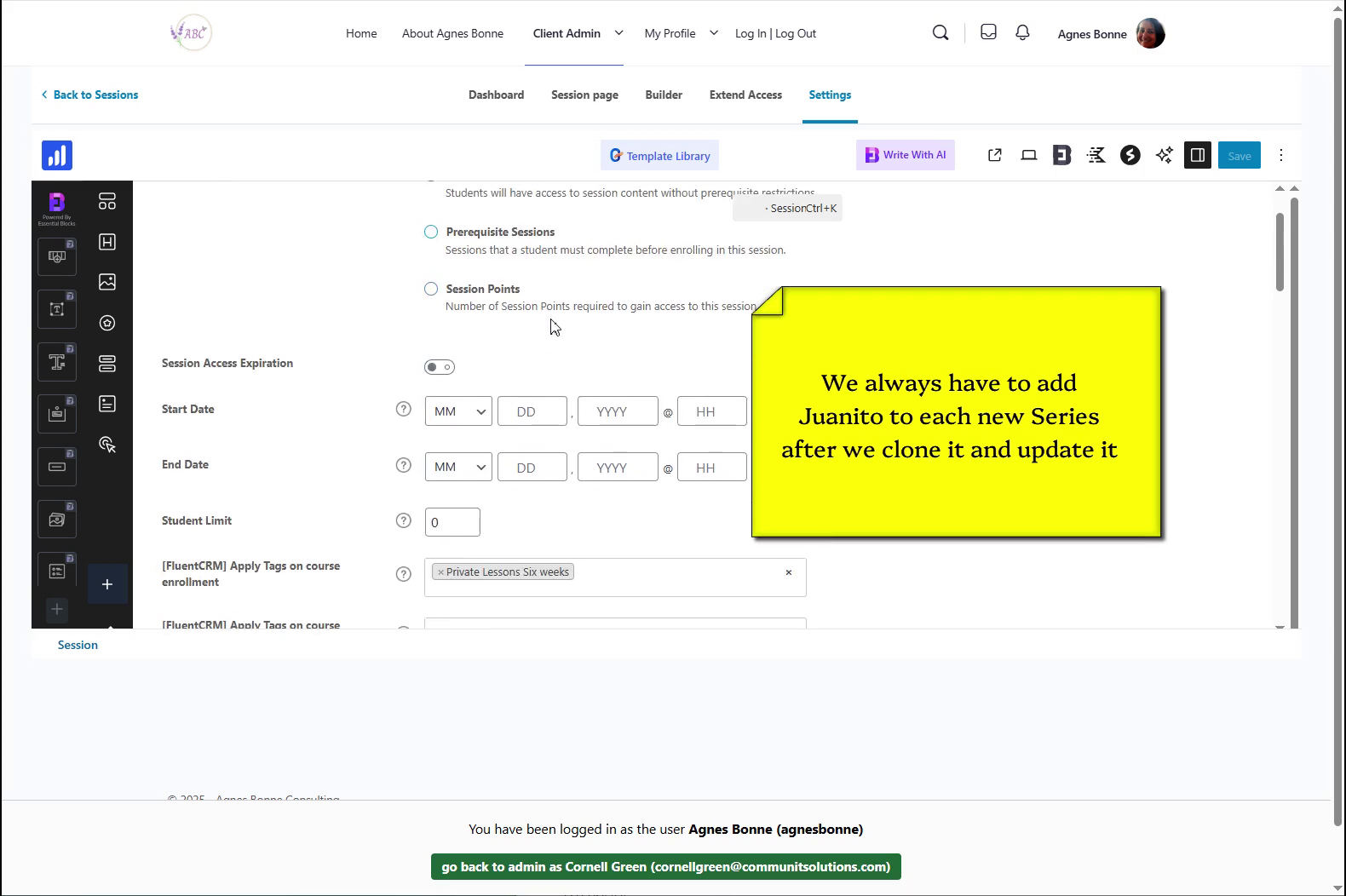
  • To add the student(s) to this new Series, we must scroll down to the bottom of the Settings page
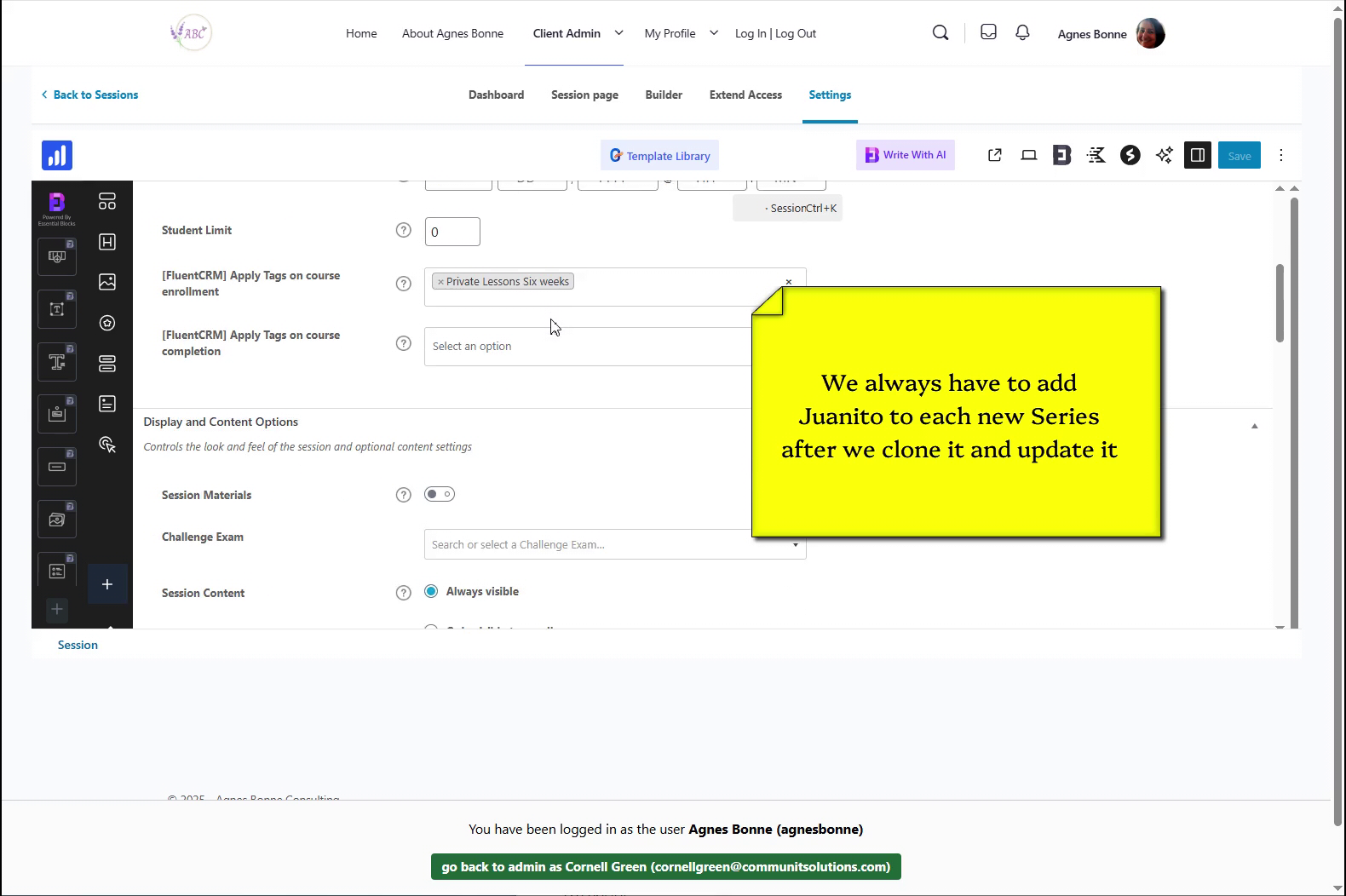
  • Further down…
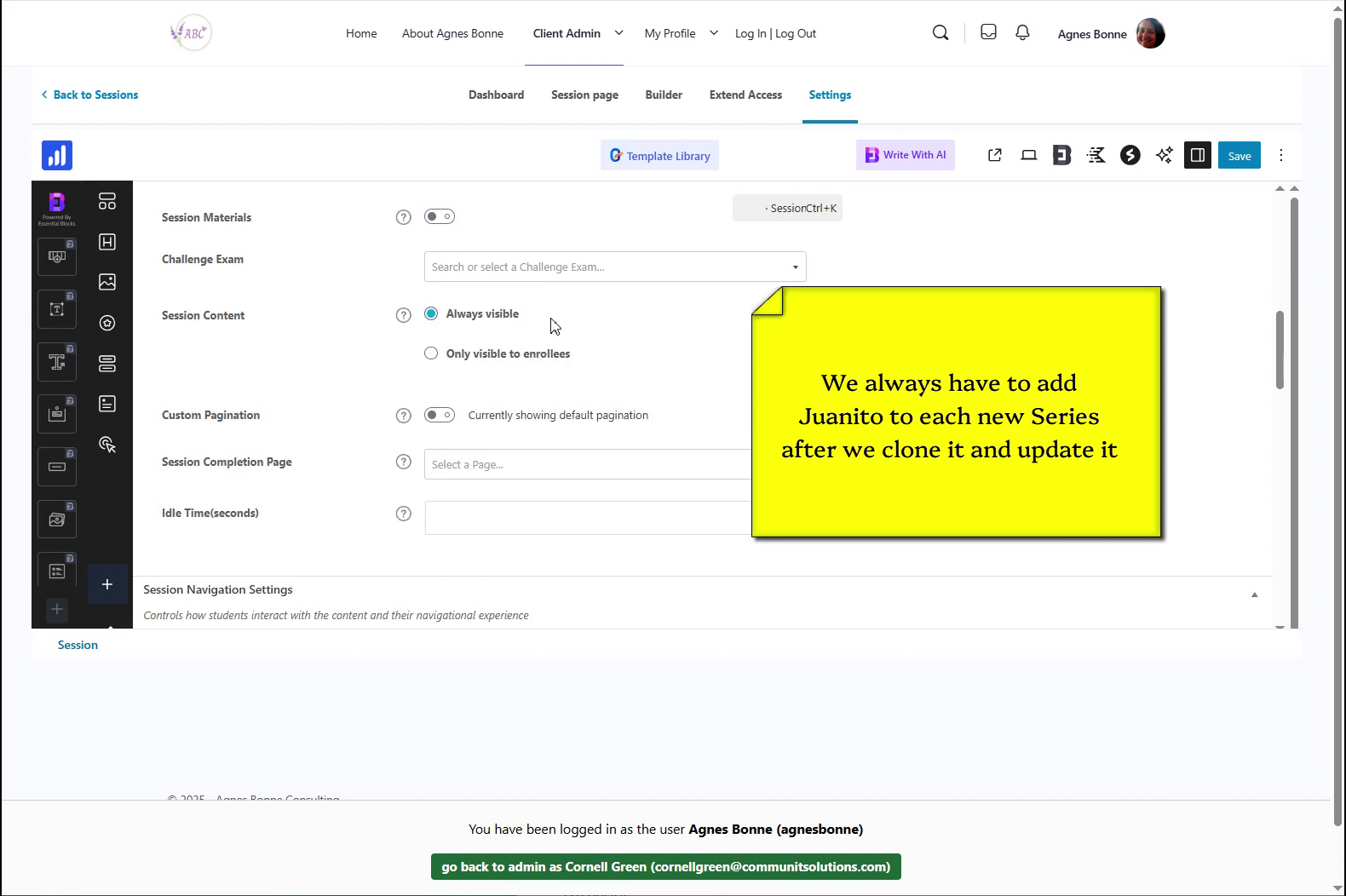
  • …keep going
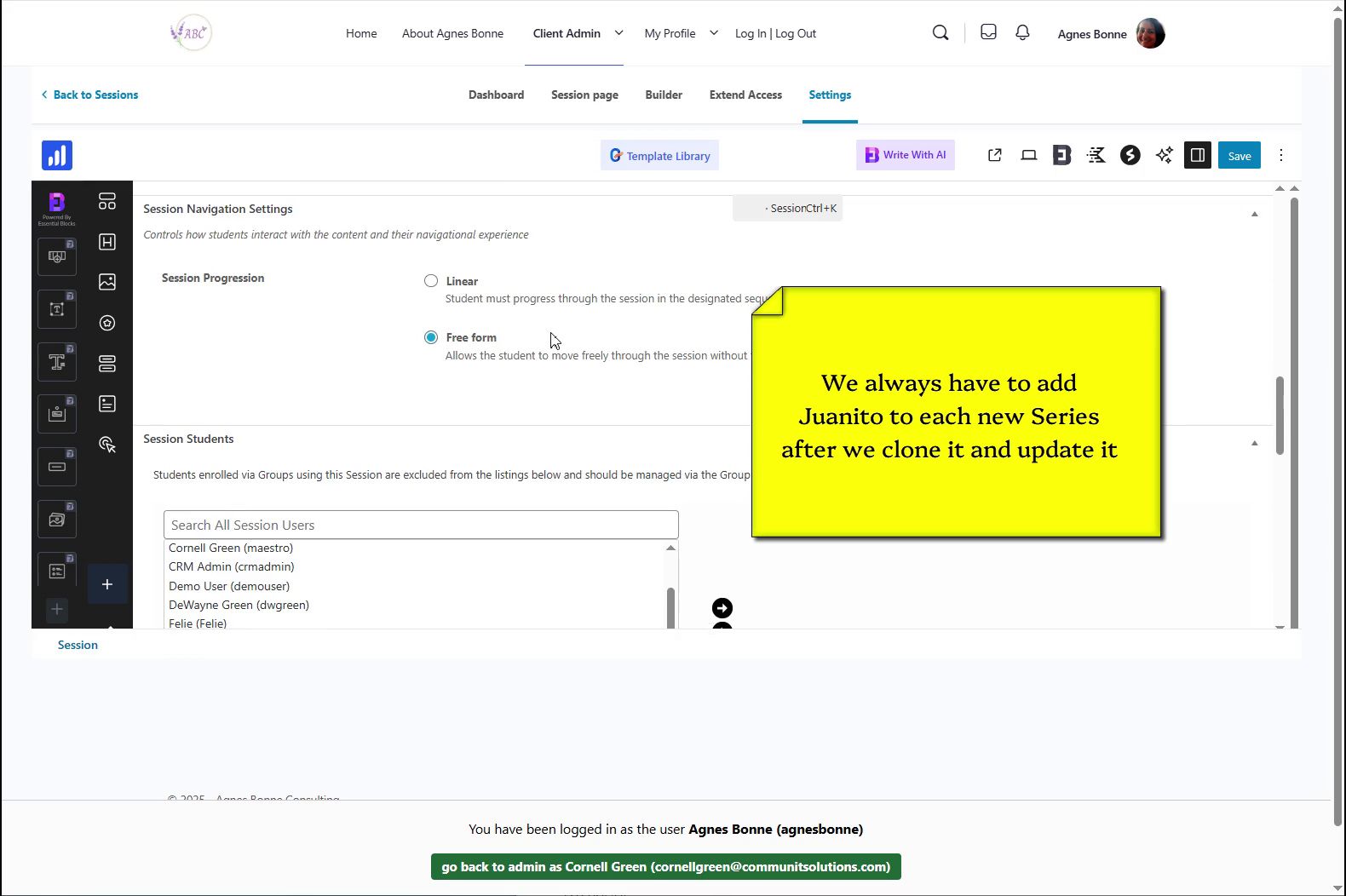
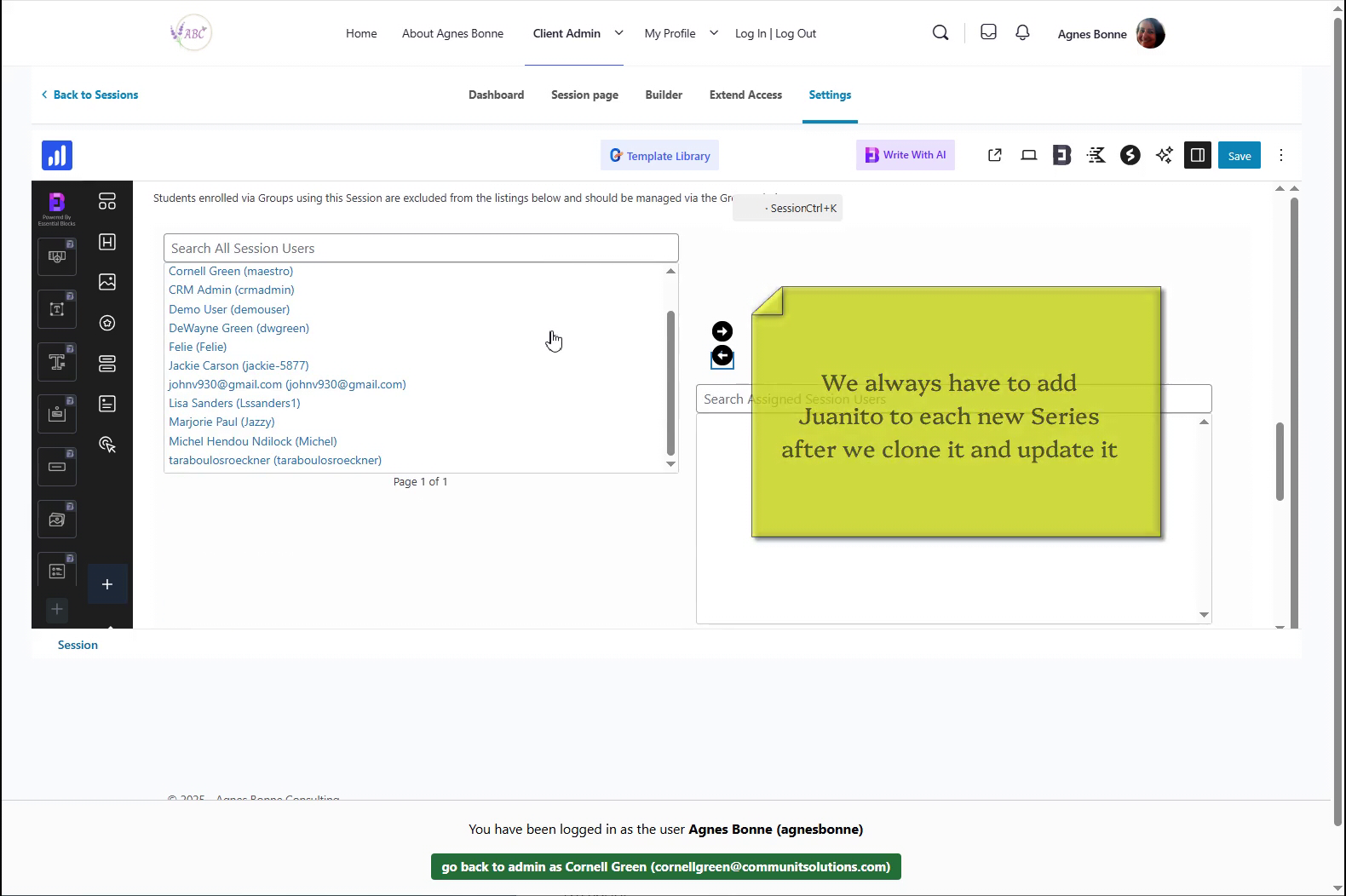
  • Here we are: the “Session Students” panel
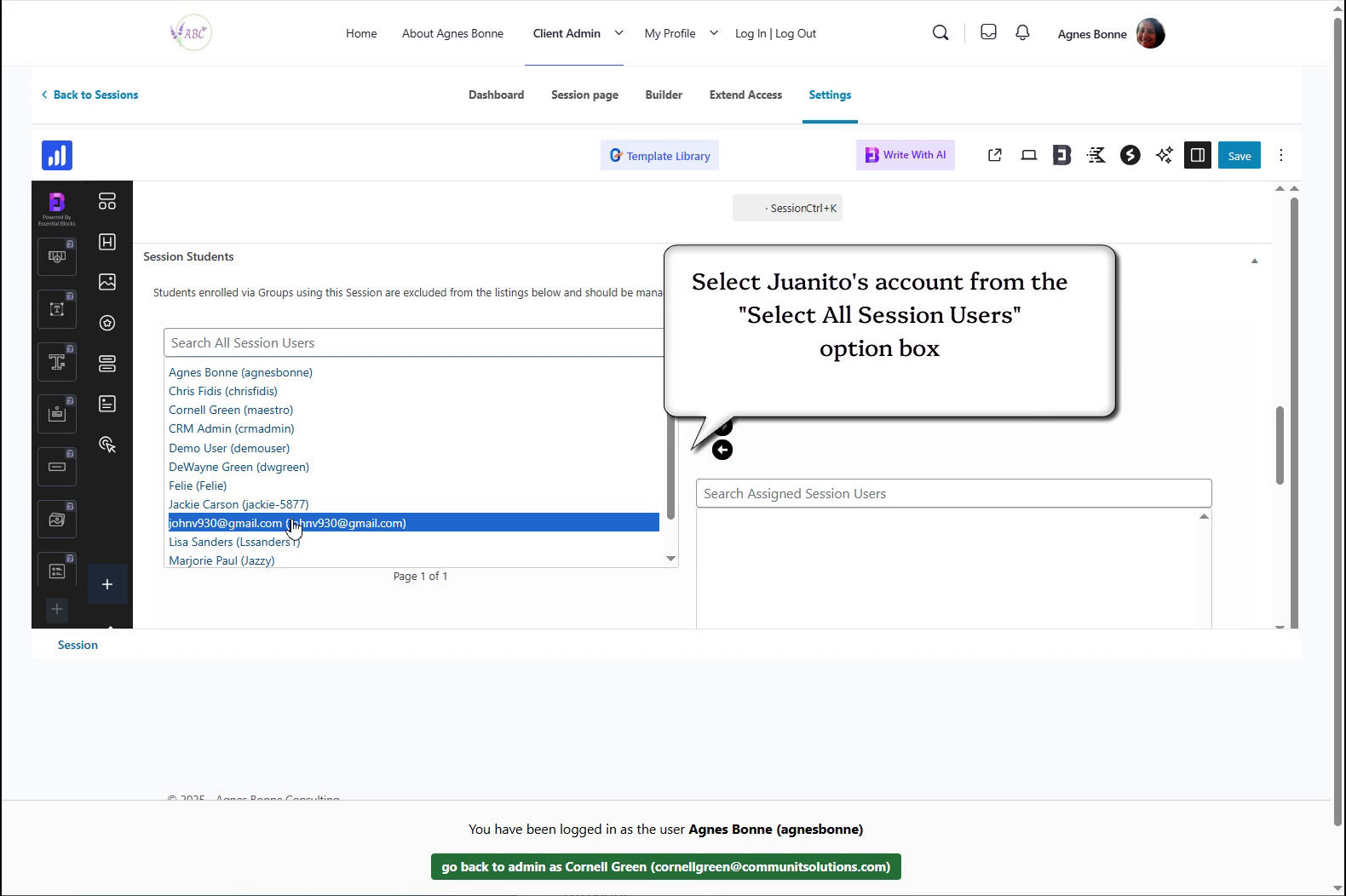
  • Find the student(s) name…
  • …click to highlight and select the student
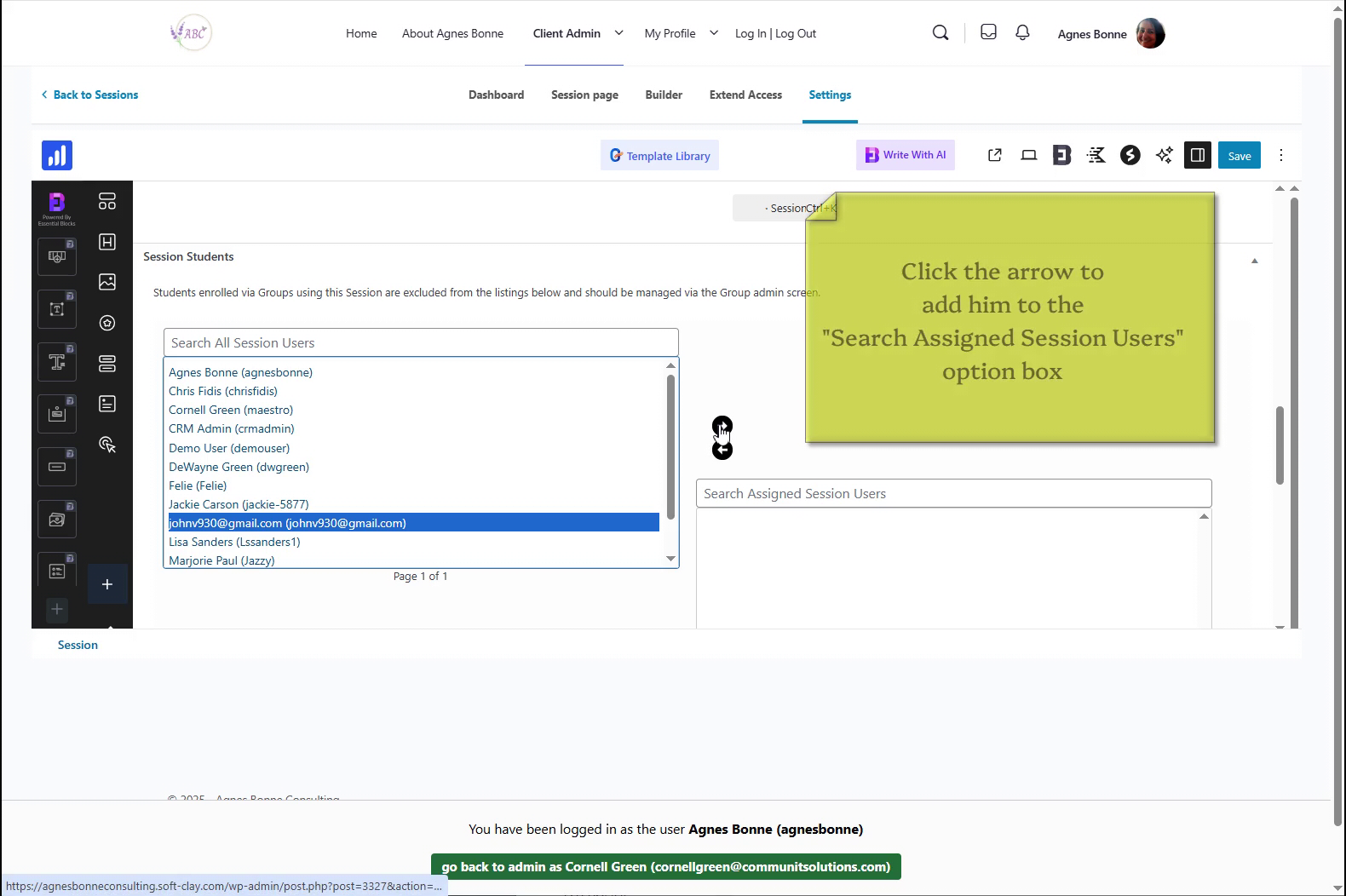
  • …then click the arrow -> to add the student to the “Assigned Session Users” panel
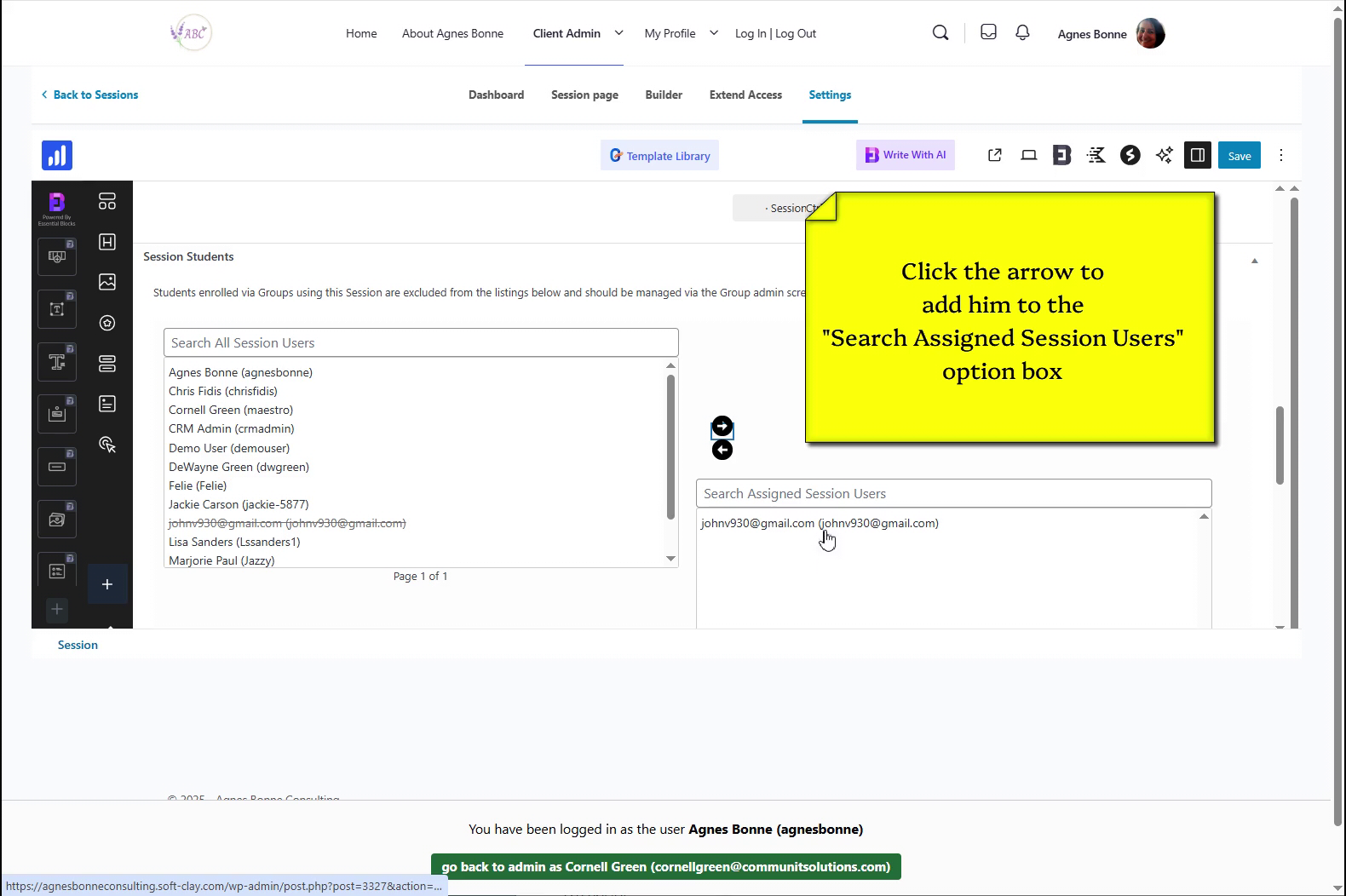
  • Confirm that the student(s) has been added to the “Assigned Session Users” panel
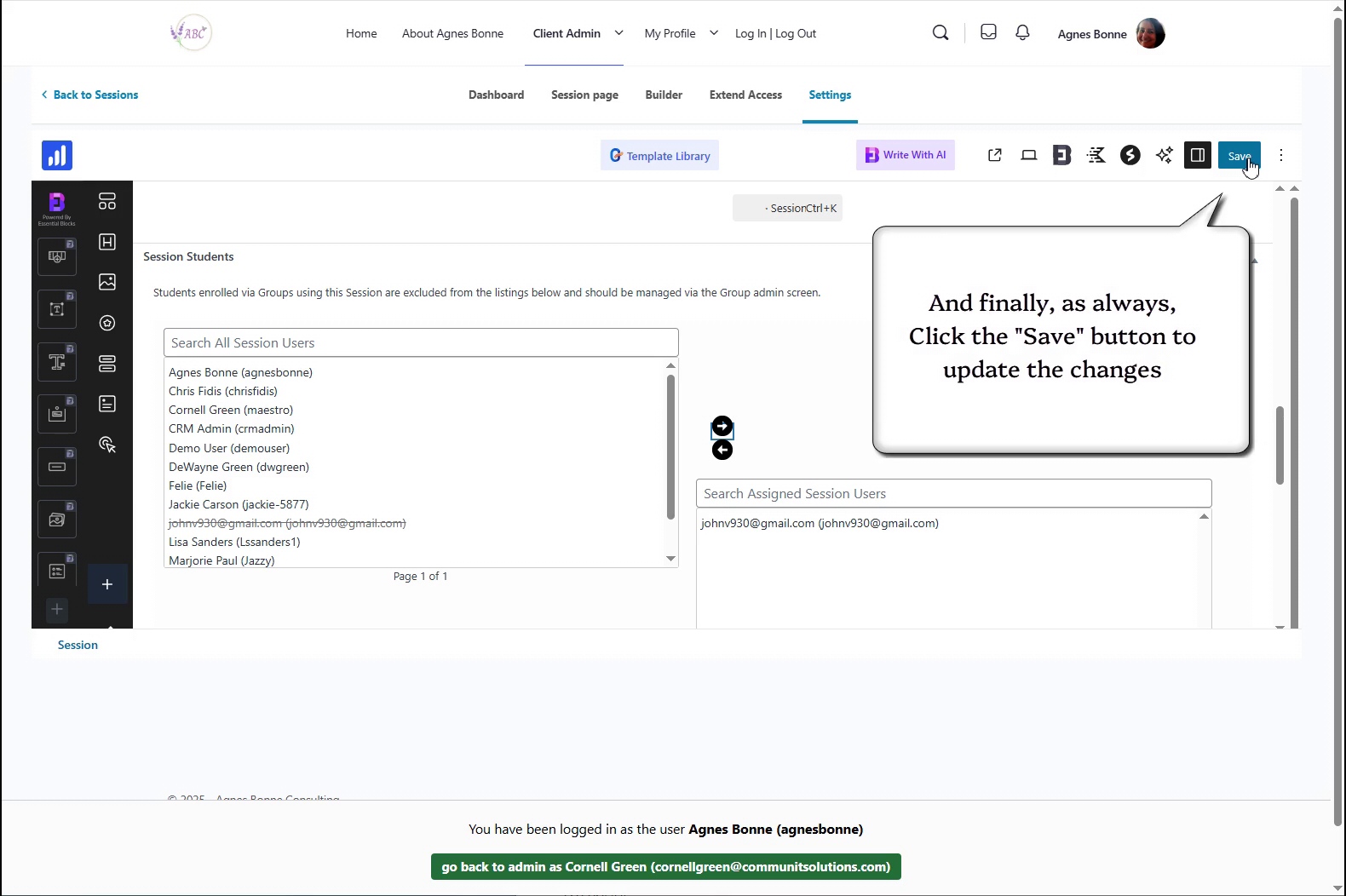
  • And, as always, click the “Save” button to save the change you’ve just made
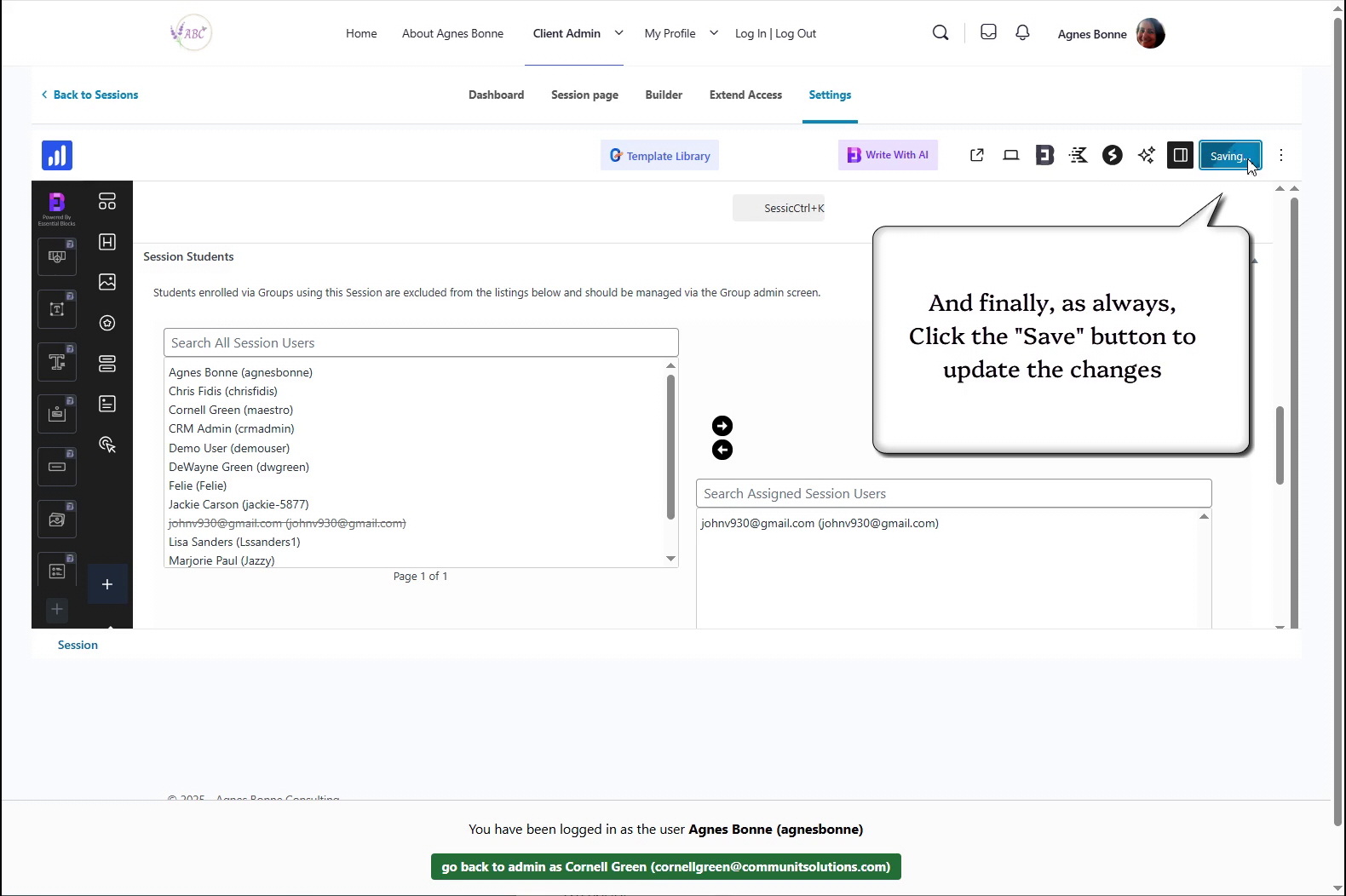
  • Saving… saving… SAVED!
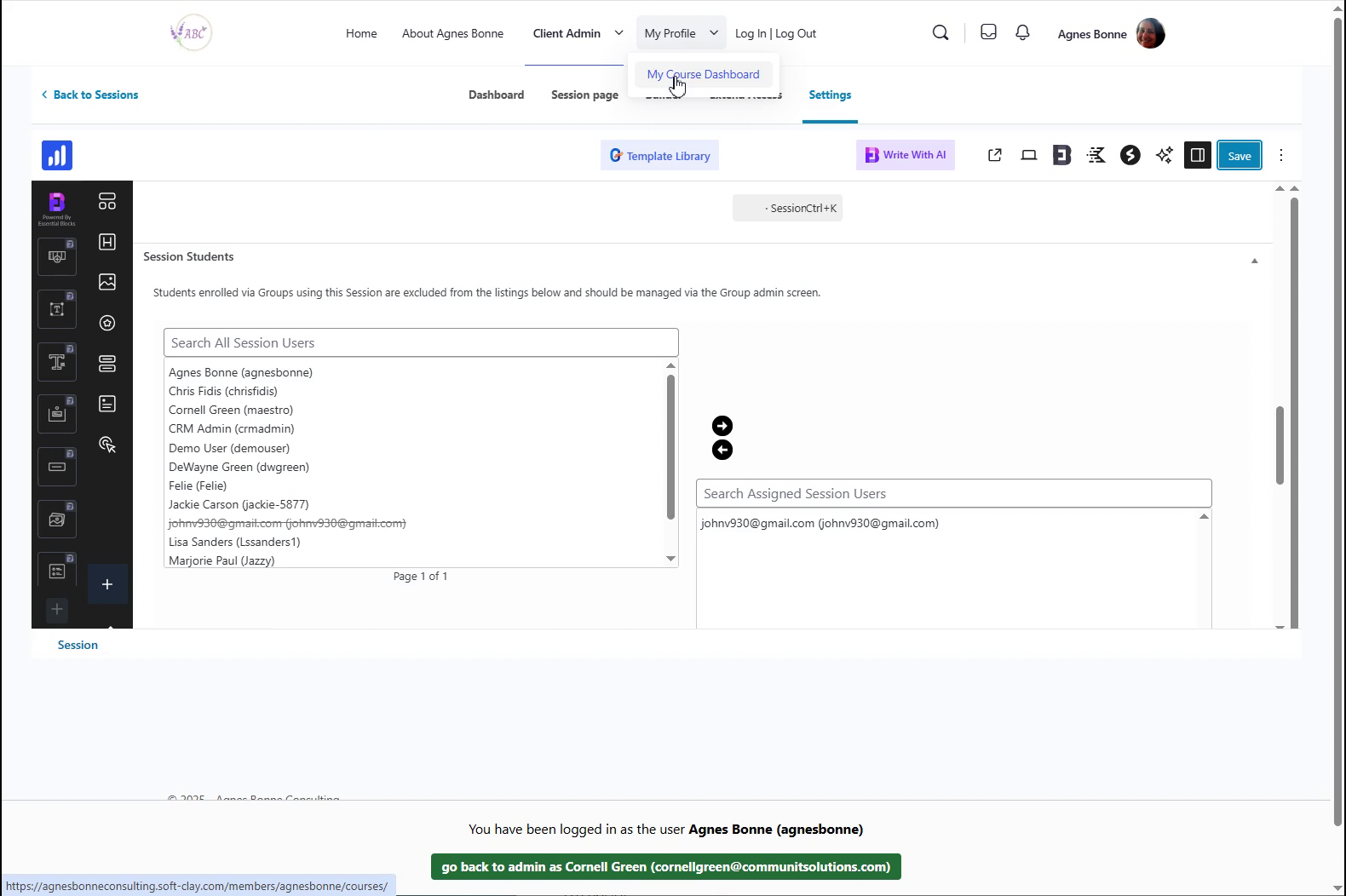
  • One last time, click the “My Profile -> My Course Dashboard” menu link
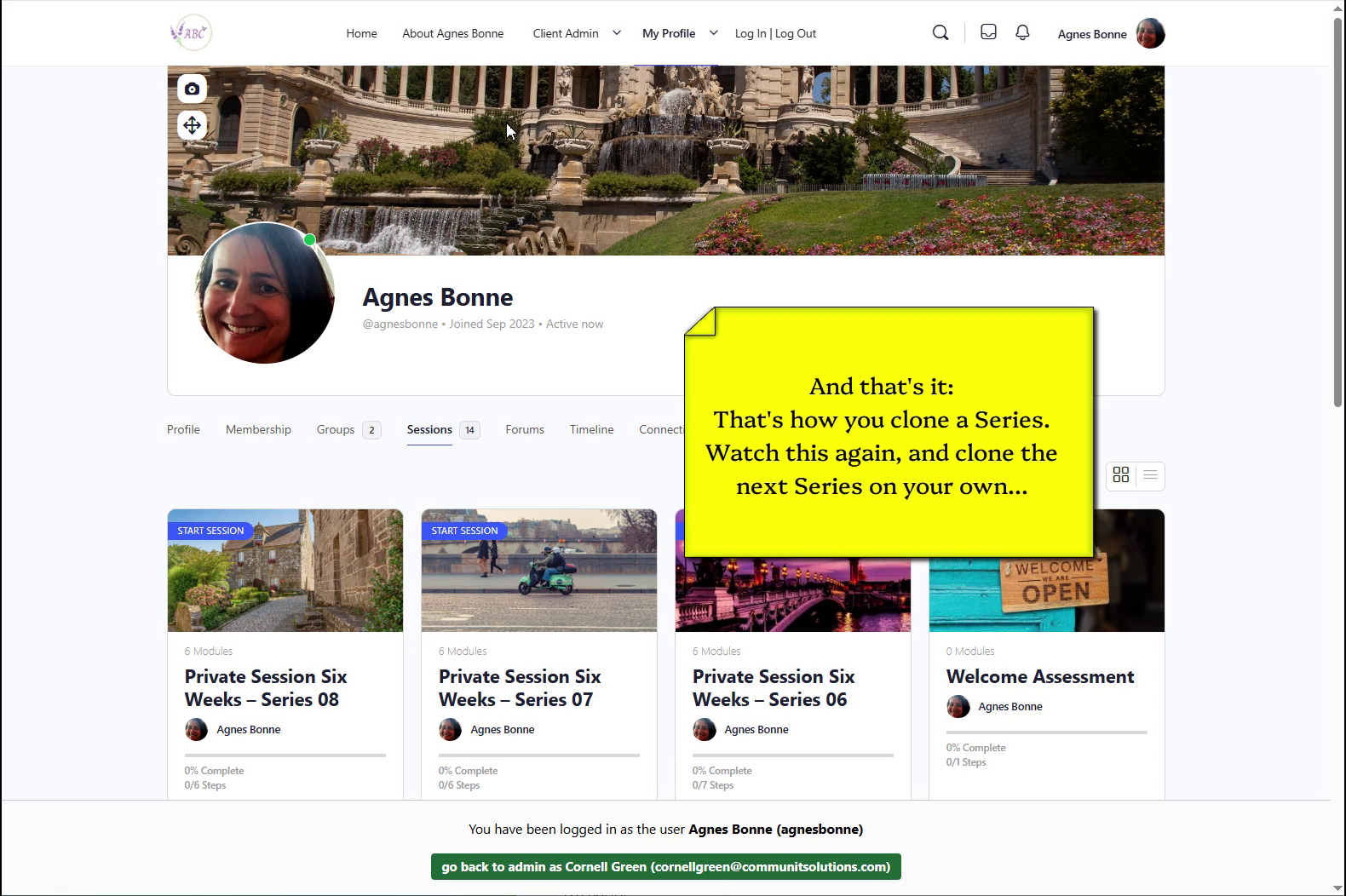
  • And, there you have it —
  • You have cloned a new Series, renamed the Sessions, replaced the Featured Image, and assigned yout student(s) to the Series you’ve just created.

Powered by BetterDocs

Responses

Your email address will not be published. Required fields are marked *